
Player
Audio and subtitles
Pick an audio or subtitle track in the player, fix subtitle timing with the synchronize panel, and set how subtitles look.
In the player, Audio and Subtitles pick a track; the gear in the subtitle list opens the synchronize panel for subtitles that are early or late. Defaults live in App settings.
Pick an audio track#
The Audio button (headphones) is in the bottom row of the bar. It appears only when the file has more than one audio track.
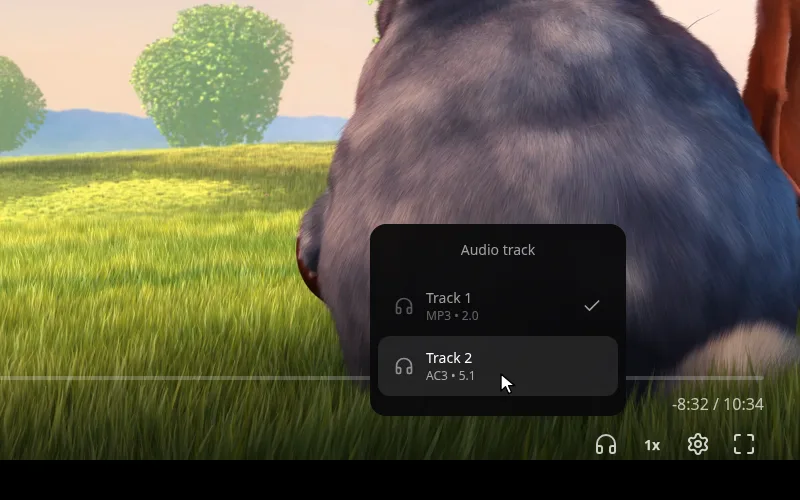
Pick a track and the sound changes without a restart. A track the device cannot play is greyed out. You can also choose before pressing play, in the Audio list of the title page.
Subtitles in the player#
To search, download, import, translate or delete subtitle files, use the Edit subtitles dialog of the title page.
Pick a subtitle track#
The Subtitles button (a caption icon) is next to Speed. It appears only when the title has at least one subtitle track.
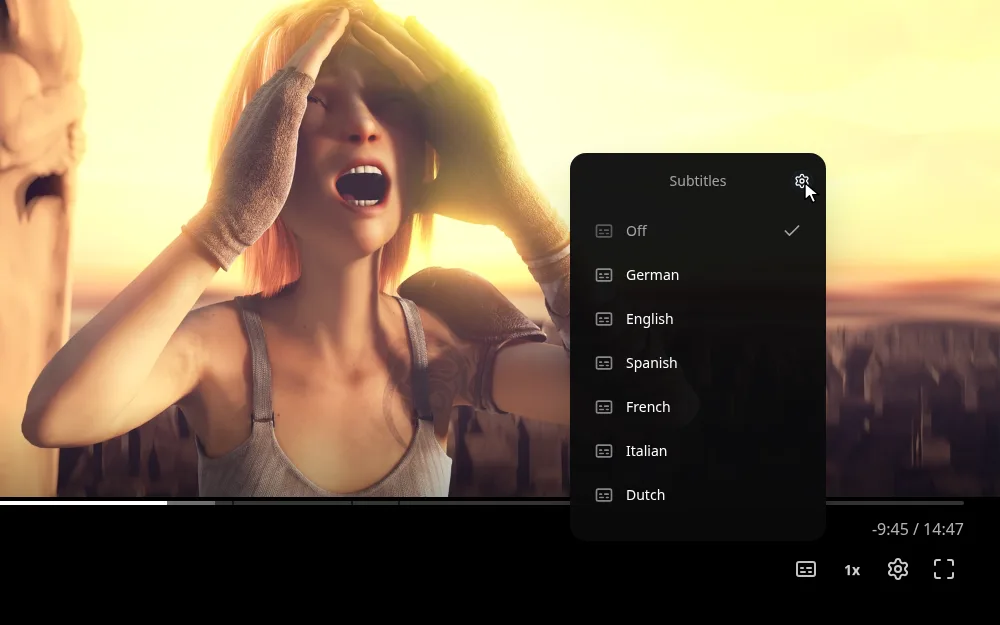
Choose Off or a language. Text subtitles switch on instantly. A track marked image is a picture of the text: it forces the server to burn it into the video, which restarts the stream as a transcode. Those tracks are hidden by default, see Burned-in subtitles.
Your choice is remembered on this device and carries over to the other episodes of a series. You can also choose before pressing play, in the Subtitles list of the title page.
Fix the timing while you watch#
Pick the track, press the gear at the top right of the Subtitles list, then Open synchronize panel. The example fixes an imported English file that shows its lines about 2.5 seconds late.
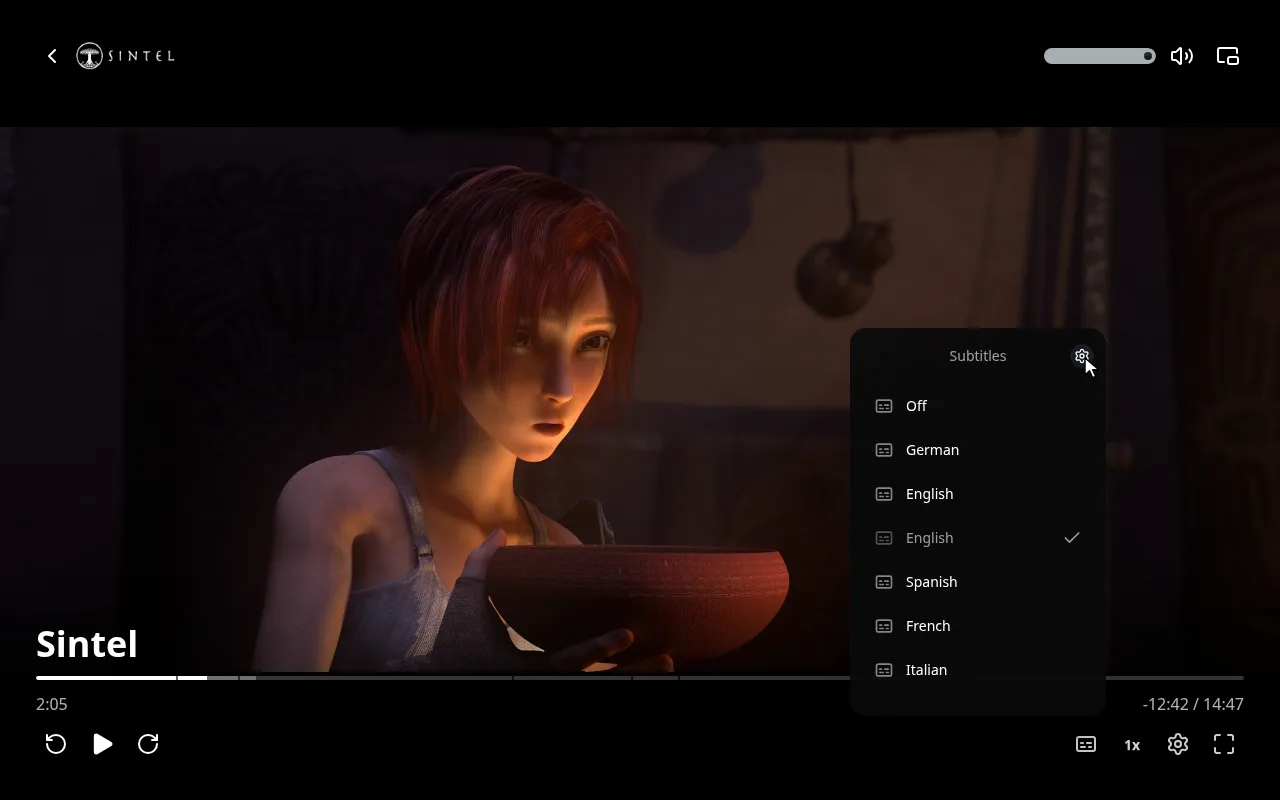
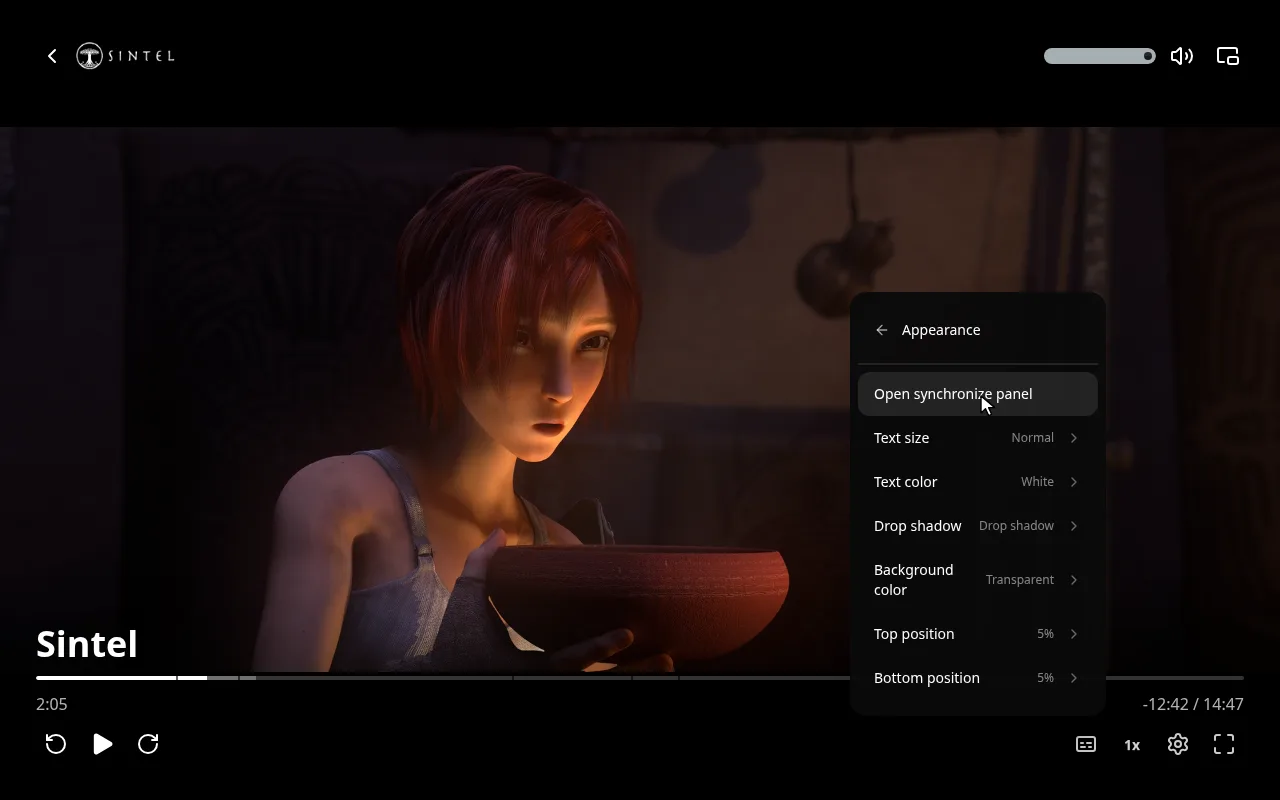
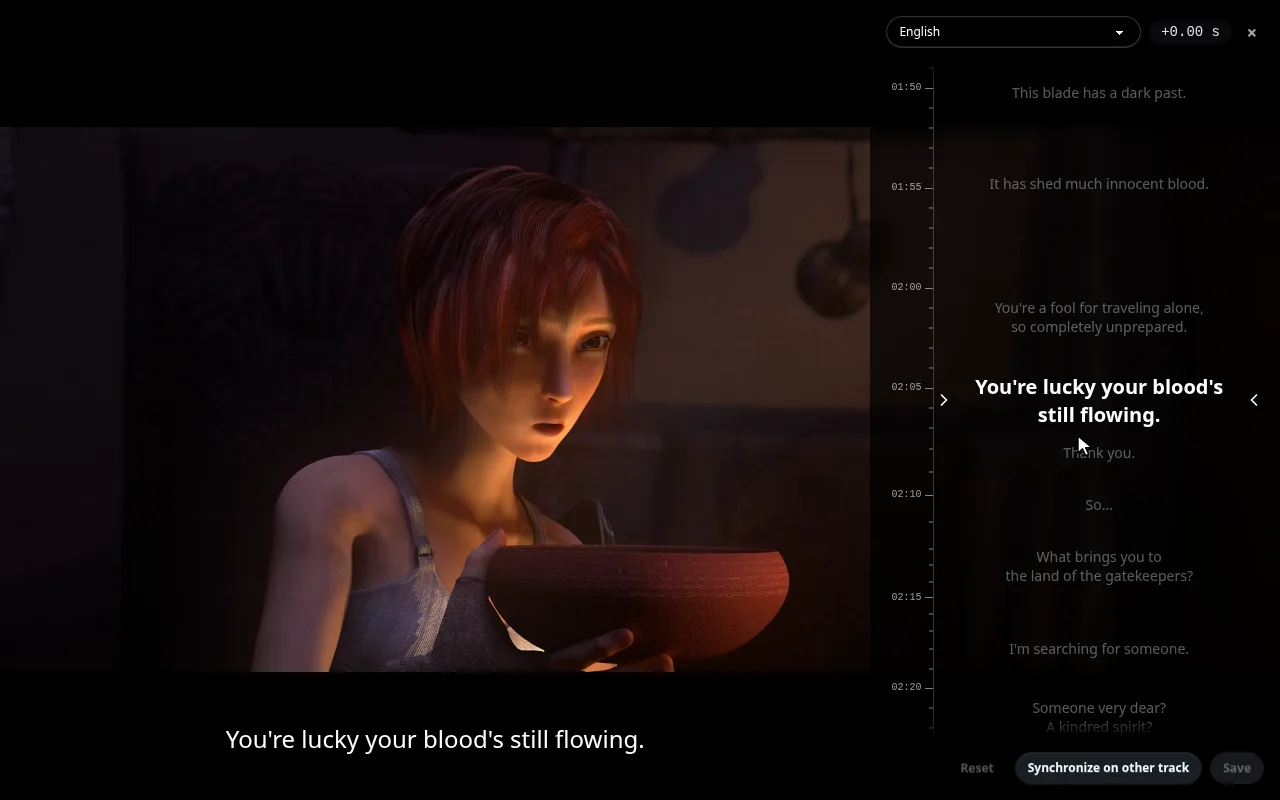
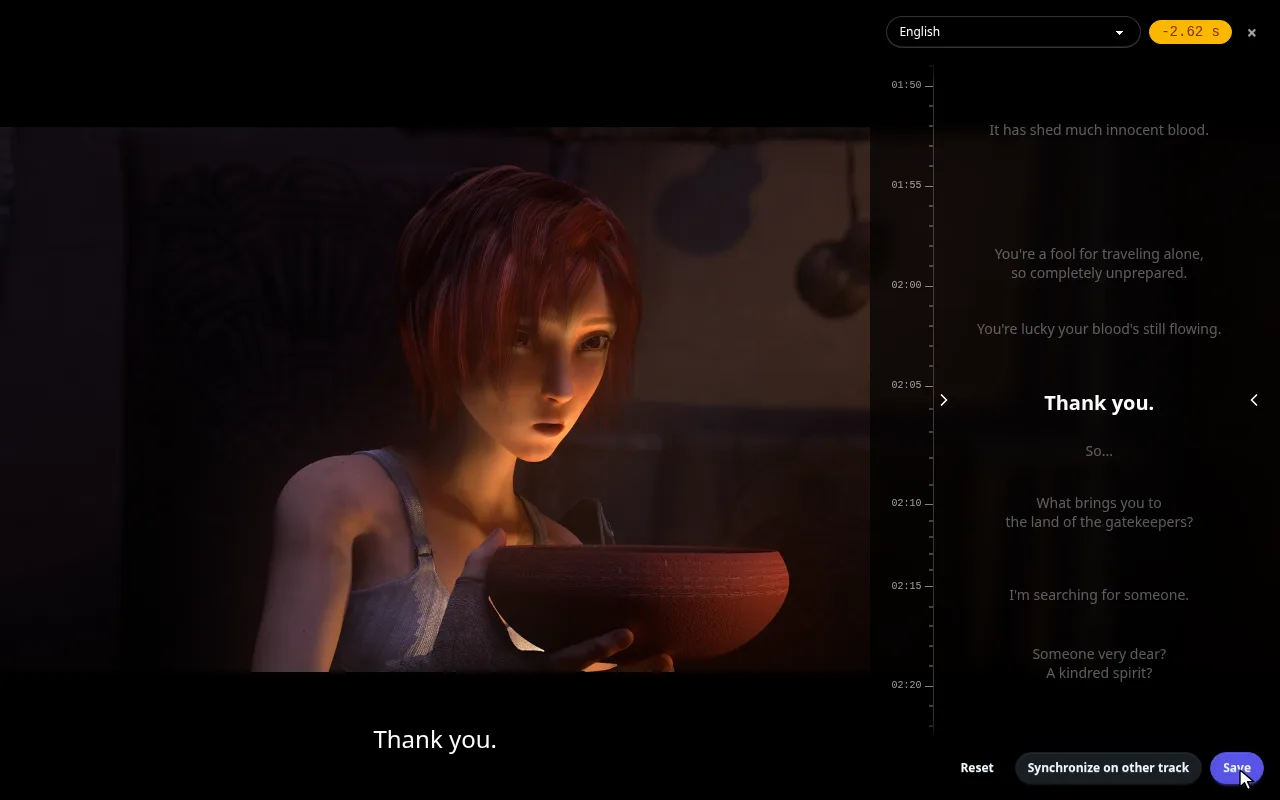
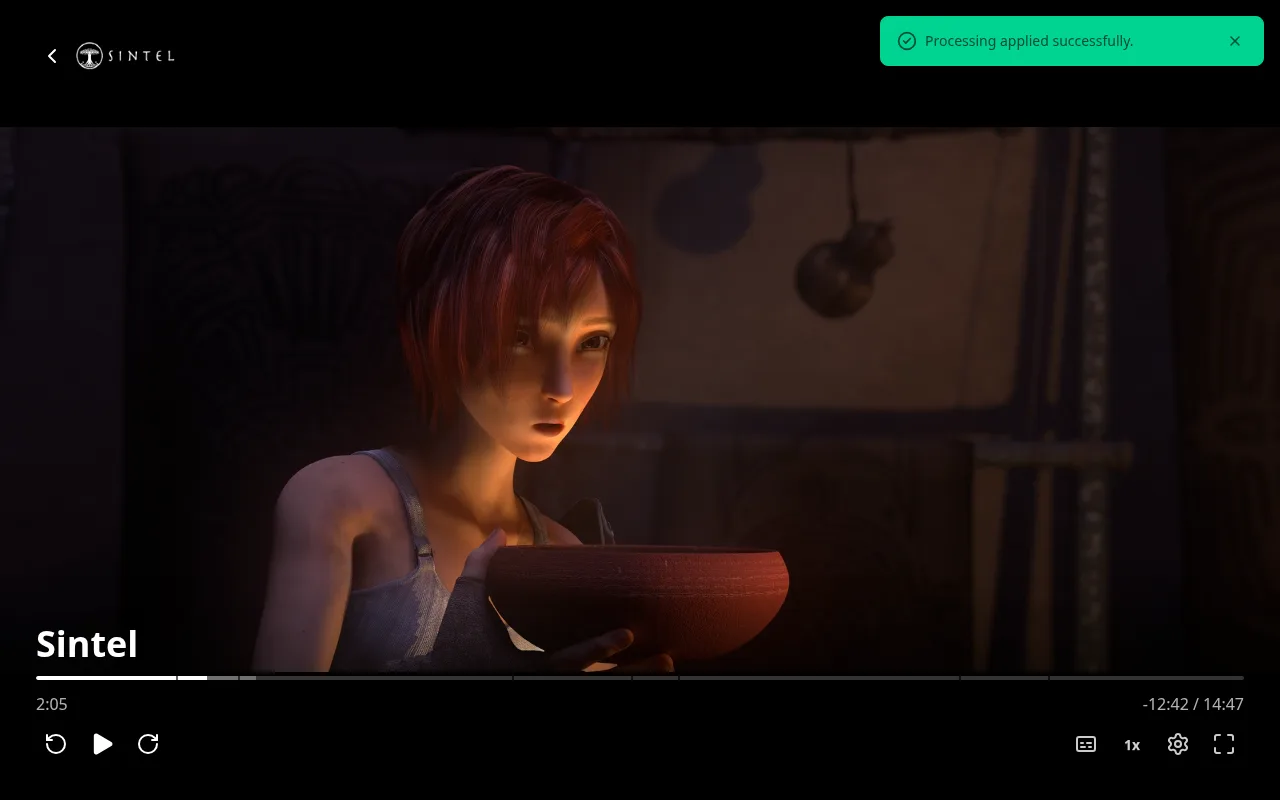
This needs the Manage subtitles permission and a text track. To sync a file without playing the video, or to sync it automatically, see Subtitles.
What the synchronize panel offers
The panel lists the cues on a timeline that follows the video. The subtitles on the picture update as you move them.
- Move the timing. Scroll the list, drag it, or swipe on a touch screen. A badge shows the shift. With a keyboard or a TV remote, press Enter or OK on the timeline, then Up and Down shift by 100 ms. Esc or Back ends it.
- Save applies the shift to the file. Reset drops it.
- Synchronize on other track runs the automatic sync against the audio, another subtitle track or a file.
- The track picker at the top switches to another text track. Closing with an unsaved shift asks you to confirm.
An embedded track can be previewed here but not saved: download or import a separate file first. The panel is not offered while casting. On a phone it opens as a sheet.
Change how subtitles look#
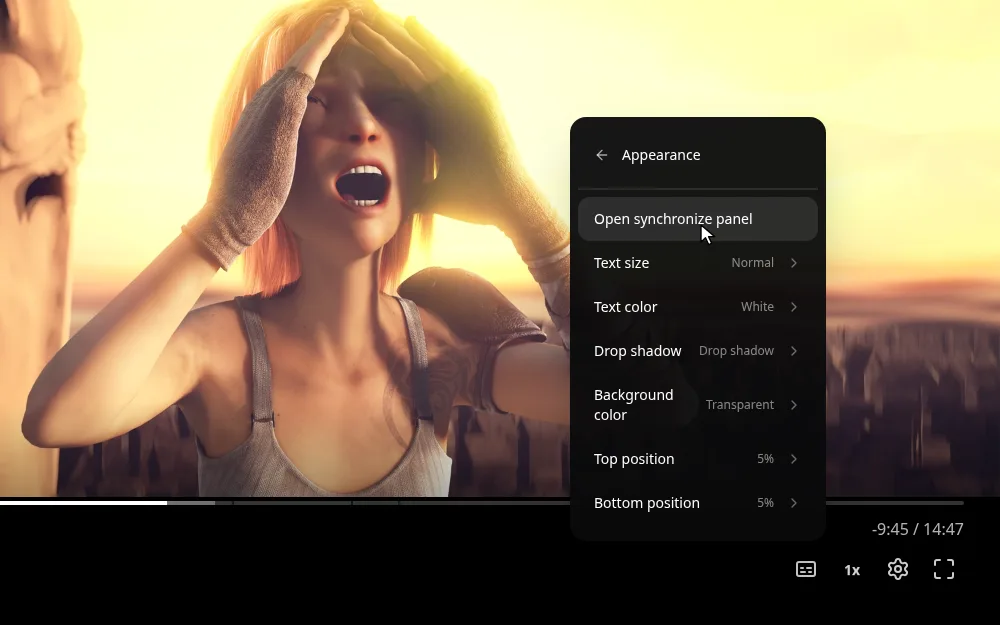
Size, color, shadow, background and position are settings of your device, not of the title.
Open the user menu (your avatar, top right), then App settings, then Subtitles in the left list.
Or change them while you watch: Subtitles, then the gear, then the Appearance rows.
Every subtitle setting of App settings
| Setting | Options |
|---|---|
| Preferred subtitle language | Any language |
| Subtitle mode | Off, forced only, smart (the default: a full track when the audio is in another language, only the forced track when it is already in your preferred language), always |
| Hearing-impaired subtitles (SDH) | Avoid (default), no preference, prefer |
| Remember subtitle selections | On (default) or off; remembered per show |
| Hide image subtitles | On by default: keeps PGS and VobSub tracks out of the picker on this device, and keeps styled ASS/SSA from being burned in |
| Show the file format | Adds SRT, VTT, ASS and so on next to each track in the picker |
| Text size | Very small to extra large |
| Text color | White, yellow, green, cyan |
| Drop shadow | None, drop shadow, outline, raised |
| Background color | Transparent, semi-transparent black, black |
| Subtitle position | Bottom edge and top edge positions |
Clear saved track selections, at the bottom of App settings > Subtitles, forgets the track you picked for each title.
Which tracks play first
When you open something new, Fliks picks the audio and subtitle track from your settings. The audio rules are in App settings > Playback.
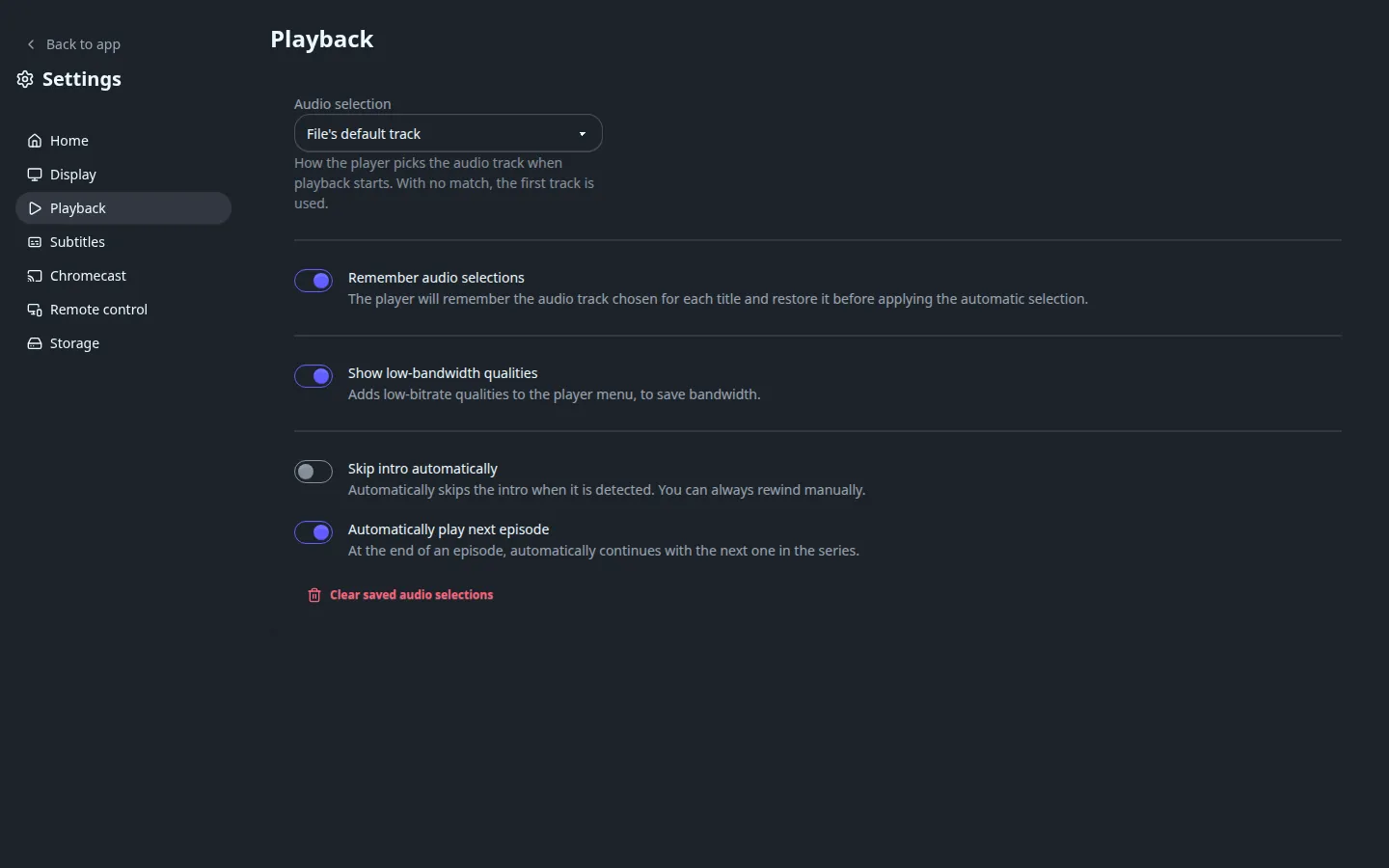
| Setting | Options | Default |
|---|---|---|
| Preferred audio language | Any language | None |
| Audio selection | Preferred language, title's original language, file's default track, or first audio track | File's default track |
| Remember audio selections | On or off | On |
When the chosen rule finds no match, the first audio track plays. Your own pick in the player always wins, and is remembered per device for that title.