
Administration
Library cleanup
Flag stale movies, series, seasons and episodes with rules, warn people before they leave, and remove them automatically or by hand.
Cleanup frees disk space by flagging titles nobody watches and, optionally, deleting them after a grace period. It does nothing until you write a rule, so a library that is a fixed collection of your own files can skip it. Create a rule with Flag only, check it with Preview, and only then think about deleting.
A rule with the action Delete media and files removes the title's whole folder from the disk and nothing brings it back. Always run Preview on a new rule, start with Flag only, and keep Maximum removals per run low. A rule with no Grace period never deletes anything by itself.
Create a safe cleanup rule#
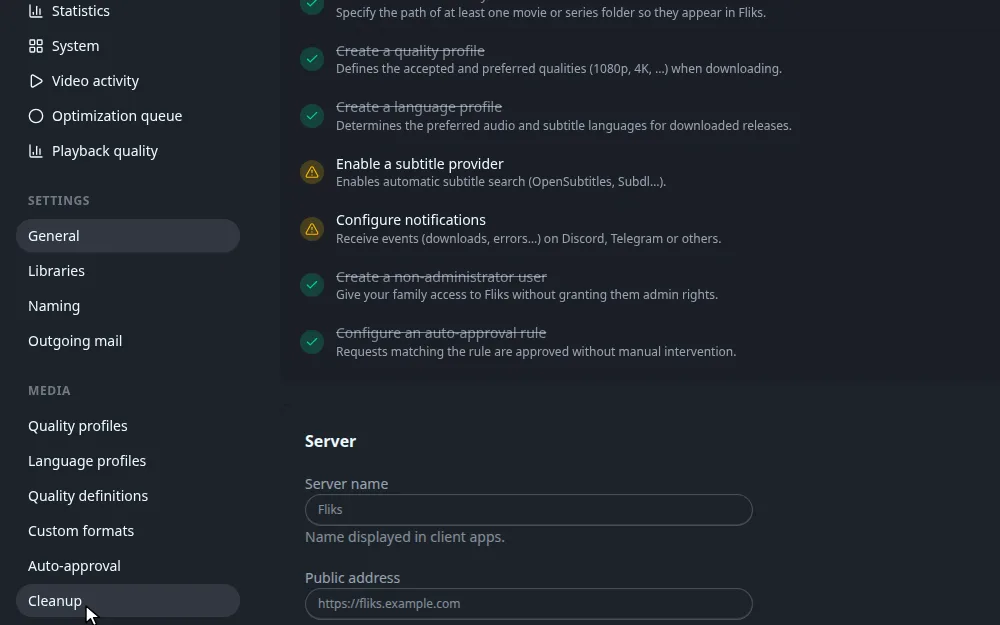
Open Settings > Cleanup (Media section of the admin sidebar). You need the Settings access permission. This walk-through builds a rule that deletes nothing.
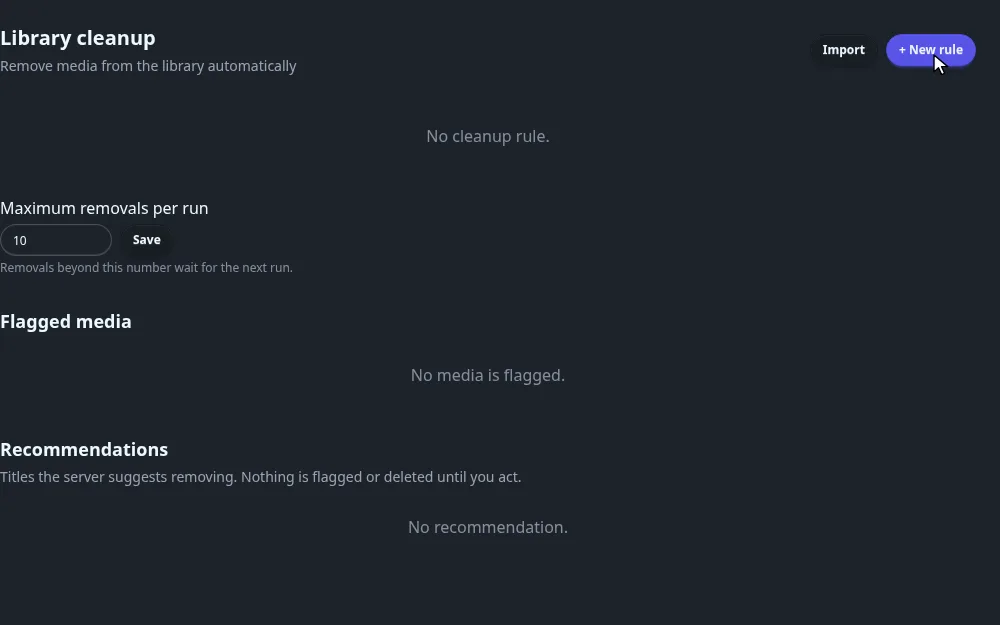
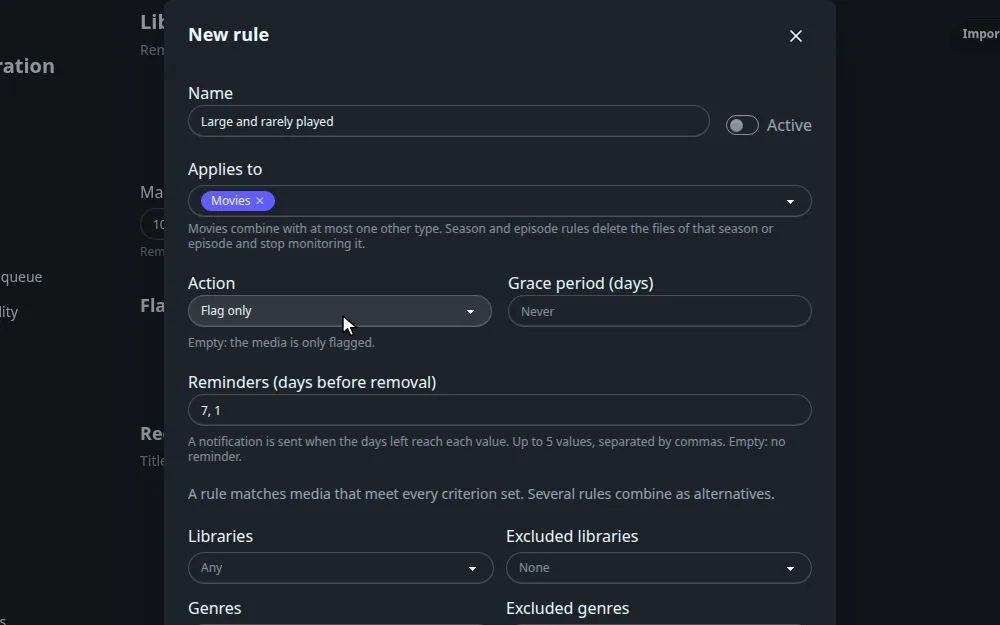
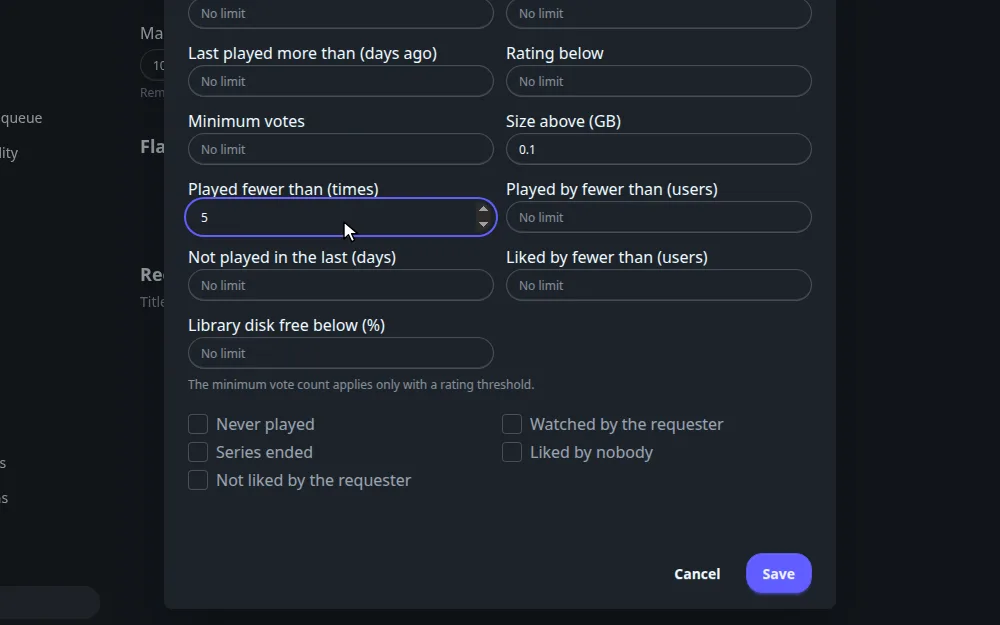
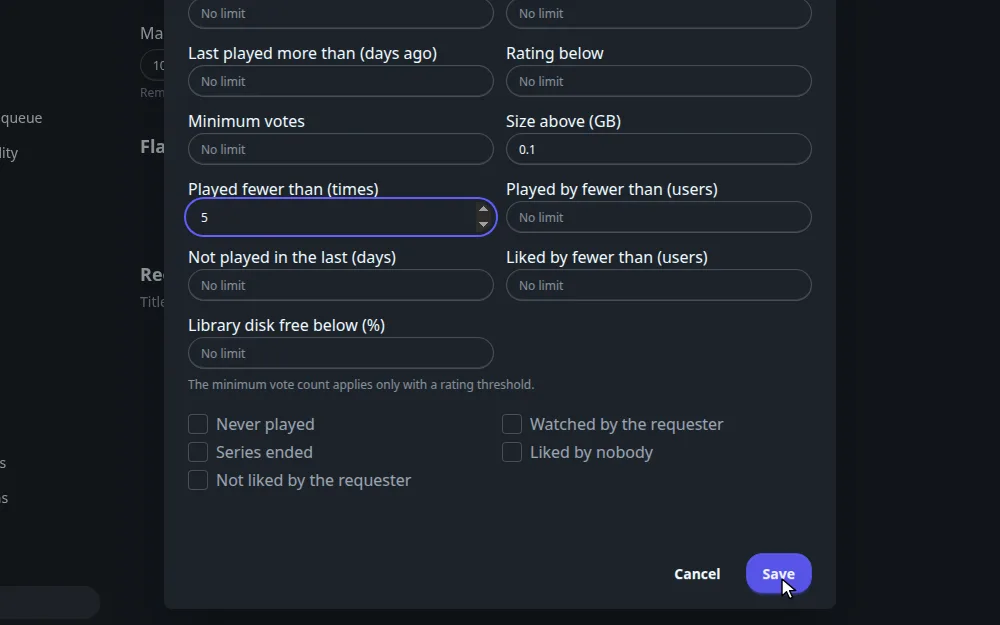
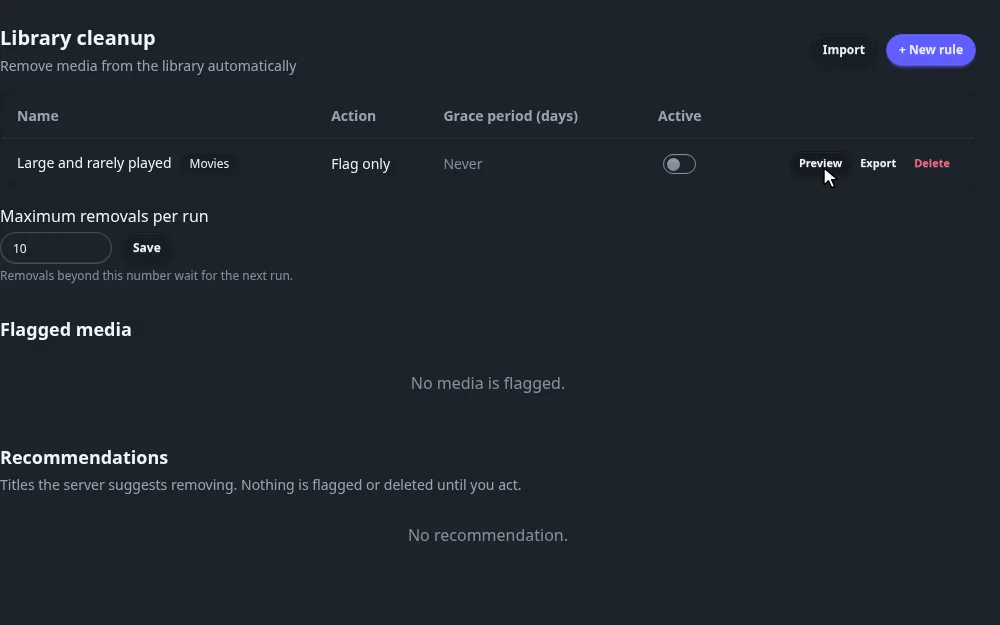
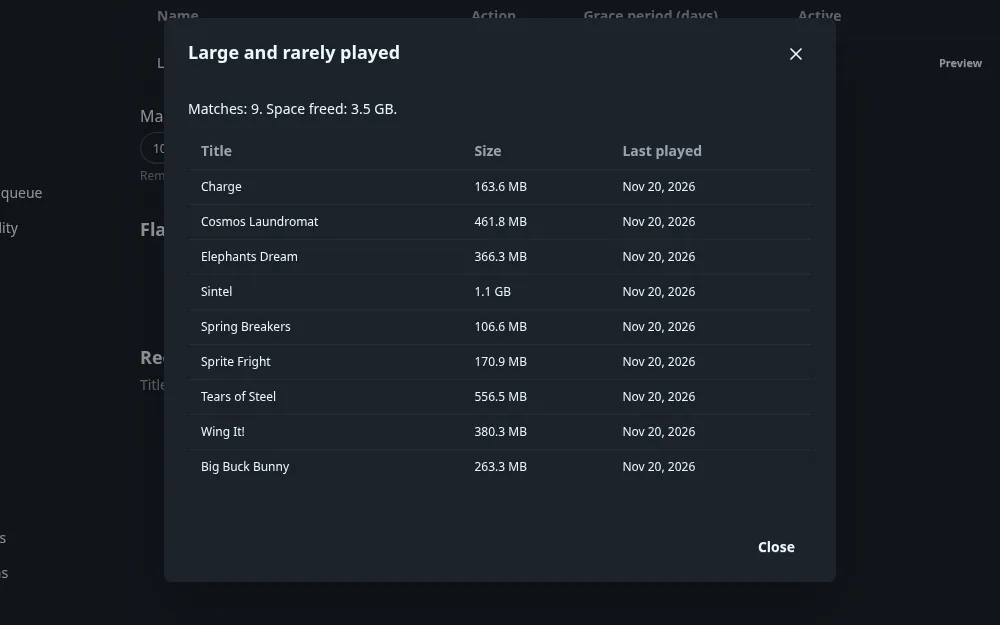
A new rule starts Active, with the action Delete media and files, no grace period and the reminders 7, 1. With no grace period nothing is removed automatically, but once you type a number of days the first flagged title will be deleted when it ends. Change the action before you set a grace period.
What happens after you save#
Every day at 05:00 (server time zone) the Clean up the library task flags what the enabled rules match, then runs the action on flagged titles whose grace period has passed. A title that stops matching, for example because someone played it, loses its flag at the next run.
- Everyone who can see the library gets a Leaving soon row on the home page and a badge on the title's page.
- Connections set in Settings > Notifications get a Leaving soon message, then reminders, then Cleaned up.
- Maximum removals per run (default 10) caps removals per run. Set it to 0 to keep flags and reminders but stop automatic removal.
Keep or delete a flagged title#
The Flagged media list shows each flagged title with its rule, size and days left. Keep removes the flag and protects the title from every rule. Delete now runs the rule's action at once, after a confirmation, and also needs the Delete media permission. Tick rows to act on several at once.
Rules: every field, criterion and action
| Field | What it does |
|---|---|
| Name | A label. Required. |
| Active | On by default. A switched-off rule flags nothing and loses its flags at the next run. |
| Applies to | The kinds of title the rule looks at, see below. |
| Action | What happens when the grace period ends, see below. New rules start on Delete media and files. |
| Grace period (days) | How long a title stays flagged before the action runs. Empty means flag only, with no date. |
| Reminders (days before removal) | When to send Leaving soon notifications. Default 7, 1. |
| Criteria | The tests, see below. Every one you set has to hold. |
Applies to#
Pick Movies, Series, Seasons and Episodes. Movies can be combined with at most one of the other three. A series rule looks at the whole title. A season or episode rule looks at one season or one episode with files, and flags it on its own.
Criteria#
A rule matches a title that meets every criterion it sets. A criterion left empty is ignored.
| Criterion | Matches |
|---|---|
| Libraries, Excluded libraries | Only these libraries, or every library except these. Empty means all. |
| Genres, Excluded genres | A title with at least one of the genres, or with none of them. |
| Added more than (days ago) | Added to the library longer ago than that. For a season or episode, the date of its newest file. |
| Released more than (days ago) | Released longer ago than that. For a season or episode, the air date of its latest episode. |
| Last played more than (days ago) | Nobody played it since then. A title nobody ever played also matches. |
| Never played | Nobody ever started it. |
| Played fewer than (times) | Fewer entries in the play history than that. |
| Played by fewer than (users) | Played by fewer distinct users than that. |
| Not played in the last (days) | No entry in the play history during that period. |
| Watched by the requester | At least one user requested it and every user who requested it has watched it. |
| Rating below, Minimum votes | A rating above 0 and under the threshold. Minimum votes only applies together with a rating. |
| Size above (GB) | Files take more than that. |
| Series ended | A series marked as ended. |
| Liked by nobody, Liked by fewer than (users) | Nobody liked it, or fewer distinct users than that. |
| Not liked by the requester | None of the users who requested it liked it. |
| Library disk free below (%) | Only libraries whose disk has less free space than that. |
| Keep the latest episodes (per series) | Leaves out the newest episodes of each series that have files. Only on a rule that applies to episodes alone. |
Played fewer than, Played by fewer than and Not played in the last are not available on season and episode rules.
Several rules combine as alternatives: a title is flagged if any enabled rule matches it. When more than one matches, the rule created first owns it and its grace period applies.
Action and grace period#
| Action | What happens when the grace period ends |
|---|---|
| Delete media and files | Removes the title from the library and deletes its folder on disk. |
| Delete files and stop monitoring | Deletes the files, keeps the title in the library and stops monitoring it. |
| Flag only | Nothing. The title stays on the list until you act. |
The Grace period (days) is how long a title stays flagged before the action runs. Leave it empty to flag without a date: the title appears in Flagged media with no date and is never removed by the job.
A season or episode rule always deletes the files of that season or episode and stops monitoring it, whichever of the first two actions is selected. Remove the series once no file is left then also removes the series itself when no file remains in it.
Changing a rule's grace period does not move the date of a title that is already flagged.
Delete media and files is destructive and cannot be undone. The title's entry is removed from
Fliks and its folder is deleted from the disk with everything inside, including files Fliks does
not manage. A folder outside the library root, or one shared with another title or library, is
left in place, and only the entry is removed. Delete files and stop monitoring, and season
and episode rules, delete the video files, the subtitle files Fliks has recorded beside them and the
.edl skip list of each video, if there is one. They do not
come back unless you download them again. Try a rule with Preview before you turn it on.
Requests for a title that is removed or unmonitored are closed: one still in progress is declined, and a downloaded one is marked Removed, so the title can be requested again. See Requests.
Preview#
Preview lists everything a rule matches right now, with the total size it would free. It changes nothing, and works on a rule that is switched off. Titles you chose to keep are left out.
The schedule, who sees the flag, and reminders
Every day at 05:00 (server time zone), the Clean up the library task in Settings > Scheduled tasks flags what the enabled rules match, then runs the action on flagged titles whose date has passed. A rule you switch off loses its flags too. You can run the task by hand from the Scheduled tasks page. Removing a title by hand is not counted against Maximum removals per run.
Who sees the flag#
Every user who can open the library sees it, not only admins:
- Titles flagged with a date appear in a Leaving soon row on the home page, soonest first. Each card reads "Leaving today" or "Leaving in N days".
- The title's page carries the same badge. For a series with a flagged season or episodes it shows badges such as "Season 2: Leaving in 3 days" or "3 episodes: Leaving in 5 days".
Titles flagged under a switched off rule, and titles with no date, are not shown to viewers.
Reminders#
Fliks sends a Leaving soon notification when a title is first flagged with a date, then another each time
its days left reach one of the rule's Reminders (days before removal). The default is 7, 1.
Enter up to five whole numbers, separated by commas. With the field empty, only the first
notification goes out. When the action has run, a Cleaned up notification is sent.
Notifications go to the connections set up in Settings > Notifications (Discord, Slack, a
webhook, Gotify or ntfy), not to individual users. Turn on the media.leaving_soon and
media.cleaned_up events on the connection to receive them.
Flagged media: details and bulk actions
The Flagged media list shows every flagged title under an enabled rule: title (with the season and episode for a scoped rule), the rule, the size and the days left, soonest first.
| Action | Effect |
|---|---|
| Keep | Removes the flag and protects the title: no rule flags it again. Keeping a season or episode protects that one and stops whole-series rules from flagging the series. The app has no button to undo it. |
| Delete now | Runs the rule's action immediately, after a confirmation, without waiting for the date. For a Flag only rule on movies or series it deletes the title and its files. |
Tick the boxes to select several rows. The header shows the count and the total size, with Keep and Delete now for the whole selection. A bulk action takes at most 200 rows, and the page reports how many succeeded and how many failed.
An admin can lift a Keep through the API with DELETE /api/cleanup/exclusions/<mediaId>, adding
?seasonId= or ?episodeId= for a season or an episode.
Recommendations
Below the flagged list, Recommendations suggests titles to remove. Nothing is flagged or deleted until you act. A title appears when it meets one of these reasons:
| Reason | Meaning |
|---|---|
| Never played | Added more than 90 days ago and never played. |
| Watched by the requester | Watched by the user who requested it, and not played by anyone for 60 days. |
| Not played for a year | Added more than a year ago and not played in the last year. |
| Series ended | An ended series, added and last played more than 180 days ago. |
Movies and series are covered, and the list leaves out titles that are already flagged or that you kept. It is sorted by size, biggest first, with 20 titles per page. Filter it by reason, by library, and by a minimum and maximum size in GB.
Each row has Keep and Delete now. Delete now deletes the title and its folder like Delete media and files. Click a reason badge to open the rule editor with that reason's criteria filled in, to turn it into a rule.
Worked example: free space when the disk fills up
Goal: when the disk of the Movies library has under 10% free, remove movies nobody has played for six months, with a week of notice, and never more than 5 a day.
- Name:
Free space when the disk fills up. Applies to: Movies. - Libraries: Movies. Library disk free below (%):
10. Last played more than (days ago):180. - Action: Delete files and stop monitoring. Grace period (days):
7. Reminders:7, 1. - Maximum removals per run:
5.
Build it with Flag only first and run Preview to see what it would take. Then:
- While the disk has more than 10% free, the rule matches nothing.
- Once it drops under 10%, the next daily run flags every movie not played for 180 days. Each shows as "Leaving in 7 days" on its card, and a Leaving soon notification goes out.
- Anyone can still play a movie during that week. Playing it makes it stop matching, and it loses its flag at the next run. You can also click Keep on it.
- A week later the action runs, five titles a day at most: the video files and their recorded subtitle files are deleted, the title stays in the library, unmonitored, and a Cleaned up notification is sent.
- If free space climbs back over 10%, the rule stops matching and the remaining flags are removed.
Export and import rules
Export on a rule downloads it as a .fliks-rule.json file. Import, at the top of the
page, loads such a file and adds the rule. An imported rule is always created switched off, so
you can review it with Preview first.
Libraries are written by name in the file, so a rule moves between servers. Rename them in the file to match your own libraries exactly, or remove the library line to cover every library. A library name that does not exist on the server makes the import fail.
An exported rule looks like this. Two examples:
{
  "fliksCleanupRule": 2,
  "name": "Never watched after a year",
  "enabled": false,
  "levels": ["movie"],
  "action": "none",
  "graceDays": 30,
  "criteria": {
    "neverPlayed": true,
    "addedOlderThanDays": 365
  }
}{
"fliksCleanupRule": 2,
"name": "Free space when the disk fills up",
"enabled": false,
"levels": ["movie"],
"action": "delete_files_unmonitor",
"graceDays": 7,
"criteria": {
"libraryIds": ["Movies"],
"diskFreeBelowPercent": 10,
"lastPlayedOlderThanDays": 180
}
}The first only flags old movies nobody started. The second frees the files of movies nobody
played for 180 days, in the Movies library, once its disk has less than 10% free.