
Features
Get notifications on your devices
Turn on notifications for a phone, computer or browser, choose what you are told about, and send a test.
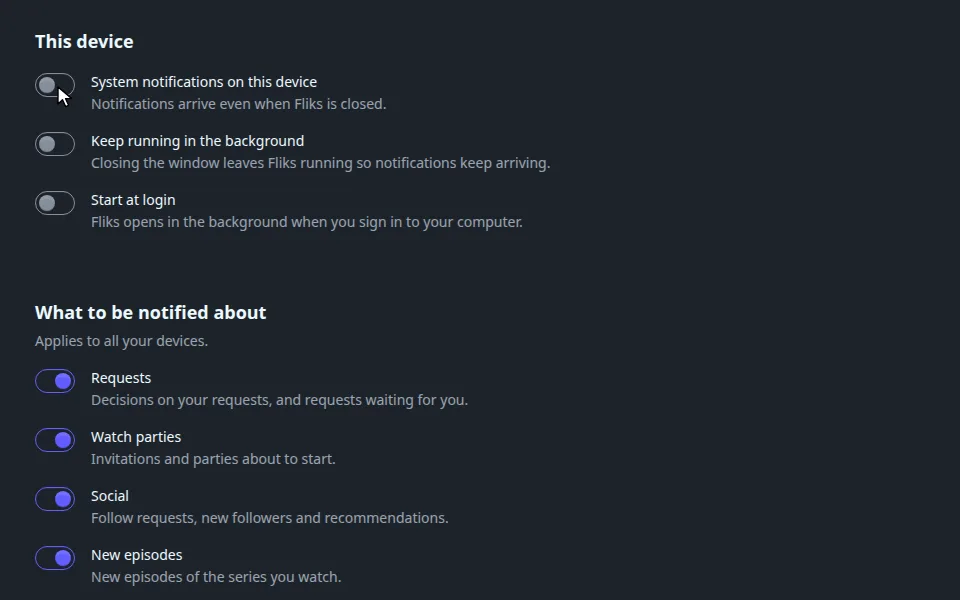
Open App settings > Notifications, switch on System notifications on this device, then keep the categories you want. Each device is set up on its own.
Turn them on#
- Open App settings > Notifications.
- Switch on System notifications on this device. A browser asks for permission first.
- Under What to be notified about, switch off what you do not want. This applies to all your devices.
- Press Send a test notification.
Muting a category and sending a test:
If the switch is missing on a phone, the page says your administrator has not enabled mobile notifications. See Push notifications.
What each category sends
| Category | When | Does |
|---|---|---|
| Requests | Your request is approved, declined or available. If you can approve, a request is waiting for you | Approve or Decline from the notification where the platform allows buttons |
| Watch parties | You are invited, or a party is about to start | Join |
| Social | A follow request, someone accepted yours, someone recommended something to you | Accept, Decline |
| New episodes | New episodes of a series you watched | Open the series. Episodes imported within 5 minutes come as one notification |
| Account | Another device asks to sign in | Open only: approving needs the code shown on the other device |
| Plugins | A plugin an administrator installed sends you something | Open. Each plugin is muted on its own |
A notification opens the page it is about. The number on the app icon is how many requests wait for your decision plus how many follow requests wait for your answer. A notification is never sent twice to the device you are using: when the app is open on the notified session, you get the on-screen message instead.
What each platform does
| Platform | How | Notes |
|---|---|---|
| iPhone, iPad | System notification, once your administrator turned on mobile notifications | Poster and Approve/Decline buttons. The app icon shows a number |
| Android | System notification, once your administrator turned on mobile notifications | Needs Google Play services. One channel per category in the system settings. The launcher shows a dot, not a number |
| Browser | Web Push, nothing for the administrator to enable | Needs HTTPS. On iPhone and iPad only for the web app added to the home screen. Safari shows no buttons, images or badge |
| Desktop app | Notifications shown by the system while the app runs | Nothing arrives once the app is quit, see below |
| TV (Android TV, Fire TV, Tizen, webOS, Apple TV) | A short message on screen, with no buttons | Only while the app is open. The switch is called In-app notifications on this device |
Desktop app: keep running in the background
The desktop app only notifies while it runs. Its page has two more switches:
- Keep running in the background: closing the window hides it, and a tray icon offers Open Fliks and Quit Fliks. On Linux it needs a system tray; without one, closing the window quits.
- Start at login: Fliks opens in the background when you sign in to your computer.
macOS shows the first action button on a notification. On Windows and Linux a click opens the page.
Limits
- No inbox: a notification you missed is not kept.
- A badge that goes down while the app is closed stays stale until the next notification or launch.
- Images need your phone to reach your server.
- You hold at most 10 devices with system notifications; the oldest is replaced.
- Signing out removes the device's subscription, even when the server is offline (it retries at the next launch).
See also#
- Push notifications: what an administrator turns on for phones.
- Alerts to Discord, Slack and ntfy: messages to a chat service, not to devices.