
Administration
Optimization
Re-encode or remux library files in the background - profiles, global settings, workers and the queue, with every option explained.
Optimization rewrites library files in the background so they play without a transcode and take less space. It is optional, a watch-only server does not need it, and it is the only tool here that changes your files. Create a profile, attach it to a library, and check what changes before applying it.
Optimize a library#
Pages show only on a server recent enough to support it. You describe the wanted state in a profile, attach it to a library, and Fliks creates a job only for files that differ from it.
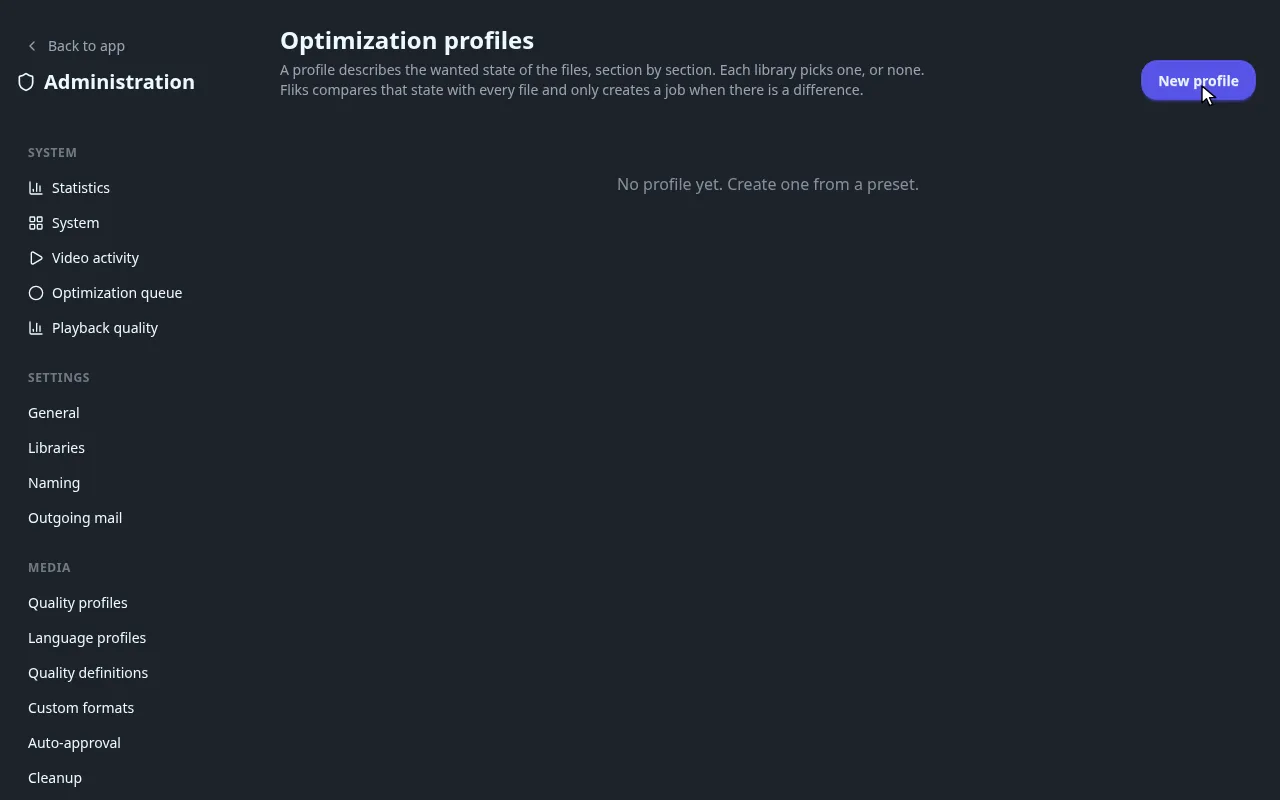
To use the profile, open the library, its Optimization tab, and choose it under Optimization profile. The tab shows how many files differ and has Open the queue. Existing files are never processed on their own: you choose when to apply the profile.
Before applying one, check what happens to the originals (default: moved to the trash for 7 days) in Settings > Optimization > Settings. Follow the jobs in System > Optimization queue: Pause the queue stops new jobs, Restore on a finished job puts the original back.
| Page | Where | What it is for |
|---|---|---|
| Profiles | Settings > Optimization > Profiles | Create and edit the wanted state. |
| Settings | Settings > Optimization > Settings | Time window, originals, verification, device sharing. |
| Workers | Settings > Optimization > Workers | Machines that do the encoding. |
| Optimization queue | System > Optimization queue | Watch, reorder and cancel jobs. |
Profiles#
Presets, eligibility, video, audio, subtitles and file options of a profile.
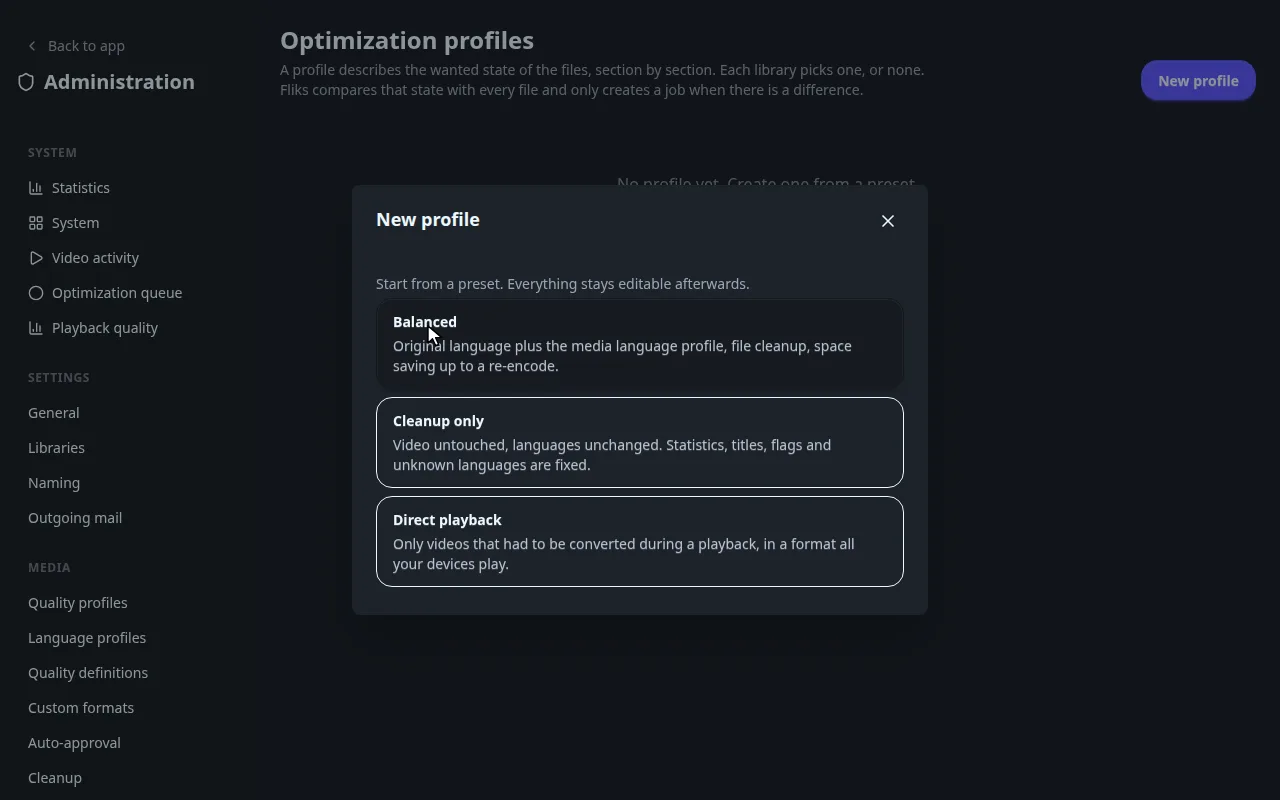
The three presets and the Optimization tab
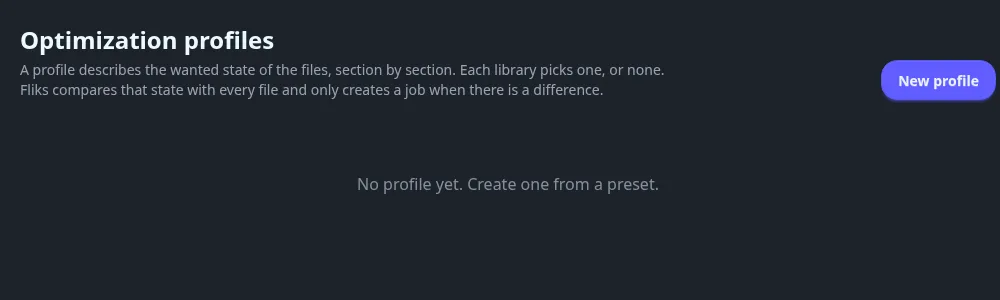
| Preset | What it does |
|---|---|
| Balanced | Original language plus the media language profile, file cleanup, space saving up to a re-encode. |
| Cleanup only | Video untouched, languages unchanged. Statistics, titles, flags and unknown languages are fixed. |
| Direct playback | Only videos that had to be converted during a playback, in a format all your devices play. |
Once saved, each profile appears in the list with a summary (Video, Audio, Subtitles, File cleanup) and the number of libraries using it. Deleting a profile leaves those libraries with no profile.
The library's Optimization tab also has Apply to new files (future imports only, after the profile's eligibility delay) and Allow renaming (needed to change an extension or the technical words in a file name).
Jobs have three levels, shown in the queue: Metadata (fix tags only), Remux (rewrite the container) and Re-encode.
Profile fields: eligibility and video
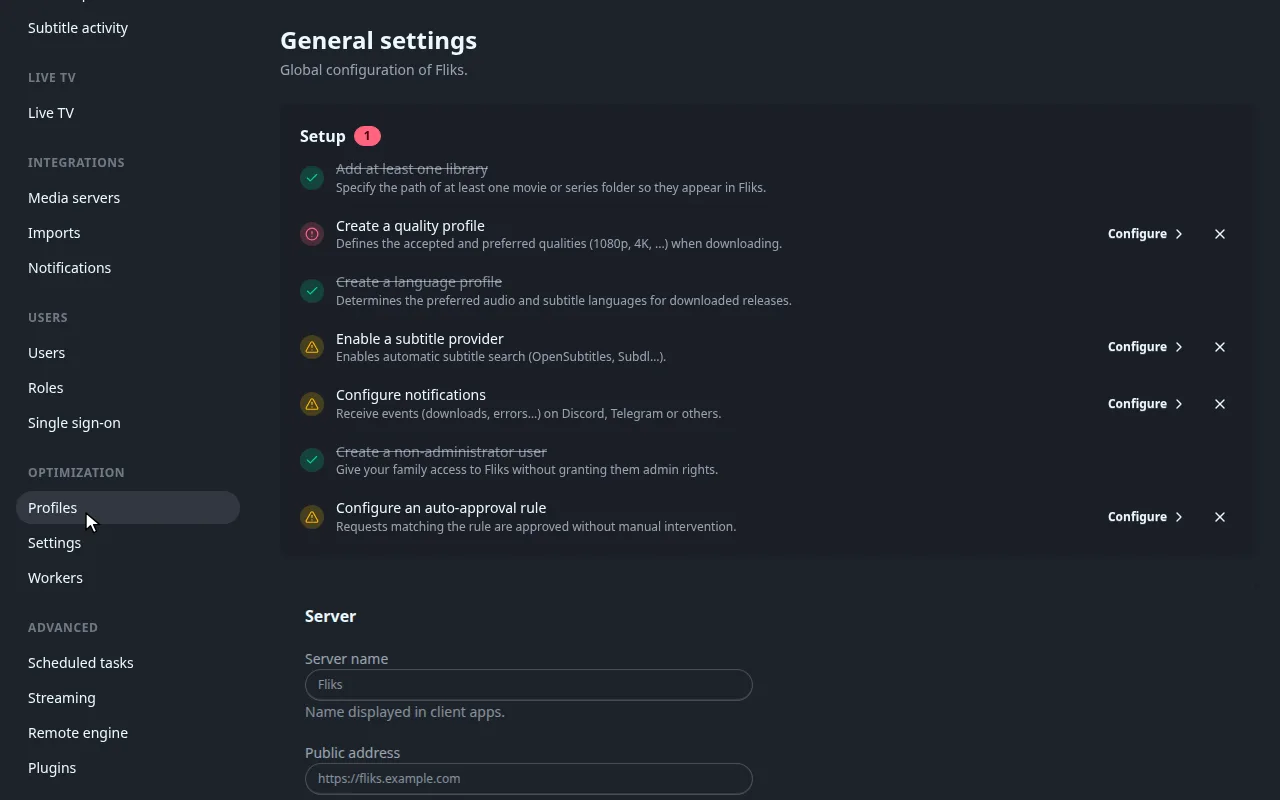
The values below are those of the Balanced preset.
Eligibility#
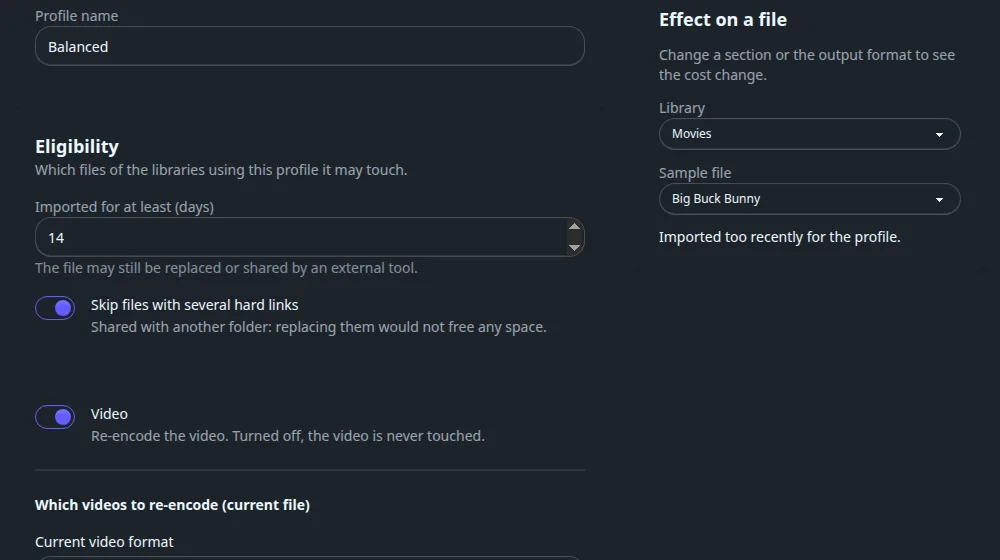
| Field | Balanced | Meaning |
|---|---|---|
| Profile name | Balanced | Required. |
| Imported for at least (days) | 14 | The file may still be replaced or shared by an external tool. |
| Skip files with several hard links | On | Replacing a file shared with another folder would free no space. |
Video#
Turn Video off and the video is never touched. On, two blocks decide which videos and into what.
| Field | Balanced | Meaning |
|---|---|---|
| Current video format | H264, MPEG2, VC1 | Only these are re-encoded. Empty means any. |
| Current bitrate of at least (Mb/s) | Empty | Empty or 0 means no limit. |
| Only if the video had to be converted during a playback | Off | Looks at the last 30 days on your devices. |
| Do not touch HDR10+ and Dolby Vision videos | On | Re-encoding would lose that information. |
Other videos are copied as they are; audio, subtitles and cleanup still apply.
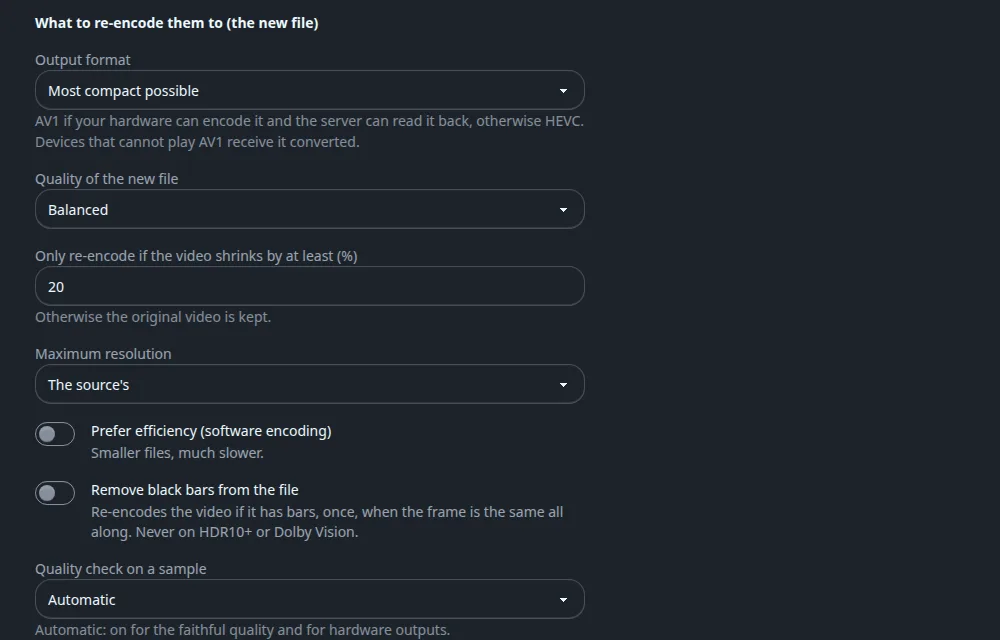
| Field | Balanced | Meaning |
|---|---|---|
| Output format | Most compact possible | Most compact possible (AV1 if your hardware can encode it and the server can read it back, else HEVC), Playable everywhere without conversion (the most compact format all your devices play), Always HEVC, Always AV1. |
| Quality of the new file | Balanced | Smaller, a bit less faithful, Balanced, More faithful, bigger. |
| Only re-encode if the video shrinks by at least (%) | 20 | Otherwise the original video is kept. |
| Maximum resolution | The source's | The source's, 2160p, 1080p or 720p. |
| Prefer efficiency (software encoding) | Off | Smaller files, much slower. When on, two more fields appear: Maximum estimated hours per file in software and When software encoding is too slow (Switch to hardware encoding or Copy the video). |
| Remove black bars from the file | Off | Re-encodes once if the frame is the same all along. Never on HDR10+ or Dolby Vision. |
| Quality check on a sample | Automatic | Automatic (on for the faithful quality and for hardware outputs), Always, Never. |
Profile fields: audio, subtitles and file
Audio#
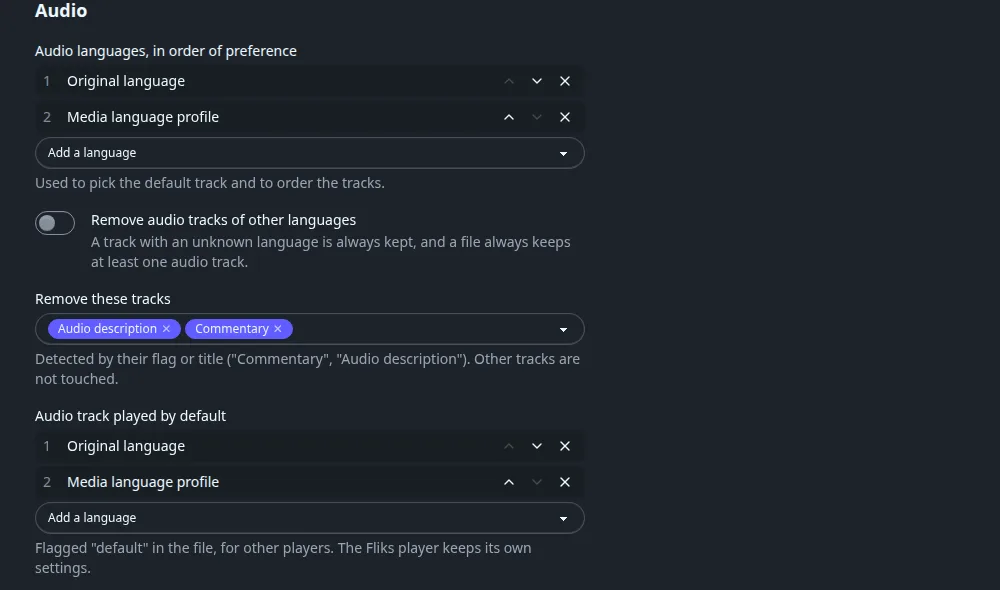
| Field | Balanced | Meaning |
|---|---|---|
| Audio languages, in order of preference | Original language, Media language profile | Picks the default track and orders the tracks. Add a language extends the list; arrows reorder. |
| Remove audio tracks of other languages | Off | An unknown-language track is always kept, and a file always keeps one audio track. |
| Remove these tracks | Audio description, Commentary | Detected by flag or title. Other tracks are not touched. |
| Audio track played by default | Original language, Media language profile | Sets the "default" flag for other players. The Fliks player keeps its own settings. |
| Order audio tracks by the languages above | On | Then best quality first within a language. Removes nothing. |
| DTS, TrueHD or PCM tracks, which some devices cannot play | Add a playable version | Change nothing, Add a playable version (keeps the original, adds E-AC3 with the same channels, else stereo AAC), Replace with a playable version (saves often 2 to 4 GB per film, but lossless sound and Atmos are lost). |
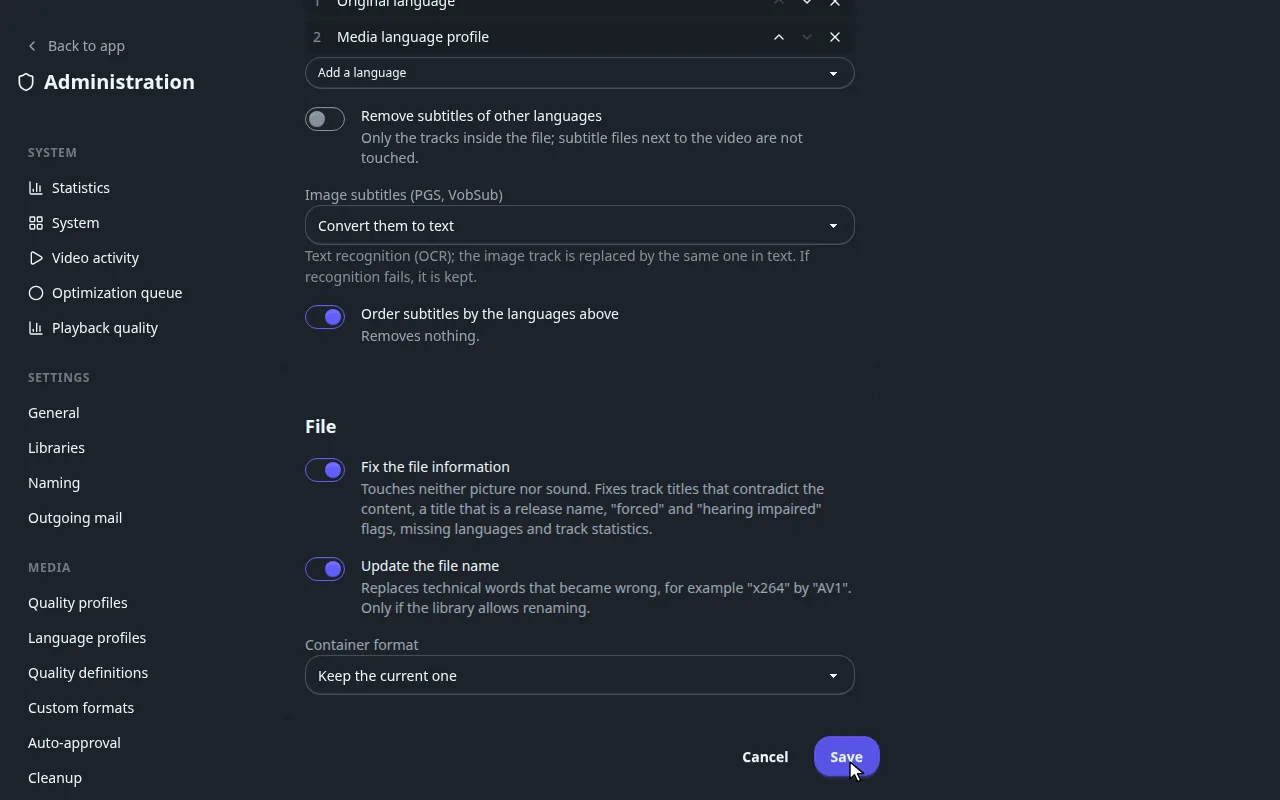
Subtitles#
| Field | Balanced | Meaning |
|---|---|---|
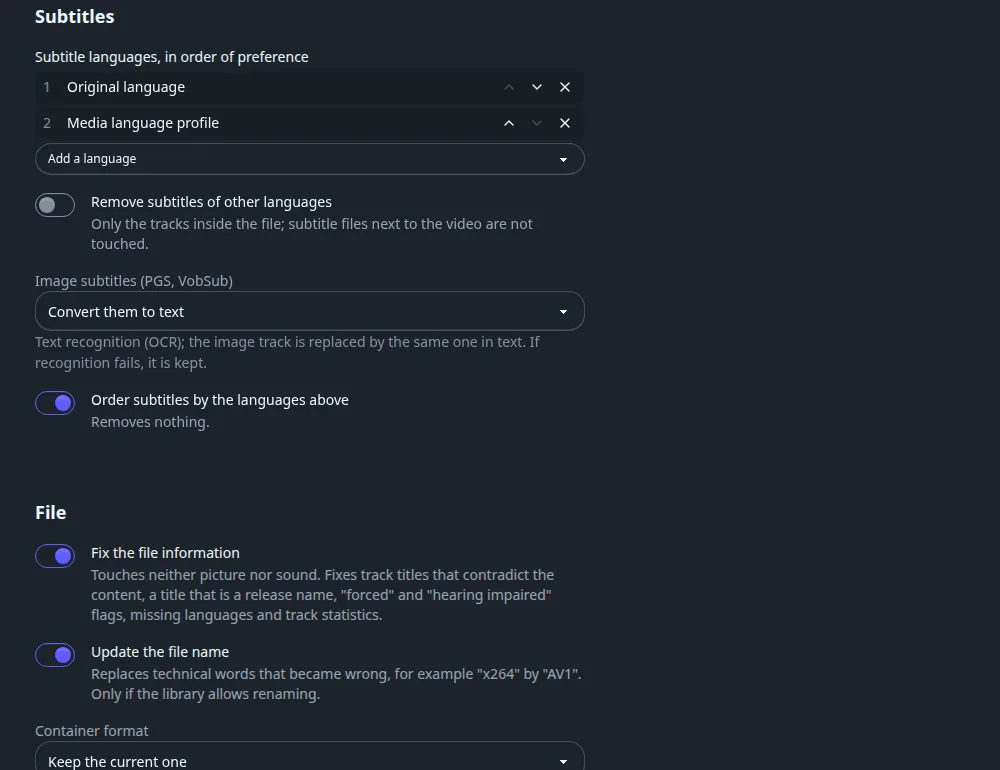
| Subtitle languages, in order of preference | Original language, Media language profile | Same list editor. |
| Remove subtitles of other languages | Off | Only tracks inside the file. Files next to the video are not touched. Languages in the media's language profile are always kept. |
| Image subtitles (PGS, VobSub) | Convert them to text | Keep them, Convert them to text (OCR, kept if recognition fails), Remove them. |
| Order subtitles by the languages above | On | Removes nothing. |
File#
| Field | Balanced | Meaning |
|---|---|---|
| Fix the file information | On | Touches neither picture nor sound. Fixes track titles that contradict the content, release-name titles, forced and hearing-impaired flags, missing languages and track statistics. |
| Update the file name | On | Replaces technical words that became wrong, such as "x264" by "AV1". Only if the library allows renaming. |
| Container format | Keep the current one | MKV or MP4. A different container changes the extension, so the library must allow renaming or the file is skipped. |
The Effect on a file panel on the right takes a library and a sample file and shows what the profile would do to it and the cost, one pass or several. It says Imported too recently for the profile when the eligibility delay applies.
Settings#
Time window, what happens to the originals, verification and device sharing.
Optimization settings: time window, originals, verification
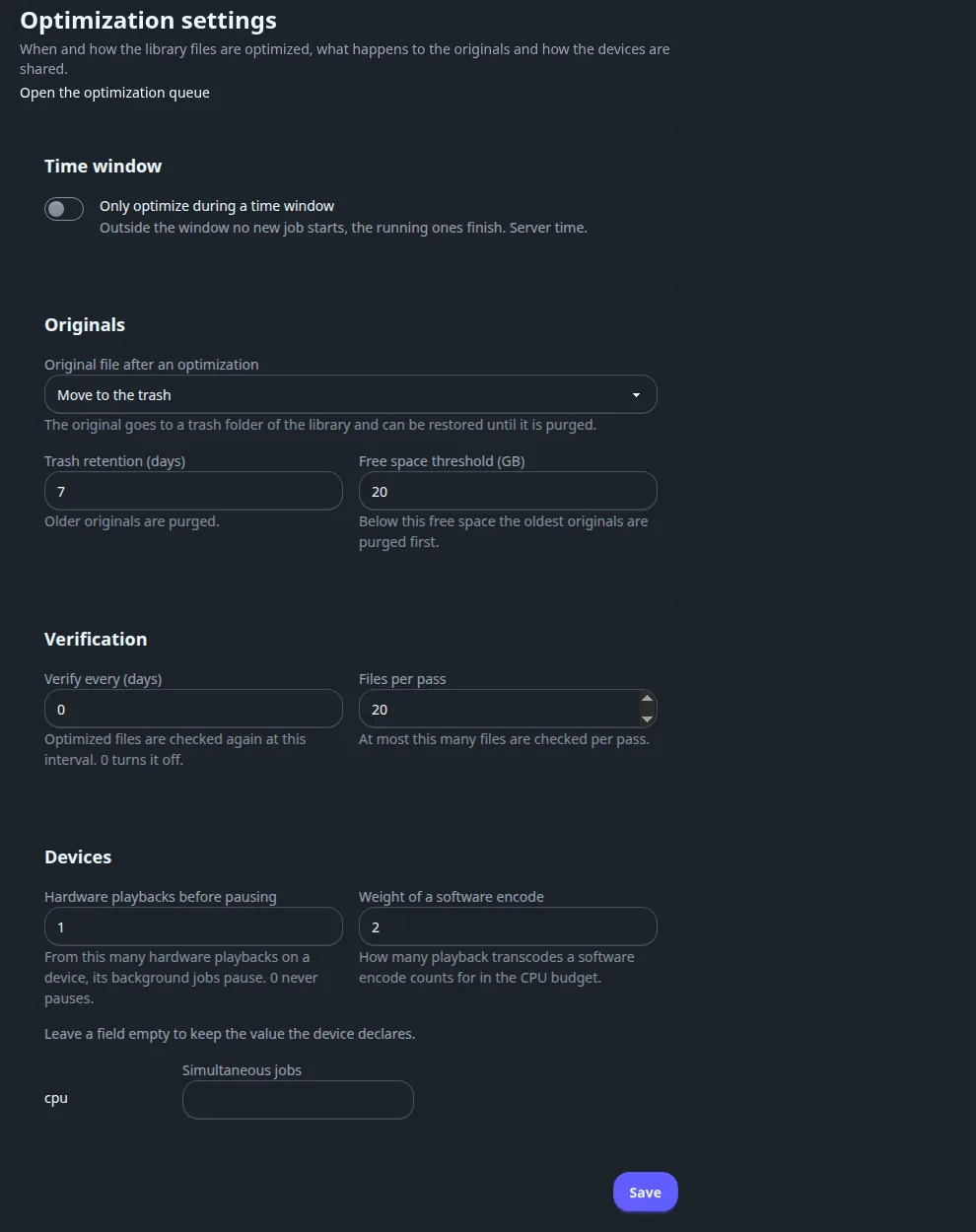
| Field | Default | Meaning |
|---|---|---|
| Only optimize during a time window | Off | With Start and End (server time, they must differ). Outside it no new job starts; running ones finish. |
| Original file after an optimization | Move to the trash | Move to the trash (a folder of the library, restorable until purged), Keep next to the file (.orig) (until you remove it), Delete (restore impossible, a warning is shown). |
| Trash retention (days) | 7 | Older originals are purged. |
| Free space threshold (GB) | 20 | Below this free space the oldest originals are purged first. |
| Verify every (days) | 0 | Optimized files are checked again at this interval. 0 turns it off. |
| Files per pass | 20 | At most this many files are checked per pass. |
| Hardware playbacks before pausing | 1 | From this many hardware playbacks on a device, its background jobs pause. 0 never pauses. |
| Weight of a software encode | 2 | How many playback transcodes a software encode counts for in the CPU budget. |
| Simultaneous jobs (per device) | Empty | One row per device that announced itself. Empty keeps the value the device declares. |
Workers#
The server's own local engine always works. Remote workers are optional.
Workers: add a remote machine
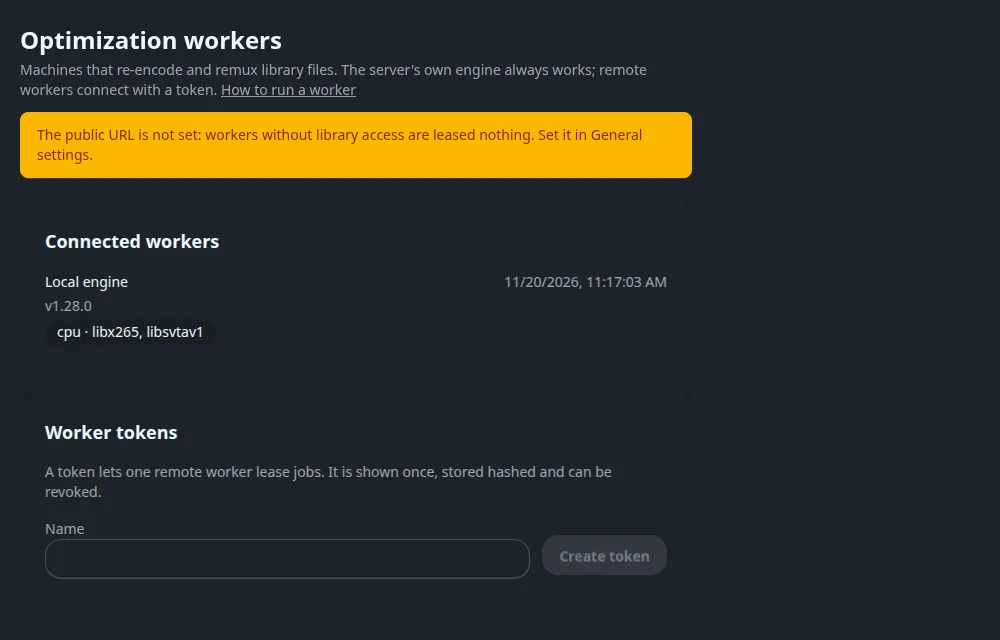
The server's own Local engine always works. Connected workers lists each machine with its last seen time, version and encoders. To add a remote worker, enter a Name under Worker tokens and press Create token. The token is shown once, stored hashed, and can be revoked (its jobs return to the queue). A How to run a worker link shows the start command.
A worker has a Library access mode: None (HTTP and upload) (it reads files over HTTP and uploads its output, which needs the Public address set on General; the page warns when it is empty) or Shared folders (it mounts the library, with Path mappings from the server path to the worker path).
The queue#
Watch, pause, reorder and cancel jobs in System > Optimization queue.
Reading the optimization queue
System > Optimization queue (button Settings at top right goes to the page above).
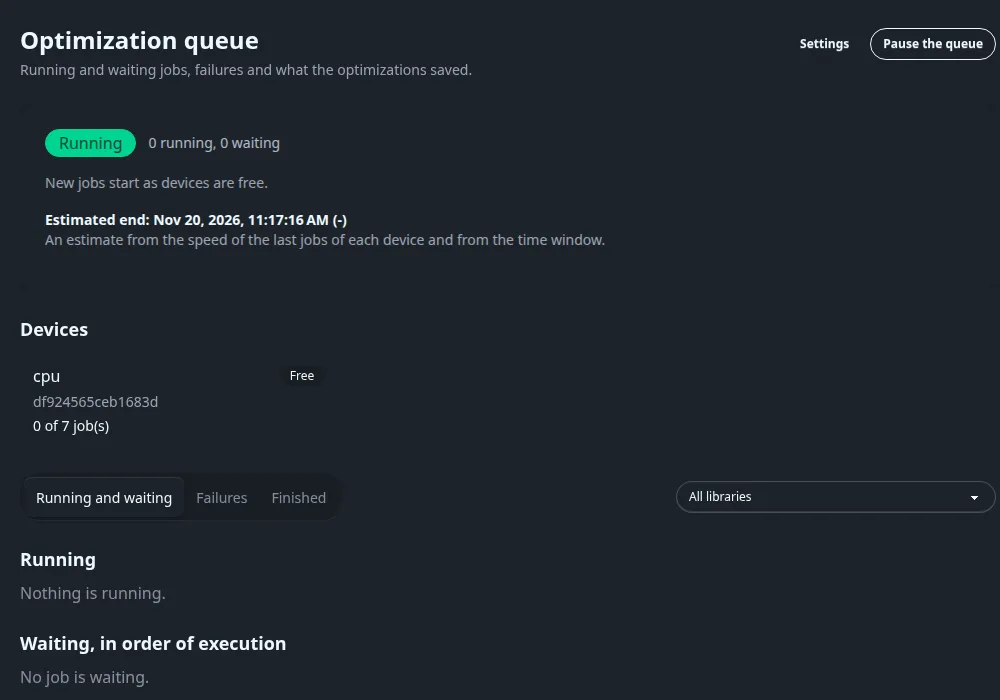
- The state badge reads Running, Paused or Outside the time window. Pause the queue stops new jobs; running ones finish; the button becomes Resume the queue.
- Estimated end comes from the speed of recent jobs per device and from the time window. It reads "Not known yet" until a level has a finished job.
- Devices shows each device as Free, Busy, Paused by playback or Offline, with its used job slots.
- Three tabs, filtered by library: Running and waiting, Failures and Finished. Waiting jobs are in execution order and can be selected, moved to the front or cancelled. Failures show a class (access denied, file in use, corrupt source, no space left, file changed and others) and can be queued again. Finished jobs show the size Saved and a Restore button that puts the original back.
- Karaoke separation and verification jobs appear here too, labelled by kind.
See also#
- Libraries for the per-library Optimization tab.
- Streaming settings: black bar removal for good is an optimization profile option.
- Transcoding dashboard for the live playbacks that make jobs pause.