
Getting started
Finding your way around
A map of the Fliks interface, from the sidebar to the Administration pages, with the click path to each common task.
Everything you configure is behind your avatar, top right: Administration (the server), App settings (this device) and Account settings (you). Find your task in the table below, or read the map of each area.
Find where to do a task#
| I want to... | Go to |
|---|---|
| Add a library | Administration > Settings > Libraries > Add a library (Libraries) |
| Fix a wrongly matched or unidentified title | The title page > More > Metadata > Identify (Libraries) |
| Add a user | Administration > Settings > Users > Add a user (Users and permissions) |
| Change the subtitle look (size, color, position) | App settings > Subtitles, section Subtitle appearance |
| Pick my default subtitle language | App settings > Subtitles, Preferred subtitle language (and Subtitle mode) |
| Pick my default audio language | App settings > Playback, Audio selection > Preferred language |
| Manage the subtitles of one title | The title page > More > Edit subtitles (Subtitles) |
| Set up automatic subtitle search | Administration > Subtitles > Subtitle providers, then Subtitles for the rules |
| Change the streaming quality while watching | The quality menu in the player (Quality and stats) |
| Make the server's Auto quality prefer Direct Play or adaptive streaming | Administration > Advanced > Streaming (Streaming and transcoding) |
| Show low-bandwidth qualities in the player | App settings > Playback, Show low-bandwidth qualities |
| Pair a TV (Quick Connect) | On the TV choose Quick Connect, then on a signed-in device open the avatar menu > Login requests and type the code (Pairing) |
| Install a plugin | Administration > Advanced > Plugins (Plugins) |
| See who is watching right now | Administration > System > Video activity |
| Check why a stream stutters | Administration > System > Playback quality |
| Take or restore a backup | Administration > System, Backups tab (Backups) |
| Change when automatic tasks run (including the nightly backup) | Administration > Advanced > Scheduled tasks |
| Change my password | Account settings > Password |
| Change the interface language | App settings > Display |
| Read logs | Administration > System, Logs tab (Logs) |
| Dismiss or bring back a setup checklist item | Administration > Settings > General |
Open the settings menu#
Click your avatar, top right: the menu lists Account settings, App settings and Administration.
On a phone, tap the same avatar: the menu opens from the bottom. Administration only shows for accounts that may open the admin pages.
| Entry | What it holds | Docs call it |
|---|---|---|
| Administration | Server-wide setup: libraries, users, subtitles, plugins, monitoring. | Settings > X (or the group name) |
| App settings | Your own preferences on this device: playback, subtitles, display. | App settings > X |
| Account settings | Your account: password, privacy, devices. | Account settings > X |
The same menu also has Login requests (to pair a TV), Switch user and Log out.
Use the sidebar#
The left sidebar is the everyday navigation. On a phone, tap the menu button at the top left.
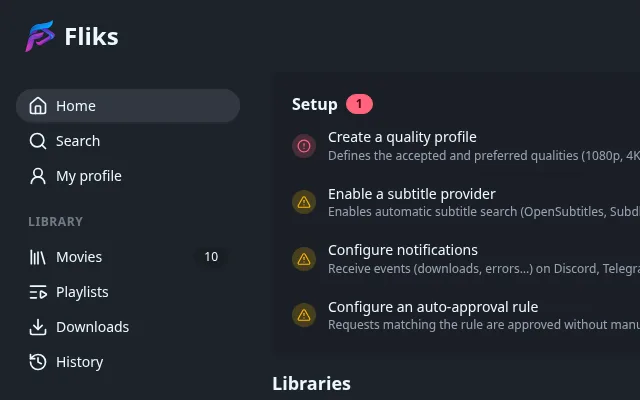
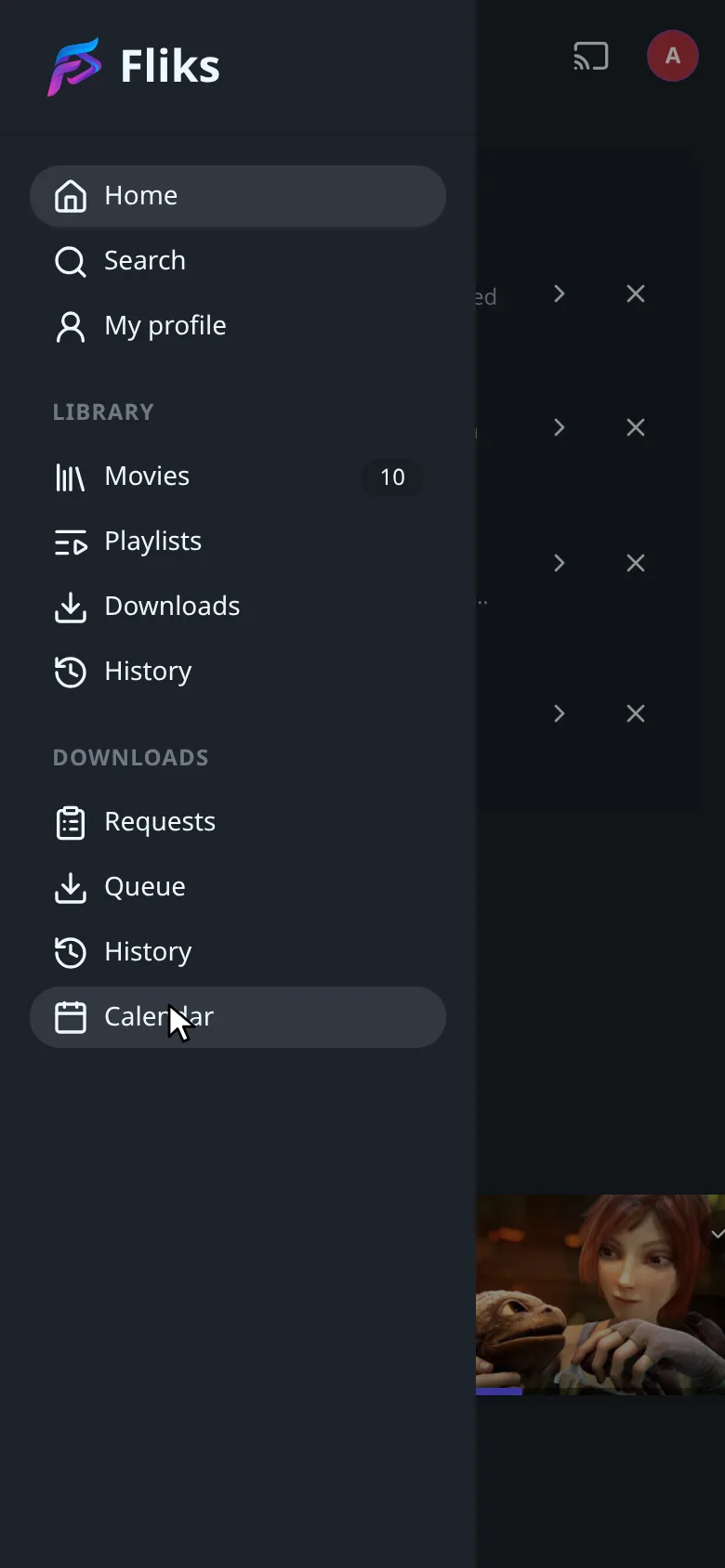
- Home, Search and My profile are at the top.
- Library holds one entry per library you can see (with its title count), then Playlists, Downloads (titles saved for offline playback on this device) and History (what you watched). Live TV appears here when a source is set up.
- Downloads holds the request and acquisition side: Requests, Queue, History and Calendar. Queue and the queue History show for accounts allowed to grab releases and only when the download plugin is in use. If you never download, you can ignore this group.
Administration#
Administration opens its own sidebar, grouped. Back to app at the top returns to the main interface.
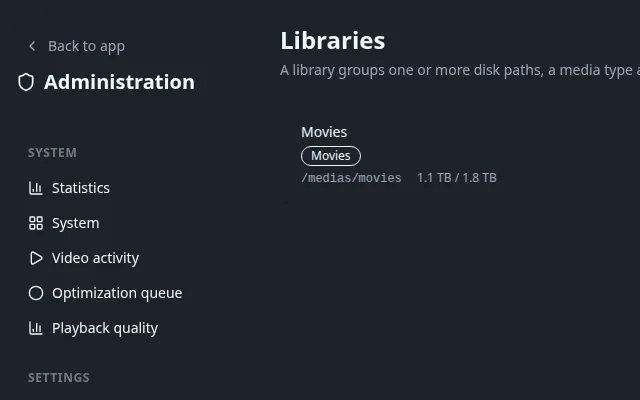
Every group of the Administration sidebar
| Group | Entries |
|---|---|
| System | Statistics, System (status, backups, logs, restart), Video activity (who is watching), Optimization queue, Playback quality |
| Settings | General (server name, setup checklist), Libraries, Naming, Outgoing mail |
| Media | Quality profiles, Language profiles, Quality definitions, Custom formats, Auto-approval, Cleanup, Metadata, Downloads, Lyrics, Karaoke |
| Subtitles | Subtitles, Subtitle providers, Subtitle activity |
| Live TV | Live TV |
| Integrations | Media servers, Imports, Notifications |
| Users | Users, Roles, Single sign-on |
| Optimization | Profiles, Settings, Workers |
| Advanced | Scheduled tasks, Streaming, Remote engine, Plugins |
Some entries only show when the server version or your permissions allow them (Users needs the permission to manage users, for example).
App settings and Account settings#
Both open a short sidebar of their own.
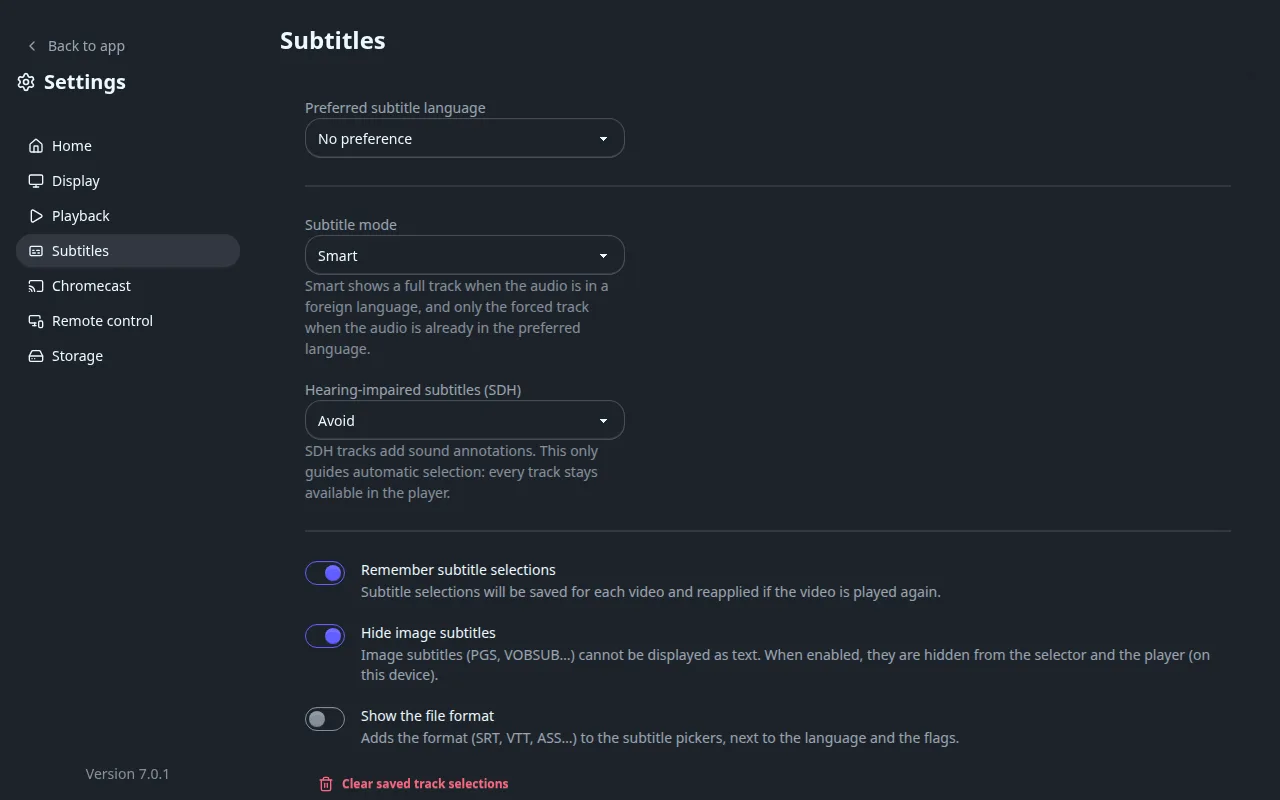
- App settings: Home, Display, Playback, Subtitles, Chromecast, Remote control and Storage. They apply to you, on this device.
- Account settings: Password, Recommendations, Privacy, Spoilers, What's new, Continue across devices, Devices and E-mail devices.
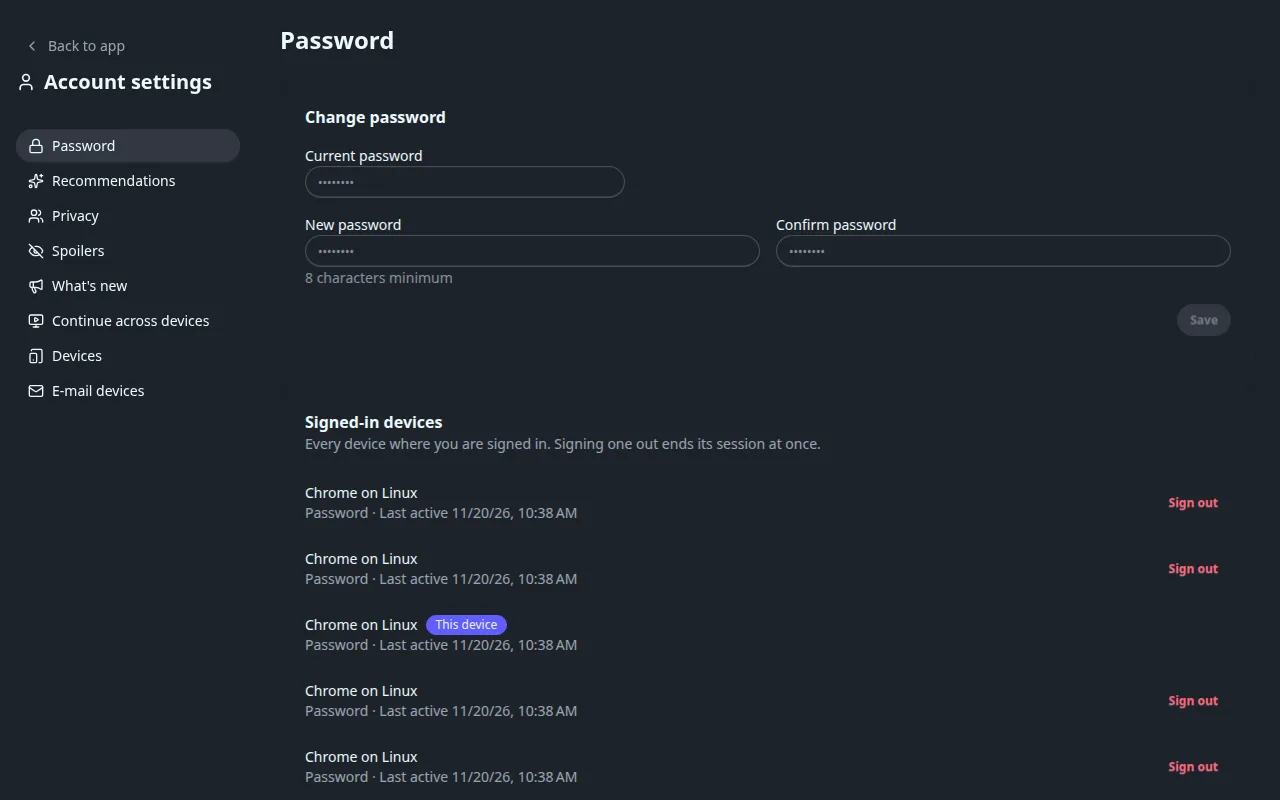
On a title page#
Per-title actions live in the More menu (three dots) next to Play: Edit subtitles, and Metadata with Identify and Refresh metadata.
In these docs, Advanced > Plugins means the Plugins entry under the Advanced heading of the Administration sidebar.