
Administration
Streaming settings
Settings > Streaming field by field - Auto quality, segments, black bars, throttling, presets, tone mapping and the transcode cache.
Settings > Advanced > Streaming holds the server-wide knobs for transcoded playback. The defaults suit most servers and a watch-only setup needs none of it, except that "Auto" quality behavior decides whether Auto quality transcodes at all.
Concepts are in Streaming and transcoding, GPU setup in Hardware acceleration, the live view in the Transcoding dashboard.
Open Advanced > Streaming (scroll the sidebar down) and change a field, here "Auto" quality behavior. Press Save: one button saves every field above it.
Fields#
Every field: Auto quality and segment duration
| Field | Default | What it does |
|---|---|---|
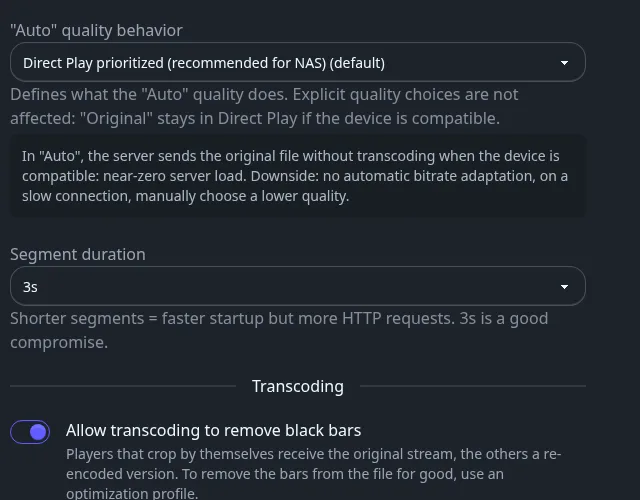
| "Auto" quality behavior | Direct Play prioritized (recommended for NAS) | Defines what the Auto quality does. Explicit quality choices are not affected: Original stays in Direct Play if the device is compatible. Direct Play prioritized: the original file is sent untouched when the device can play it (near-zero load, but no bitrate adaptation; pick a lower quality by hand on a slow link). Adaptive streaming prioritized (ABR): every Auto playback is transcoded to adaptive HLS that follows the network in real time, so reserve it for servers with hardware acceleration. |
| Segment duration | 3s | Choices 2s, 3s, 4s, 6s. Shorter segments start faster but cost more HTTP requests. |
Every field: transcoding, throttling and tone mapping
| Field | Default | What it does |
|---|---|---|
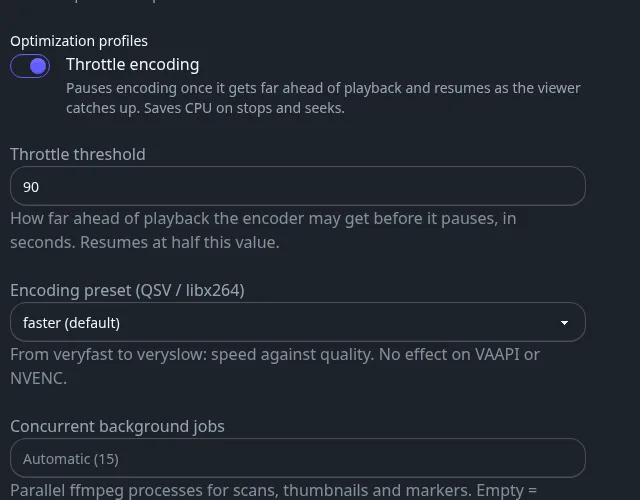
| Allow transcoding to remove black bars | On | Players that crop by themselves get the original stream, the others a re-encoded version. Off keeps the bars and allows Direct Play. To remove bars from the file for good, use an optimization profile. |
| Throttle encoding | On | Pauses encoding once it gets far ahead of playback and resumes as the viewer catches up. Saves CPU on stops and seeks. Disabled with a note when the host's ffmpeg cannot pause a run. |
| Throttle threshold | 90 | How far ahead of playback the encoder may get, in seconds, before it pauses. It resumes at half this value. Values under 60 are raised to 60. |
| Encoding preset (QSV / libx264) | faster | From veryfast to veryslow: speed against quality. No effect on VAAPI or NVENC. |
| Concurrent background jobs | Automatic (derived from the CPU, the count is shown) | Parallel ffmpeg processes for scans, thumbnails and markers. Empty means automatic. Playback never waits for a slot. |
| HDR → SDR tone-map curve | mobius | mobius, hable or reinhard: the shape of the highlight compression. Ignored by vpp_qsv and tonemap_vaapi, which convert in fixed hardware. |
Two more rows appear only when they have something to choose from:
- HDR → SDR tone-mapping algorithm: Auto (tonemap_opencl), tonemap_vaapi (hybrid VAAPI), vpp_qsv (QSV single-pass) or tonemap_opencl (OpenCL bridge). Shown when the host offers more than one. Auto suits most hosts; try another when the picture comes out too dark.
- GPU device: Automatic (default) or a specific render node. Shown on hosts with more than one GPU.
Transcode cache: size, retention and clearing
| Field | Default | What it does |
|---|---|---|
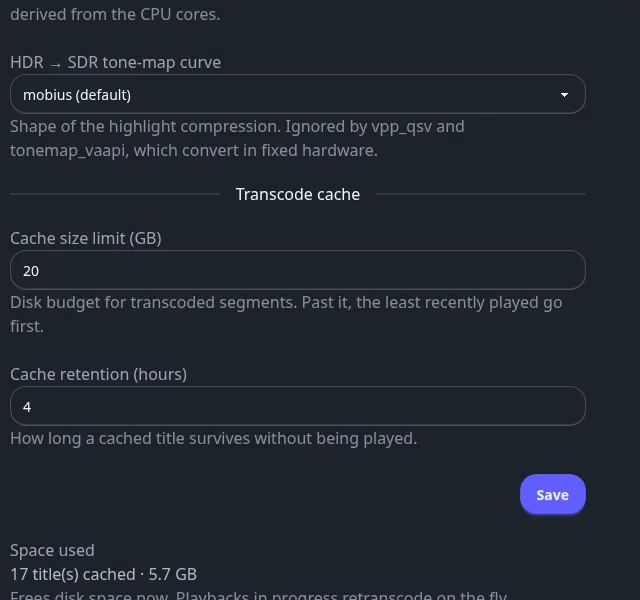
| Cache size limit (GB) | 20 | Disk budget for transcoded segments. Past it, the least recently played go first. |
| Cache retention (hours) | 4 | How long a cached title survives without being played. |
| Space used | Titles cached and total size. | |
| Clear cache | Deletes every cached segment after a confirmation. Playbacks in progress retranscode on the fly with a brief rebuffer. |
Clearing the cache needs no Save.
See also#
- Streaming and transcoding
- Hardware acceleration
- Playback quality to see why a client stuttered.