
Features
Live TV
Turn an existing IPTV subscription into another row of channels, with a program guide and the ability to pause and rewind live playback.
What it does#
Live TV turns an IPTV subscription you already pay for into another row of channels inside Fliks. A provider playlist or panel becomes a lineup with its own program guide, and pausing or rewinding a few minutes on a live channel works the same way it does on the rest of the library.
Fliks does not sell or supply any channels itself. You need a subscription from an IPTV provider before any of this is useful. Use a subscription you are entitled to: a service that holds the rights to the channels it streams, and is legal where you live.
Everything below lives under Settings > Live TV, admin-only, across six tabs: Sources, Channels, Guide, Settings, Access and Health. The Live TV entry only appears in the main navigation for an account with the Live TV permission, and only once at least one channel is enabled and visible to that account.
Channels arrive disabled after a sync, so an unreviewed playlist never floods the lineup. After adding your first source, go to the Channels tab and enable the channels you want (bulk actions help with large lineups); until then, nobody sees a Live TV entry.
Adding a source#
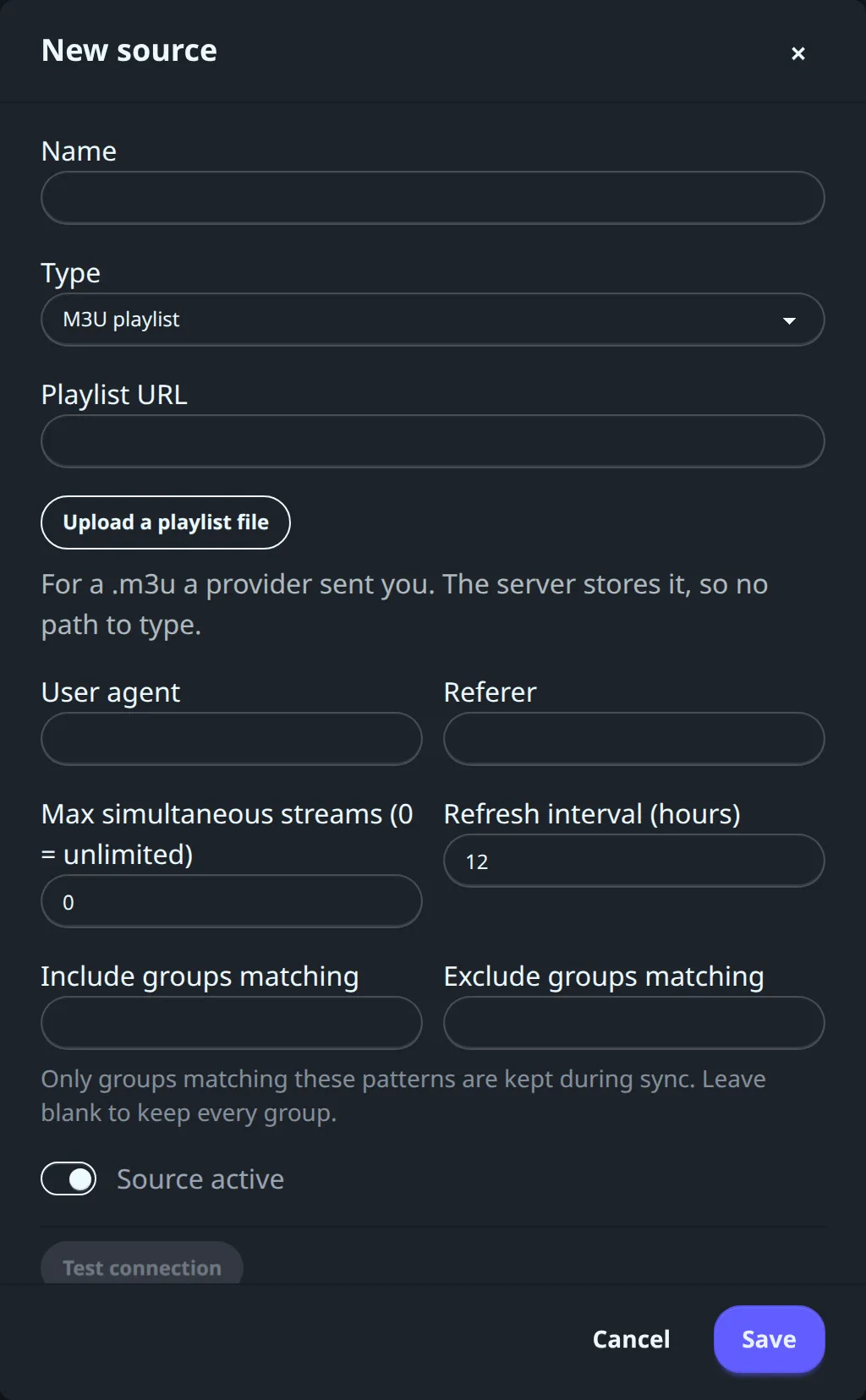
Go to Settings > Live TV > Sources > New source. A source is one provider connection: add one per subscription. Fliks supports two kinds:
- M3U playlist: either a playlist URL (re-fetched on every refresh) or an uploaded
.m3u/.m3u8file for a provider that emails a file instead of a link. An uploaded file never updates itself; if the connection test detects it can be replaced by a self-refreshing link rebuilt from the file's own entries, it offers to swap it. - Xtream account: a server URL (the panel address alone, nothing after the host), plus a username and password. Leaving the password blank while editing an existing source keeps the current one.
Optional on either kind: a user agent and a referer header, for providers that check them.
| Field | What it controls |
|---|---|
| Max simultaneous streams (0 = unlimited) | How many upstream connections this source may hold open at once, not how many people can watch: viewers on the same channel, watching it the same way, share one upstream connection. Test connection pre-fills it from the account when the field is still 0; whatever the field holds when you save is kept as your own value. |
| Refresh interval (hours) | How often the lineup is re-fetched. Default 12. |
| Include groups matching / Exclude groups matching | Regular expressions that filter which channel groups are kept. See below. |
| Source active | An inactive source is no longer refreshed on schedule, but its channels, streams and history stay (and its channels still play). |
Fliks only ever keeps live channels from a playlist: any entry that looks like on-demand content
(the provider's own /movie/ or /series/ URL path) is dropped automatically, before any group
pattern is applied.
Test before you save#
Test connection probes the URL or the Xtream login without saving anything. On success it reports the channel count, the number of groups found, whether a program guide was found, and how many simultaneous connections the account allows (only meaningful for Xtream; a plain playlist reports 0). If a pasted M3U link is actually an Xtream panel in disguise, the result offers a one-click switch to the richer Xtream API.
On failure, the test only says it failed. The real reason (wrong credentials, an unreachable host, a timeout) shows up once you save, as the source's own sync error.
Group filters#
A provider bouquet usually mixes channels for dozens of countries and genres under one playlist. Exclude groups matching drops any channel whose group name matches the pattern:
adult|xxx|ppv|18\+Include groups matching does the opposite: only matching groups are kept. To keep just two groups out of a large bouquet:
^(News|Sport)$Both fields are case-insensitive regular expressions tested as a substring against the provider's
group name, not an exact match (sport also matches "Sports HD"; anchor it with ^Sport$ for an
exact match). When both are set, exclude always wins. These filters only apply to live channel
groups: they play no part in dropping on-demand content, which Fliks already excludes on its own.
An invalid pattern is refused when you save the source.
Program guide (EPG)#
Settings > Live TV > Guide > New guide source. Two kinds:
- XMLTV feed: a URL to an XMLTV document (a gzip-compressed one works too).
- From a Live TV source: pick one of the sources already added. For an Xtream account, Fliks
uses the panel's own guide endpoint. For an M3U playlist, it uses the guide URL announced in the
playlist's
x-tvg-url/url-tvgheader; if the playlist has no such header, this fails. Test connection on the source tells you whether a program guide was found.
Also on the form: refresh interval in hours (12 by default), a Timezone offset (minutes) (0 by default, applied only to feed timestamps that carry no timezone of their own), and a Source active switch.
Automatic matching#
Every feed's channels are matched against the lineup automatically, in three passes, weakest last:
- By ID: the channel's own guide channel ID, if already set, matched against the feed's channel id (ignoring case).
- By name: both names normalized (case, accents, punctuation and quality noise like "HD" or "1080p" stripped), then compared.
- Fuzzy: a similarity score over what's left of the name. Below a threshold, the channel is left unmatched rather than guessed at.
A channel matched by hand is never touched again by a later automatic pass.
The Match report on the Guide page shows how many channels landed in each bucket, plus every unmatched channel with a search box: type part of the real channel name, pick the guide entry from the suggestions, and save. That match is permanent for that channel. A guide channel ID can also be typed directly into a channel's own edit form on the Channels tab.
Managing channels#
Settings > Live TV > Channels. Filter by group, source, active state, or search by name.
- The Active switch on each row: an inactive channel is invisible to every viewer and gets no program data downloaded, but keeps its number, group, guide match and history.
- Editing a channel: name, number, group, Guide channel ID (manual guide match) and Guide time shift (minutes), added to every program of that channel, for the one channel that airs shifted from the rest of its feed.
- Bulk actions: select rows, or "bulk-edit all matching channels" to act on everything the current filters match (only when the active/inactive filter is cleared). Enable, disable, set a group, or renumber from a starting number. Anything touching more than 50 channels asks for confirmation first.
- Sync already folds channels with the same name from different sources into one channel with several streams. Find duplicate channels catches what's left: enabled channels whose names normalize to the same thing. Merge lets you pick which one stays; the others' streams become its backup streams, used for failover if the main one goes down.
- Favorites are each viewer's own preference, set with the star on the Live TV page itself. They are not the access control described next.
Access control by channel group#
Settings > Live TV > Access lists every channel group with a Restricted checkbox, and, per user, which restricted groups they've been granted (Manage access).
- A user who wasn't granted a restricted group never sees its channels at all, in any list.
- An empty restricted list means no filtering happens for anyone.
- Whoever administers Live TV always sees every group, regardless of grants.
Adult groups are restricted automatically. Every sync checks each live group's name against a
built-in pattern covering Fliks' six interface languages (whole-word matches such as xxx,
sex/sexo/sexe, porn*, erotic/erotique/erotik, x-rated, adult* other than "Adult
Swim", 18+/+18) and adds a newly seen match to the restricted list. Unchecking one by hand keeps
it exempt from then on: the next sync won't restrict it again unless you recheck it yourself.
Timeshift: pause and rewind live#
A live channel behaves like a recording that keeps growing: pause it and resume from the same spot, or jump back in 10-second steps to catch something you missed, then Back to live. How far back the buffer reaches is an admin setting (15 minutes by default) described below. There is no recording feature: nothing is kept once it leaves that buffer.
Timeshift only works when Fliks packages the stream itself. When a client plays the provider's stream directly (the desktop app, Android TV, Samsung TVs and the Android app usually do), there is no pause or rewind buffer.
Settings#
Settings > Live TV > Settings exposes these tuning values:
| Setting | Default | What it does |
|---|---|---|
| Guide history (days) / Guide lookahead (days) | 2 / 7 | The guide window kept around "now". Programs outside it are dropped on ingest and pruned nightly. Widening the lookahead keeps more rows, re-ingested on every refresh. |
| Segment length (seconds) | 2 | Length of each live HLS segment Fliks packages when it isn't serving the provider's stream as is. |
| Timeshift buffer (minutes) | 15 | How far back the pause/rewind buffer reaches. Costs disk per open channel (roughly 500 KB per 2-second segment on a 2 Mbps channel). |
| Idle session hold (seconds) | 30 | How long a channel session with no viewer left is kept warm, so switching back to it is instant. |
| Stream probe window (seconds) | 3 | How long FFmpeg analyzes a new stream before starting (3 is the minimum). Raise it for a slow provider or a wide GOP. |
| Stale stream retention (days) | 7 | A stream absent from a sync for longer than this is deleted, along with any channel left with no stream. |
| Provider slot release delay (seconds) | 15 | How long a just-closed upstream connection still counts against the source's max simultaneous streams limit. |
| Fast zap mode | Automatic | Whether a channel switch re-encodes the stream (faster zapping, more CPU) or only repackages it. Automatic re-encodes only where hardware encoding is available; Always on and Always off force one or the other. |
These are also readable and writable through the generic settings API (GET/PUT /api/settings/<key>). The restricted-groups lists can be read there but not written: changes go
through the Access tab so grant cleanup happens correctly.
Troubleshooting#
| Symptom | Why |
|---|---|
| Test connection just says it failed | It never gives a detailed reason. Save the source (or wait for the scheduled sync) and check the source's own sync error: an Xtream login reports "authentication refused by the provider" on a bad username or password, a playlist URL reports a plain connection or timeout error. |
| An expired or suspended provider account | Once a sync has read an Xtream account's status and expiry date, they're shown next to the source ("Expired", "Expires soon"), and a notification goes out when the account expires or is about to. Nothing is blocked; if every stream then fails, the player says the subscription has expired. |
| Zero channels on a source's first sync | Not an error; the provider's playlist is genuinely empty. Confirmed by Test connection. |
| A sync suddenly returns under half the channels it had before | Refused outright; the previous lineup is kept untouched. Treated as a provider rate limit or an error page mistaken for the real playlist. The sync error explains why nothing changed. |
| "has reached its limit of N simultaneous streams" | The source's max simultaneous streams cap is fully used, including connections that closed in the last few seconds (the slot release delay). Wait, close another stream from that source, or raise the limit. |
| "Unable to start this channel." | Either the channel has no stream left, or every stream it has failed to open. Check the Health tab: each source's sync status, then channels sorted worst first with their failure count, and per stream, when it last worked and its last error. |
| No Live TV entry after a successful sync | New channels start disabled. Enable them on the Channels tab. |
See also#
- Streaming and transcoding for how a live stream is decided between a byte-exact copy and a transcode.
- Playback for how resume and track switching work outside of Live TV.