
Features
Pairing and remote control
Sign in on a TV without typing a password, and send a title from one of your devices to play on another.
Pairing a TV or new device (Quick Connect)#
Typing a password on a TV remote is slow, so Fliks lets a new device get signed in through a device that's already logged in instead. There's no code to read out loud or type in: approval happens by recognising the device, not by matching a number.
On the new device (a TV the first time it's set up, or any client after signing out):
- The "Who's watching?" screen lists the accounts on the server.
- Choosing an account that already has a saved session on this device signs straight back in, with no password (this works even offline, for downloaded content).
- Choosing any other account opens a choice between Password and Quick Connect.
- Quick Connect shows a waiting screen: "Waiting for approval", with the device's own name and operating system underneath, and a countdown until the request expires.
On a phone or another device already signed in to that account:
- Open the user menu and go to Login requests.
- Each pending request shows the requesting device's name and how long ago it asked.
- Approve or Deny it.
The request expires after 10 minutes if nobody responds, and a single device can only have a few requests pending at once. Only the account being signed into can approve its own requests: nobody else's login requests are visible to you.
On the Apple TV app specifically, the waiting screen also shows a QR code that links straight to the phone's Login requests page, so scanning it is a shortcut to the same approval step.
Remote control: playing on another device#
Once signed in on more than one device, any of them can tell another one to start playing something instead of playing it locally, similar to sending a track to a speaker. This is separate from Chromecast: it works between any two Fliks clients, including two phones, a phone and a TV, or a browser and the desktop app.
Controlling your own devices#
Any other device signed in to your own account shows up automatically wherever the device picker appears (the top bar, and the player controls), with no setup needed. Pick it, and from then on:
- Loading a title plays it on that device instead of the one you're holding.
- Play, pause, stop, seek, volume, mute, next episode, quality, and switching the audio or subtitle track all apply to the remote device.
- The remote device's now-playing state is reflected back to you as it changes.
Playback started this way is credited to your account, whichever account happens to be signed in on the device that's actually playing.
Controlling someone else's device#
This needs that device's owner to grant access first:
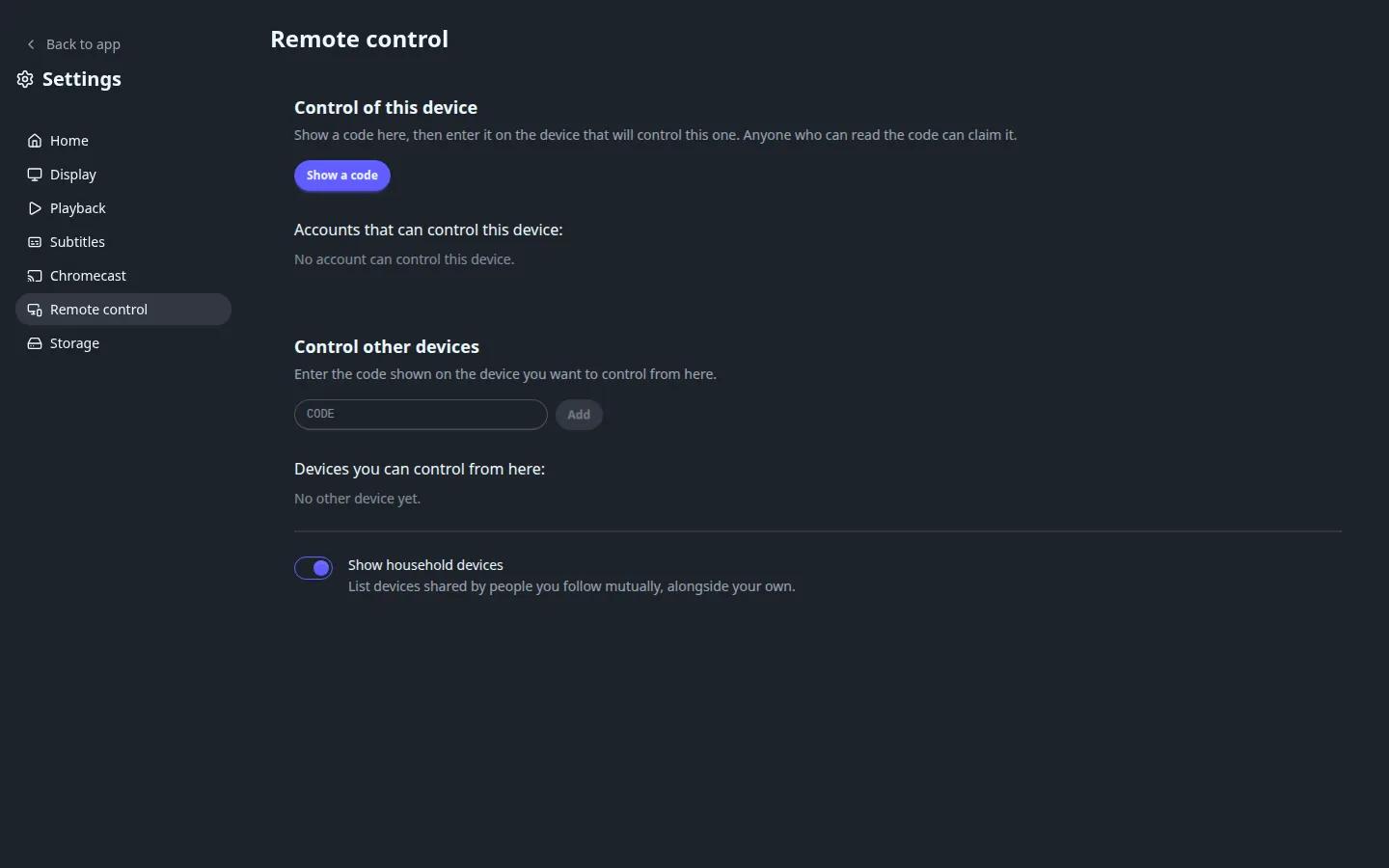
- On the device to be controlled, go to App settings > Remote control and choose Show a code. It displays a 6-character code (avoiding easily confused characters), valid for 10 minutes. This code only grants remote control; signing in a new device needs no code (see above).
- On the controlling device, enter that code under Control other devices and press Add.
- The grant covers that one device, not every device its owner has, and goes to your account: any device signed in to your account can then control it. It stays in place until either side removes it: Revoke on the controlled device (under the accounts that can control it), or Forget on your side (under the devices you can control).
Administrators can additionally see and control every device that's currently online, without needing a grant. Other people's devices appear in the device picker next to your own as long as Show household devices is on (the default); turn it off to list only your own devices.
Limits#
- A TV can be controlled, but it never controls another device itself: the device picker doesn't appear on TV clients.
- A device can't be used to control itself.
- A command not delivered within a few seconds of being sent is dropped rather than applied late.
See also#
- Chromecast for casting specifically to a Chromecast device.
- Sharing and social for account-level privacy, which is separate from device-to-device remote control.