
Clients
Samsung TV (Tizen)
A native Tizen app for Samsung TVs, played through the TV's own hardware video path.
Compatibility#
Fliks targets Tizen 5.5 and newer, which covers Samsung TVs from 2020 onwards.
The app is not yet published on Samsung Apps. Every release attaches an unsigned package to the GitHub release instead, which needs sideloading.
Playback#
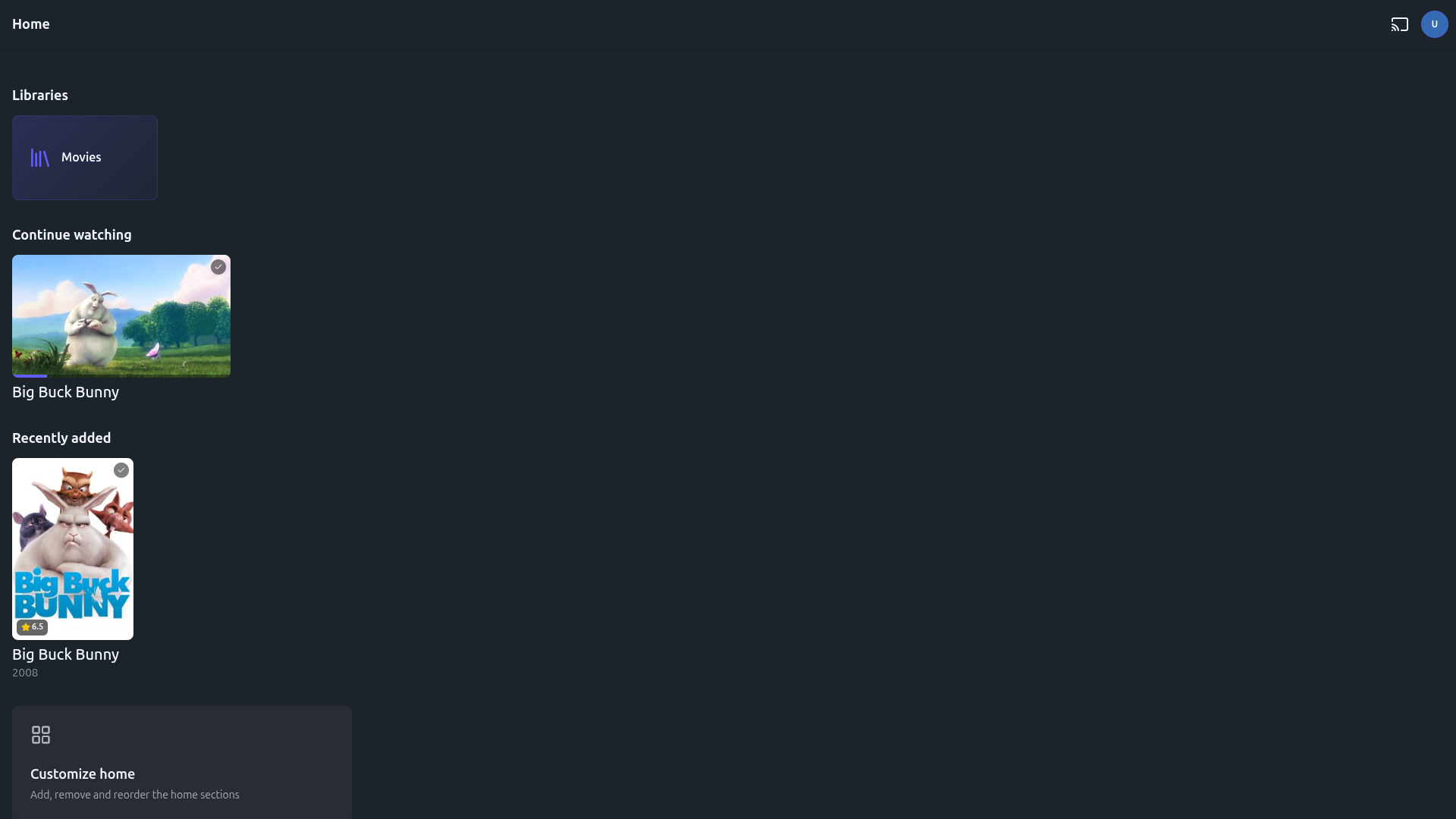
Unlike the web client, the Tizen app drives the TV's own hardware media player (AVPlay) directly,
behind the interface, rather than a browser <video> element. That gives it native HEVC decoding,
Dolby audio pass-through, HLS adaptive bitrate, and the TV's own demuxer for MP4, MKV, MOV, TS,
M2TS, AVI and WebM. AV1 is not offered to TVs: an AV1 source is converted by the server. What the app actually offers a given TV (codecs, HDR) is read from
that TV's own hardware capabilities at runtime, so it varies by model and age.
A few playback limitations are specific to this platform:
- Playback speed only offers 1x and 2x, instead of the 0.25x to 2x range available elsewhere, because the hardware player only accepts whole-number rates.
- Subtitles: there's no native subtitle rendering. Text subtitles are drawn as an overlay by the app itself; image-based subtitle formats are burned into the video by the server before it reaches the TV.
- Casting to a Chromecast isn't available from a Tizen TV: it can be a playback target for remote control, but it can't act as a Chromecast sender itself.
Sideloading#
Sideloading a Tizen app is a developer-facing process: it needs Tizen Studio's command-line tools, a Samsung account, and a Samsung author and distributor certificate pair tied to that specific TV's device ID. There is no shortcut around this; it's how Samsung's TV platform works for any unpublished app, not a Fliks-specific limitation.
At a high level:
- Put the TV into developer mode (on the TV: Apps, type
12345with the remote, turn on Developer Mode, set Host PC IP to your PC's LAN address, then restart the TV). - Connect to it from the PC with the Tizen Studio CLI:
sdb connect <TV_IP>:26101, thensdb devicesshould list the TV. - Read the TV's device ID (
sdb -s <TV_IP>:26101 shell 0 getduid), generate a Samsung author certificate and a distributor certificate for that ID, and register them as a security profile (tizen security-profiles add). - Extract the release
Fliks-<version>.wgt(it's a zip archive) into a folder, sign that folder with your profile (tizen package -t wgt -s <profile> -- <folder>, which writes a signedFliks.wgtinside it), install it (tizen install -n Fliks.wgt -s <TV_IP>:26101 -- <folder>) and launch it (tizen run -p FliksMedia.Fliks -s <TV_IP>:26101).
sdb install is not a substitute for tizen install: it only copies the file to the TV. The full
walkthrough, including certificate generation, is in client/tizen/README.md in the
project repository.
Because the distributor certificate is bound to one TV's device ID, a package you sign yourself only installs on the TV you signed it for; you can't share a signed package between TVs.
Store assets#
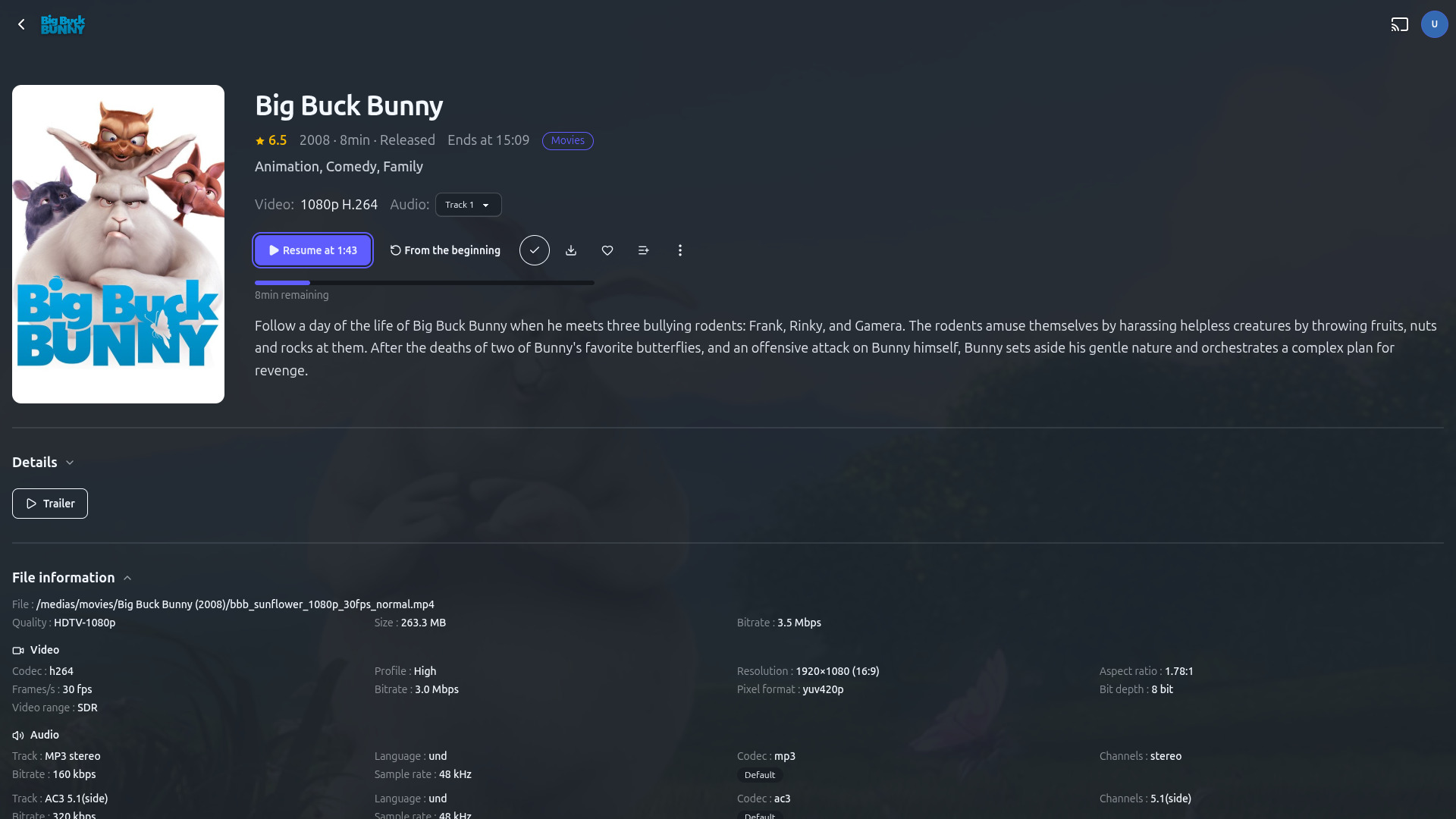
Store screenshots (home, movie detail, playback, library) live under store/samsung/ in the
project repository, for anyone preparing a store submission.
See also#
- Pairing and remote control for signing in without typing a password on a TV remote.
- Streaming and transcoding