
Features
Subtitles
Automatic subtitle search across six providers, one-click sync, on-demand translation, and OCR for image-based tracks.
How automatic search works#
Fliks searches for subtitles on its own for every monitored title, using the language, forced and hearing-impaired preferences set on that title's language profile (not a global setting: each title has its own, picked when it's added). A search runs automatically after a file is imported, and again on a recurring schedule for anything still missing a language its profile asks for; the Automatic subtitle search switch in Settings > Subtitles turns both off, along with the upgrade pass below. Search missing in a title's Edit subtitles dialog runs it on demand, whatever the schedule says.
Providers#
Six sources can be searched. None is set up out of the box: add each one you want with Add provider under Settings > Subtitle providers > Download providers, where it can also be switched off and given a priority (25 by default). A lower priority number is tried first, and wins if two providers return what looks like the same result. Test checks the credentials before you save.
| Provider | Covers | Credentials needed |
|---|---|---|
| OpenSubtitles | Movies and episodes, most languages | An OpenSubtitles account username and password (an API key is optional) |
| Subdl | Movies and episodes, most languages | An API key |
| Gestdown (an Addic7ed mirror) | TV episodes only, a fixed set of languages | None |
| Supersubtitles | Movies and episodes, Hungarian and English only | None |
| YIFY | Movies only, looked up by IMDb id | None |
| Subsynchro | Movies only, French only | None |
Picking the right match#
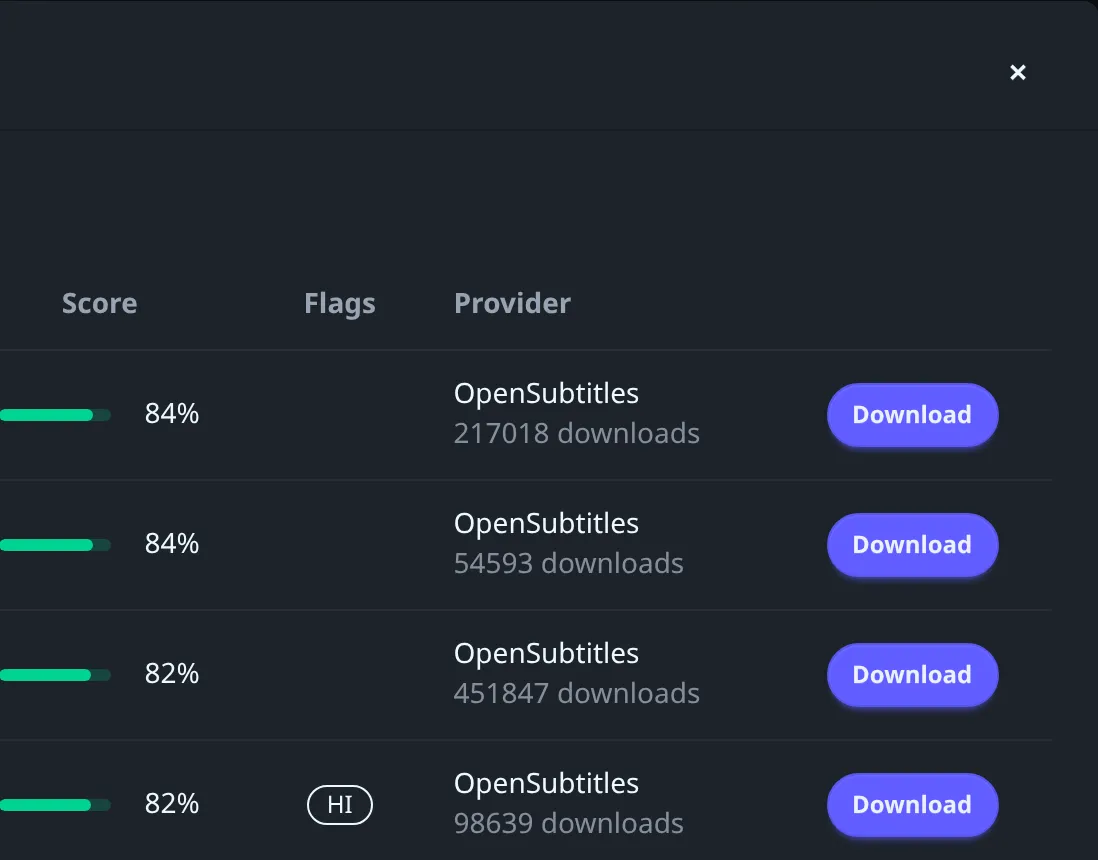
Every result is scored against the video file: a hash of the file itself is worth the most (a hash match is treated as a certain match), the title and year carry most of the rest, and the release group, source, resolution and codecs each add a little more. Episodes are scored the same way, with the series name and season/episode numbers standing in for the movie-specific fields. The best-scoring result above a minimum score (70 by default) is downloaded automatically.
A separate upgrade pass revisits anything downloaded below a higher threshold (90 by default) and replaces it if a strictly better match turns up later. A subtitle you've synced or edited by hand (timing, framerate, corrections) is locked and skipped by the upgrade pass from then on, and Validate subtitle sets a subtitle's score to 100, which keeps it above any threshold. A translation keeps its source's score and isn't locked.
Downloaded files are always cleaned of ads; optionally (see settings below) also of hearing-impaired tags and of your own custom exclusion patterns.
Searching and downloading by hand#
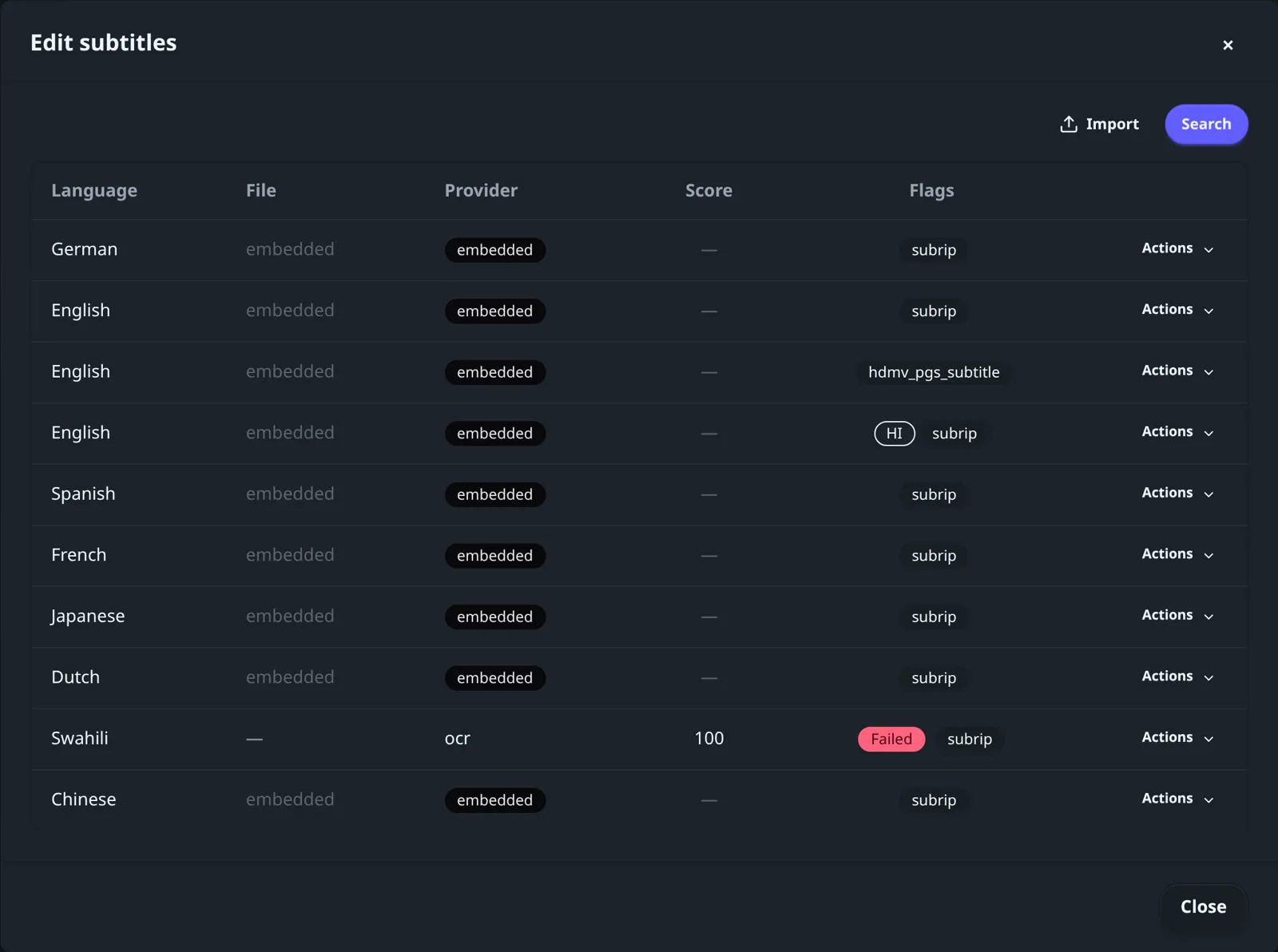
From a title's page, open Edit subtitles for the full list of what's already there, plus a
Search button to browse and download something specific yourself, and an Import button to
upload your own text subtitle file (.srt, .vtt, .ass or .ssa), picking its language as you
do.
Fixing out-of-sync subtitles#
A subtitle that drifts against the dialogue can be corrected without hunting for the right offset by hand: open its row's Actions > Timing > Sync. Fliks listens to the audio (or another subtitle track you point it at) and slides the whole file back onto it, using ffsubsync first and falling back to alass if that doesn't work. Options in the same dialog: a maximum offset in seconds, whether to also let it correct a framerate mismatch, and a slower, more accurate search mode.
If you already know the fix, Adjust timing shifts a subtitle by a fixed amount, and Change framerate rescales it between two frame rates. The Corrections menu next to Timing has one-click clean-ups (remove HI tags, style tags or emojis, OCR and common fixes, convert to SRT). Embedded subtitle tracks can't be synced or adjusted directly: download or import a separate file first.
Turn on Automatically sync subtitles in Settings > Subtitles and every new automatic download or upgrade gets this treatment on its own.
Translating a subtitle#
When nothing is available in a language you want, translate a track you do have instead: open its Actions > Translate, choose the target language, and (if more than one translation provider is configured) which one to use. This works on any text subtitle, embedded ones included; it runs in the background and keeps the original timing. The result is saved next to the video as its own file, so the same translation is never paid for or re-run automatically; running it again for the same language creates a separate copy rather than replacing the first.
Three kinds of translation engine are supported, configured under Settings > Subtitle providers > Subtitle translation (Add provider), and you can add more than one and pick a default with Use as default:
| Engine | What it needs |
|---|---|
| Gemini | An API key, and a model (defaults to a small, fast one) |
| OpenAI-compatible | A base URL and a model; works with Groq, OpenRouter, a local Ollama, or any compatible endpoint. The API key is optional, for setups that don't need one. |
| LibreTranslate | The URL of your own LibreTranslate server; the API key is optional |
The LLM engines also take a Max tokens per request and a Tokens per minute budget, so a free-tier API isn't pushed past its rate limit.
Each provider has a Test button that sends a couple of short lines through it before you rely on it. Credentials are stored on the server and are never sent back to the client once saved: the settings page always shows a masked field, with the choice to leave it as-is or clear it.
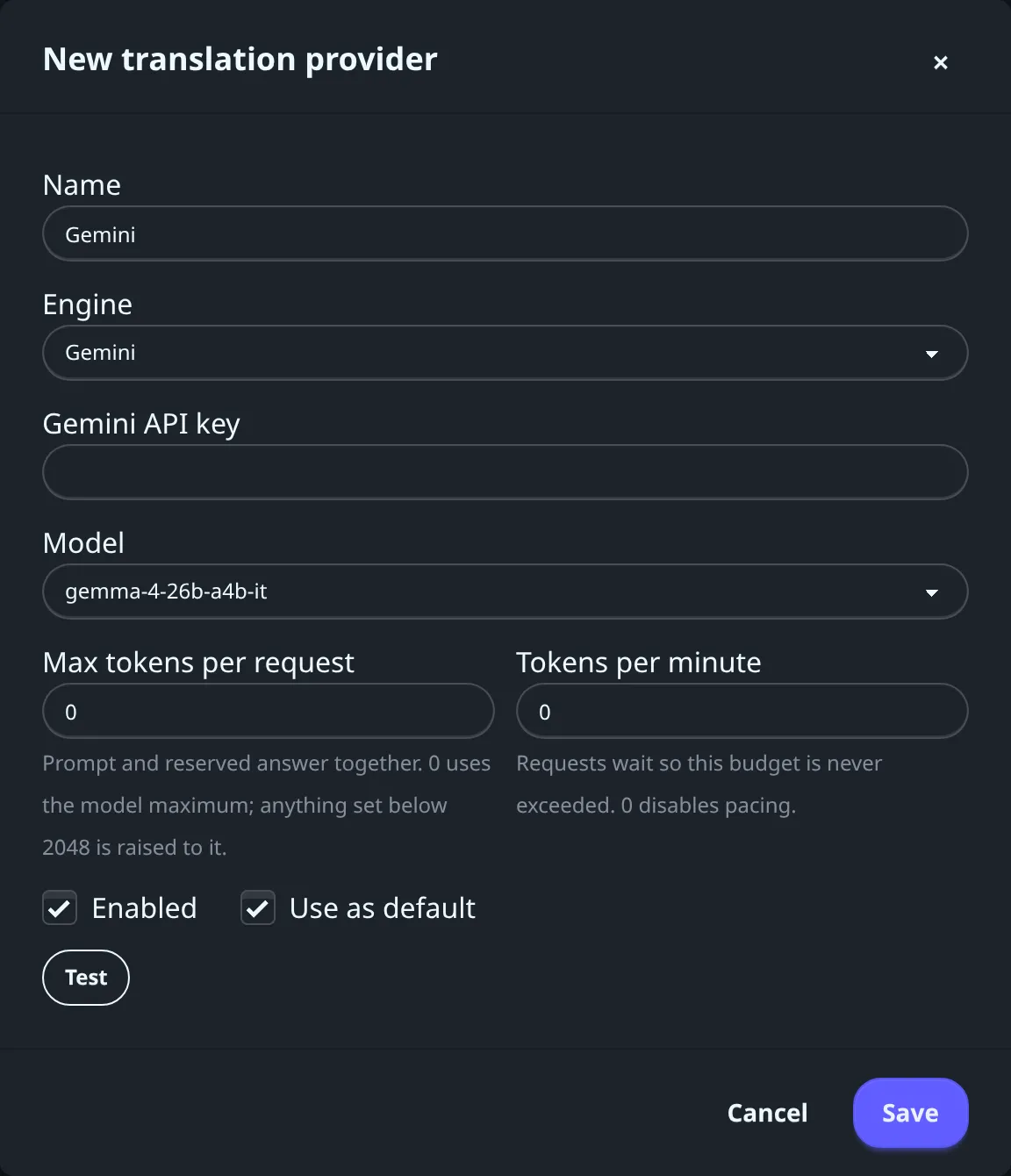
The Gemini engine also runs Google's open Gemma 4 model: pick gemma-4-26b-a4b-it from the
Model list. It runs through the Gemini API free of charge, with the same API key from Google
AI Studio, but it has no paid tier: it stays on the free tier's rate
limits, and Google may use free-tier requests and responses to improve its products, with human
reviewers reading some of them. Use a Gemini model on a paid (billed) API key instead if that
matters to you.
Translation only runs when you ask for it. Nothing is translated automatically in the background.
Extracting text from image-based subtitles#
A track like PGS or VobSub is a picture of the text, not the text itself, so it can't be edited, translated, or displayed on every client. Extract to text (OCR) reads the images and produces a normal, editable subtitle file from them.
- PGS tracks (common in Blu-ray rips) and VobSub / DVD tracks (VobSub needs a Matroska file) are supported. DVB subtitles and XSub are not: OCR isn't offered for them.
- Only a track embedded in the video file can be OCR'd, not a separate image subtitle file.
- If the track's language isn't tagged, you're asked for it before the OCR runs; it can be relabelled afterwards without redoing the work.
- An admin can turn on Prefer OCR of embedded image tracks over a download, so Fliks tries this before searching online for a missing language.
Subtitle appearance#
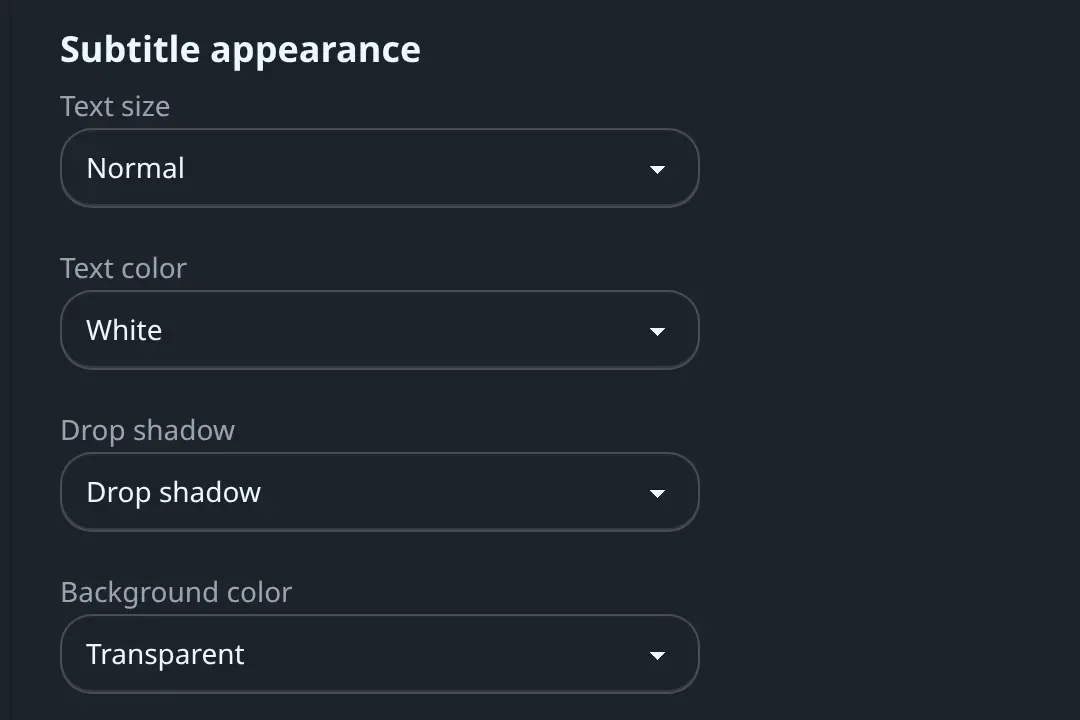
App settings > Subtitles (in your user menu) controls which subtitle track is picked and how subtitles look, and this is remembered per device rather than following your account to every screen:
| Setting | Options |
|---|---|
| Preferred subtitle language | Any language |
| Subtitle mode | Off, forced only, smart (the default: a full track when the audio is in another language, only the forced track when it's already in your preferred language), always |
| Hearing-impaired subtitles (SDH) | Avoid (default), no preference, prefer |
| Remember subtitle selections | On (default) or off; remembered per show |
| Hide image subtitles | On by default: keeps PGS/VobSub tracks out of the picker on this device |
| Show the file format | Adds SRT, VTT, ASS and so on next to each track in the picker |
| Text size | Very small to extra large |
| Text color | White, yellow, green, cyan |
| Drop shadow | None, drop shadow, outline, raised |
| Background color | Transparent, semi-transparent black, black |
| Subtitle position | Bottom edge and top edge positions |
None of this changes how an ASS/SSA subtitle that carries its own styling is rendered, or how an image-based track looks: those keep their original appearance.
Admin settings#
Settings > Subtitles groups the tuning knobs behind the behaviour above:
| Setting | Default | What it does |
|---|---|---|
| Automatic subtitle search | On | Master switch for the scheduled and post-import search |
| Search interval (minutes) | 360 | How often the scheduler re-checks for missing languages |
| Minimum score | 70 | The score (0 to 100) a result needs to be downloaded automatically |
| Upgrade interval (minutes) | 720 | How often the upgrade pass runs |
| Upgrade threshold | 90 | Below this score, a strictly better match replaces what's there |
| An image track counts as a present subtitle | Off | An embedded image subtitle in a profile language counts as covering it, so no download or OCR runs; playback of that track then always needs a burn-in transcode |
| Prefer OCR of embedded image tracks over a download | Off | Tries OCR on an embedded image track before searching online |
| Automatically sync subtitles (ffsubsync/alass) | Off | Runs the sync tool after every automatic download or upgrade |
| Re-encode to UTF-8 after download | On | Normalizes the file's text encoding |
| Remove HI tags | Off | Strips things like [music] or (sighs) from downloaded text |
| Delete the image subtitle once extracted | Off | Removes the OCR'd track's entry (an embedded track stays in the video file and reappears on the next scan) |
| Custom exclusions (regex) | None | One regular expression per line; any subtitle line matching one is removed |
The same page's Statistics tab lists every language still missing a subtitle across your library, with a one-click search for each row. Settings > Subtitle activity is a searchable history of every subtitle file Fliks has downloaded, translated or OCR'd, with its score and status.