
Features
Libraries
Point Fliks at a folder of video files, scan it, and it builds a browsable library with covers, cast and episode listings.
Creating a library#
Settings > Libraries > Add a library walks through three steps: information, users, and the media itself.
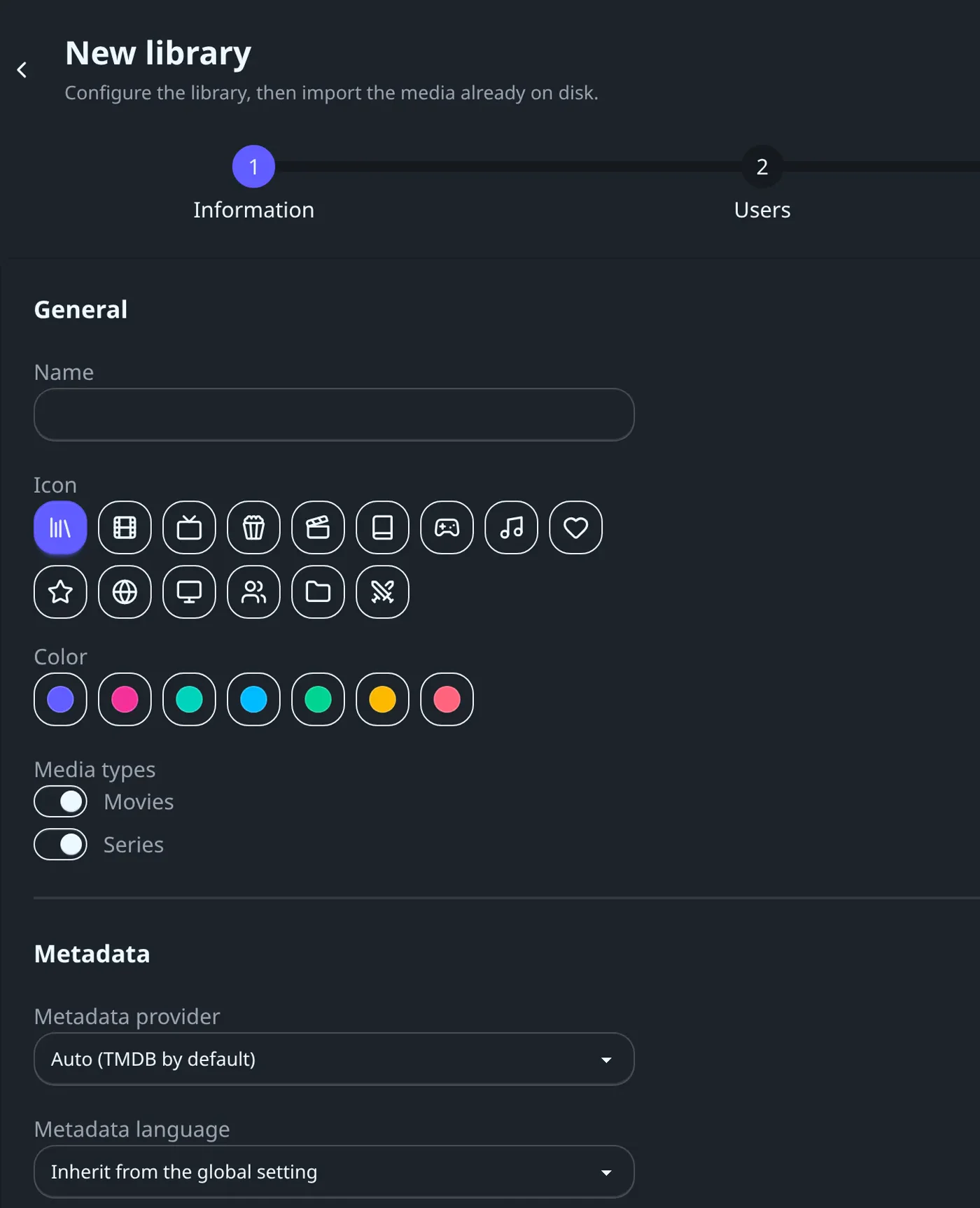
| Field | What it's for |
|---|---|
| Name | Shown everywhere the library appears; must be unique |
| Icon and color | How the library's card looks on the home page |
| Media types | Movies, series, or both. At least one is required. |
| Metadata provider | TMDB, TVDB, or automatic (TMDB by default) |
| Metadata language / region | Overrides the server-wide default for this library only; leave it on "Inherit from the global setting" to use the server default |
| Default quality / language profile | Stored with the library; the add screen still asks you to pick both for each title |
| Root path | The single folder on the server where this library's files live (created automatically if it doesn't exist yet) |
A folder can only belong to one library at a time, and once a library has media in it, its root path can't be changed or cleared.
The last step (Scan the folder) scans the root folder before the library is actually created, so you can review what Fliks found (and fix any wrong matches) before anything is saved. Once you confirm, the import runs in the background and you're free to keep using the app while it works.
Deleting a library removes its titles from Fliks, but never touches the files on disk.
Finding media in the folder#
Fliks doesn't watch a library's folder continuously in the background. To pick up new titles you've added since the last scan, open Settings > Libraries, pick the library, and click Scan the folder on its Medias tab. The scan:
- Walks the root folder and up to three levels of subfolders for video files (
.mkv,.mp4,.avi,.mov,.ts,.m2ts,.wmv,.flv). - Treats a file whose name carries an episode number (
S01E02,1x02and similar) as an episode, and groups every episode under the same top-level folder into one series. An episode file sitting directly in the root folder is skipped: a series needs its own folder. Looser forms count too (Episode 3,Part 2), so a movie file named likeMovie Title Part 2is taken for an episode: rename it before scanning. - Gives every other file its own group, as a movie.
- Reads an
.nfofile next to a video, if one exists, for a title, year and provider id hint. - Picks up a matching poster, fanart or logo image already sitting next to the files, for anything you choose to add without an online metadata match.
For each group found, you can Link it to a search result, or Add without metadata if you'd rather not wait, with Link all and Import all automatically to handle everything at once. Turning on Move / rename according to the naming rules (on by default) also renames and relocates matched files into the folder structure described below.
Rescan files (in a title's Analyze dialog, or Rescan all files under Settings > System for every title at once) re-reads the files inside each title's own folder, for example after replacing one with a better copy or dropping a new episode into a series folder Fliks already knows. It never discovers a new title: for that, scan the folder again.
Reviewing and fixing a match#
Every title's page has an Identify action for fixing a wrong or missing match by hand: search again by title and year, or paste an exact IMDb, TMDB or TVDB id if you already know it. Confirming re-fetches everything for that title in the background.
Who can see what#
By default, only administrators see every library. Give another user access to a specific library from that library's Users tab, or from the user's own Library access field in Settings > Users (open the user); either one fully replaces the previous list. Each user can also set their own library order, and hide libraries they do have access to, from App settings > Home in their user menu, without affecting what anyone else sees.
File naming#
Settings > Naming controls how files are renamed and organized when Fliks moves them into place, with a preview of the result:
| Setting | Default |
|---|---|
| Movie file format | {Movie Title} ({Release Year}) {Quality Full} |
| Series folder format | {Series Title} |
| Season folder format | Season {season:00} |
| Episode file format | {Series Title} - S{season:00}E{episode:00} - {Episode Title} {Quality Full} |
A movie always goes into its own {Movie Title} ({Release Year}) folder; that folder name isn't
editable from the page. Tokens like {Quality Full}, {Release Group}, {Original Title},
{TMDB Id} and {Air Date} are replaced with the matching value for that file (click a token on
the page to insert it); a token with nothing to fill it in is simply removed. Settings > General
also has a Companion file extensions list (subtitles, .nfo, artwork) for files that are
carried along with a video file whenever it moves.
Quality and language profiles#
Two kinds of profile decide what Fliks considers an acceptable copy of a title, and what to search for if you're using the download plugin. You pick both for each title when you add or request it (the first profile of each kind is preselected), rather than once for the whole library.
Quality profile (Settings > Quality profiles): which qualities are acceptable, in what order of preference, and a cutoff to stop looking once it's reached. Turning on Allow upgrades keeps Fliks looking for a strictly better release up to that cutoff, even for a title you already have; Resolution upgrades only limits that to actual resolution jumps rather than swapping one source for another at the same resolution.
Language profile (Settings > Language profiles): which audio languages you want, and which subtitle languages to search for automatically, each with its own forced and hearing-impaired preference. See Subtitles for how this profile is used.
Browsing a library#
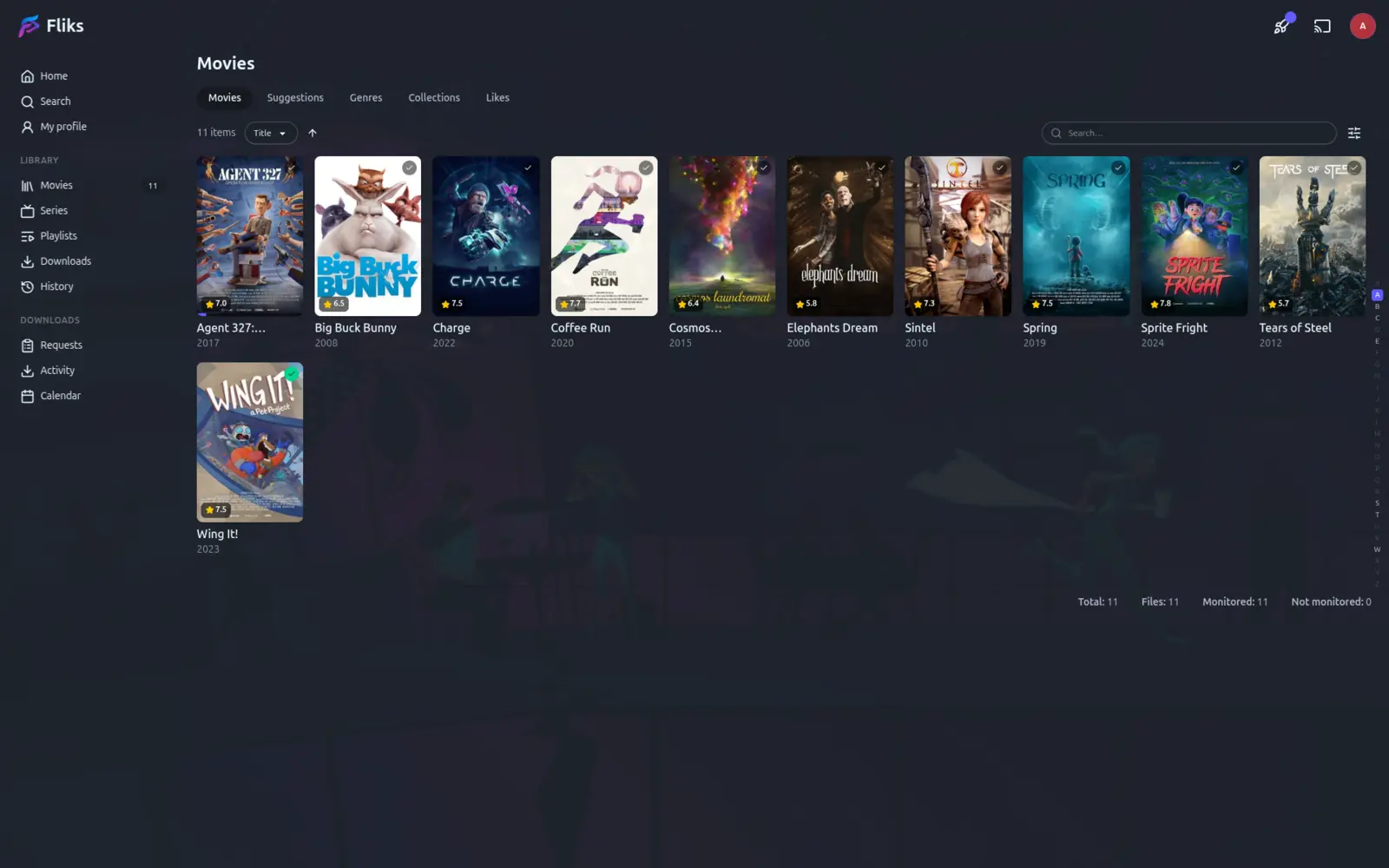
A library's own page offers several views: the full grid, Suggestions, Genres, Collections and your Likes, sortable by title, release date, date added or TMDB rating. Filters narrow it down further by monitoring state, watched state, or status (downloaded, missing, or below your cutoff), and your last-used filters are remembered per library. Bulk edit lets you change the quality profile or monitoring state for several titles at once.