
Player
Quality and playback stats
Choose a quality, understand Direct Play, Remux and transcoding in plain words, read the stats overlay, and what to try when playback stutters.
Open Settings (the gear) then Quality to pick a resolution; Auto lets Fliks decide. If playback stutters, lower the quality and open Stats for nerds to see why.
Change the video quality#
Show the controls and open Settings (the gear), choose Quality, then a row of the list. The check mark shows the current one.

The list starts with Auto, then the resolutions the title can be sent at, from the original down to 144p. A row marked Low bandwidth is a lighter version meant for a slow connection. The entry only shows when the title offers more than one quality.
Auto lets Fliks decide. A resolution you pick yourself stays fixed for the rest of the playback. How the ladder and Auto work: Streaming and transcoding.
Direct Play, Remux and Transcode are the three ways a file reaches you. What each one means: Streaming and transcoding.
Read the stats overlay (Stats for nerds)
Settings, then Stats for nerds, shows a panel at the top left of the picture. It stays until you close it with the cross. On a phone, use Settings in the bar, then Stats for nerds.
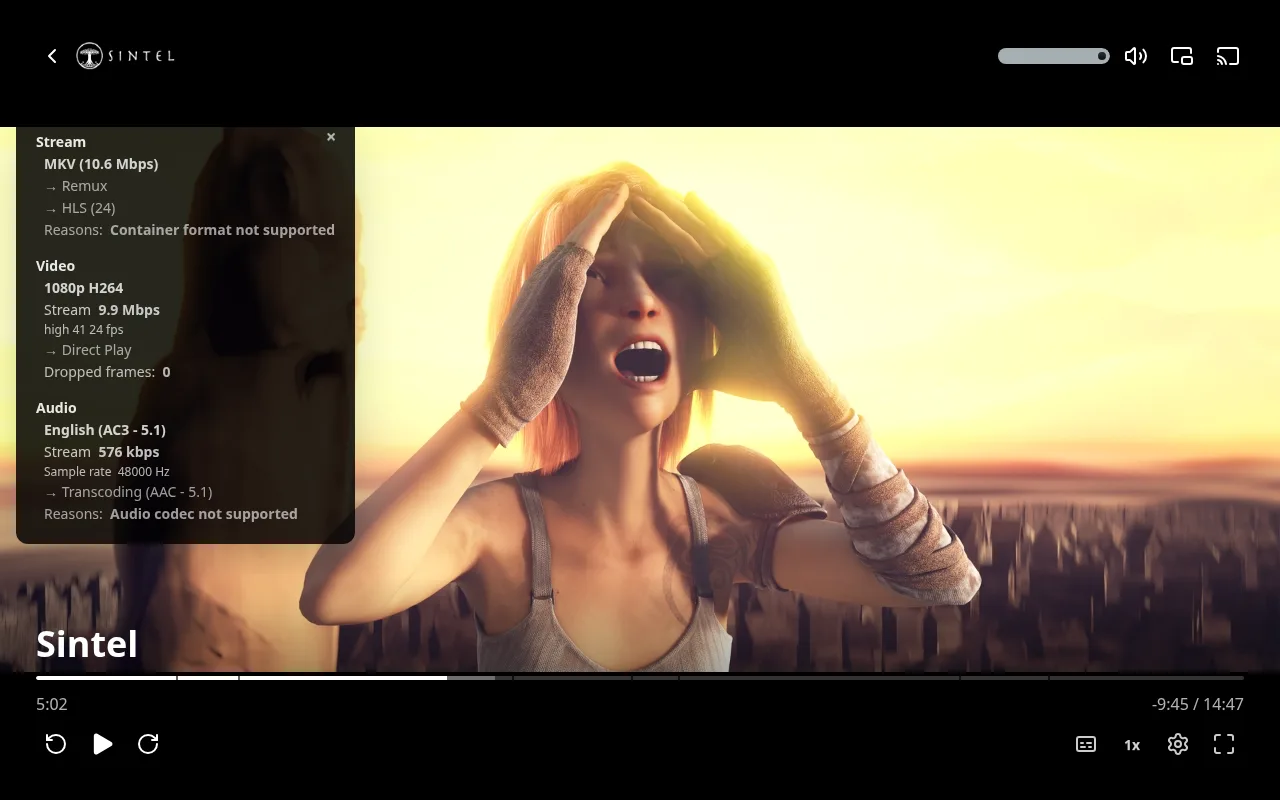
| Block | What it tells you |
|---|---|
| Stream | The container and bitrate of the file, and how it reaches you: Direct Play, Remux or Transcode. A Reasons line says why it was not Direct Play. |
| Video | Resolution, codec and bitrate, the profile and frame rate, what is done to the picture (Direct Play, or the transcode and its reason), and Dropped frames. |
| Audio | The track, its codec and channels, the bitrate, the sample rate, and what is done to the sound. |
Here the browser cannot play MKV, so the file is repackaged (Remux), and its AC3 sound is converted to AAC. Nothing is wrong: this is the normal, cheap path.
Fix playback that stutters or buffers#
Try these in order. Each is quick.
- Pick a lower quality. Settings, Quality, then a smaller resolution or a Low bandwidth row. If it plays smoothly, the connection or the server was the limit.
- Open the stats. Look at the Reasons lines. A transcode that runs slowly points at the server. A high Dropped frames count points at the device, which struggles to decode the video.
- Check where you are. On a remote connection, the upload speed of the server limits the quality. Stay on Auto or pick a lower one.
- Avoid image subtitles. A PGS or VobSub track is burned into the video, which forces a transcode. A text subtitle costs nothing.
- Ask the admin. Hardware acceleration, transcode slots and the playback quality dashboard are server settings. See Playback quality for the admin view of stalls and their causes, and Hardware acceleration for the server side.
A player error comes with Technical details and a Copy info button: include that text when you report a problem.
Play slower or faster#
The Speed button (1x) next to Settings sets the speed from 0.25x to 2x in steps of 0.25.
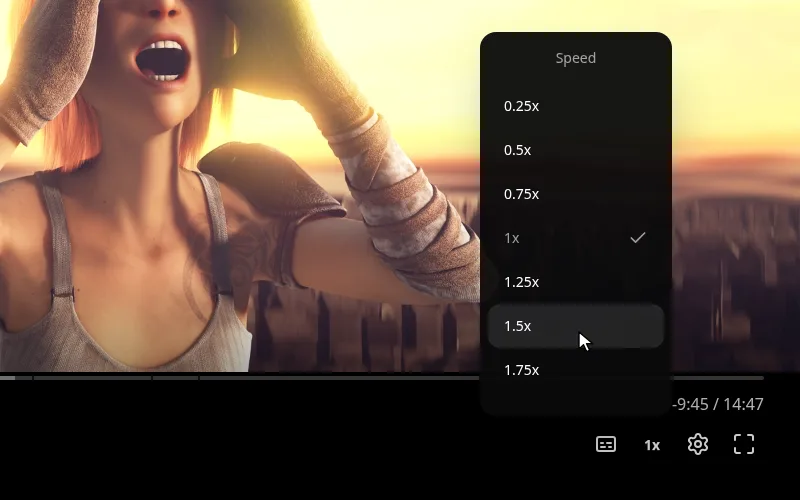
< and > on a keyboard slow down and speed up. The button is hidden during a
watch party, where everyone must stay in step.