
Administration
Plugins
Install, trust and manage the plugins that extend what Fliks can do, from the admin side.
Why plugins exist#
Fliks ships with no way to acquire media on its own. Everything that adds one, most notably the download plugin (torrent indexer search, download-client management, the grab pipeline), is installed separately from Settings > Plugins. This page covers installing and managing them; writing one is covered in the separate developer documentation.
Installing from the catalog#
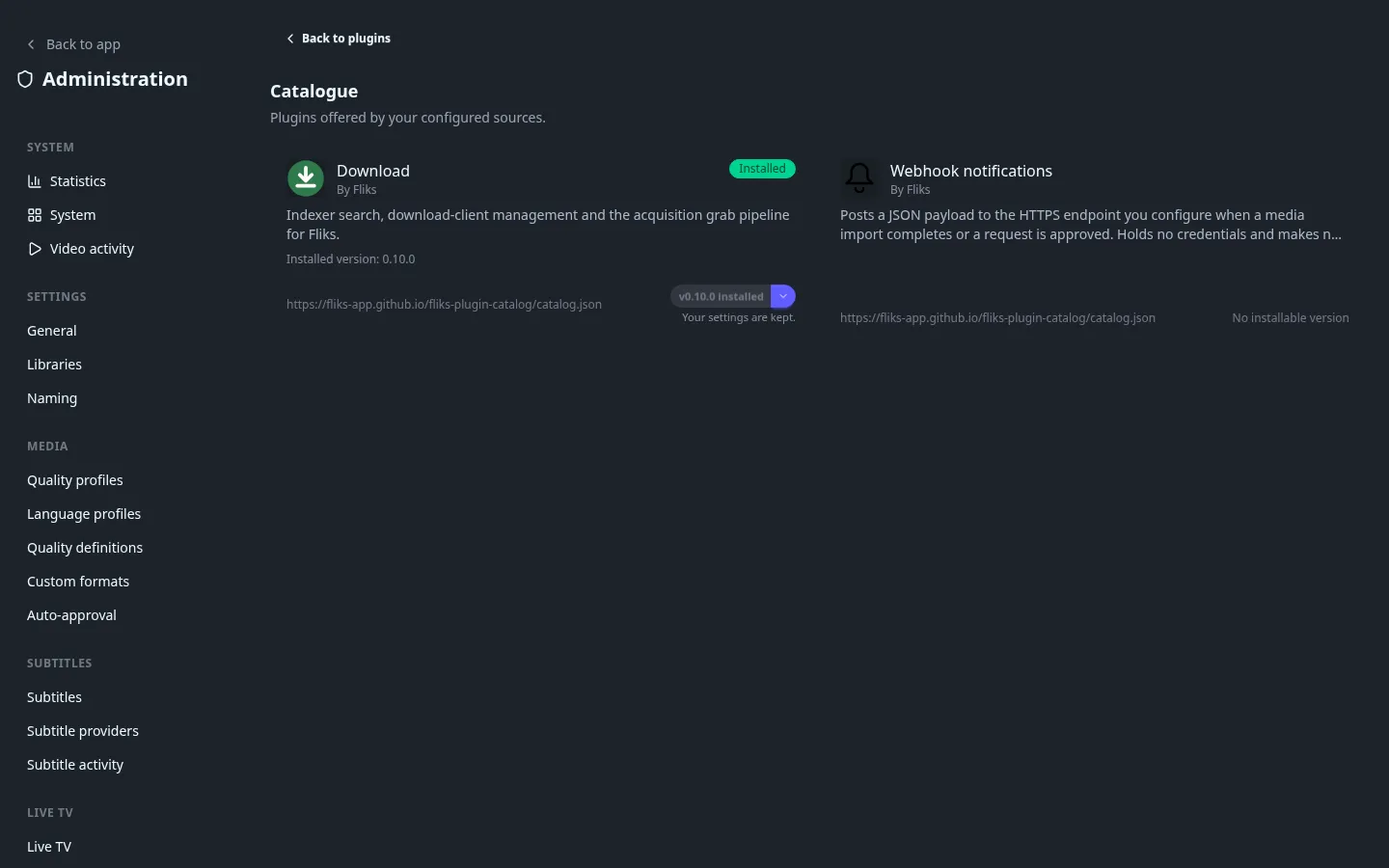
Search for a plugin opens the catalog: every plugin your configured sources offer, marked Installed or Update available where it applies. Installing shows a consent step first (see below) before anything is installed. Updating keeps the plugin's settings.
Importing a plugin by hand#
The ⋮ menu next to the catalog button has Import a plugin, for a .fkplugin (or .zip)
archive you have locally rather than from a catalog, useful for a plugin still in development or
one shared outside the official catalog. It goes through the same signature check and consent
step as a catalog install.
Data vs. process plugins#
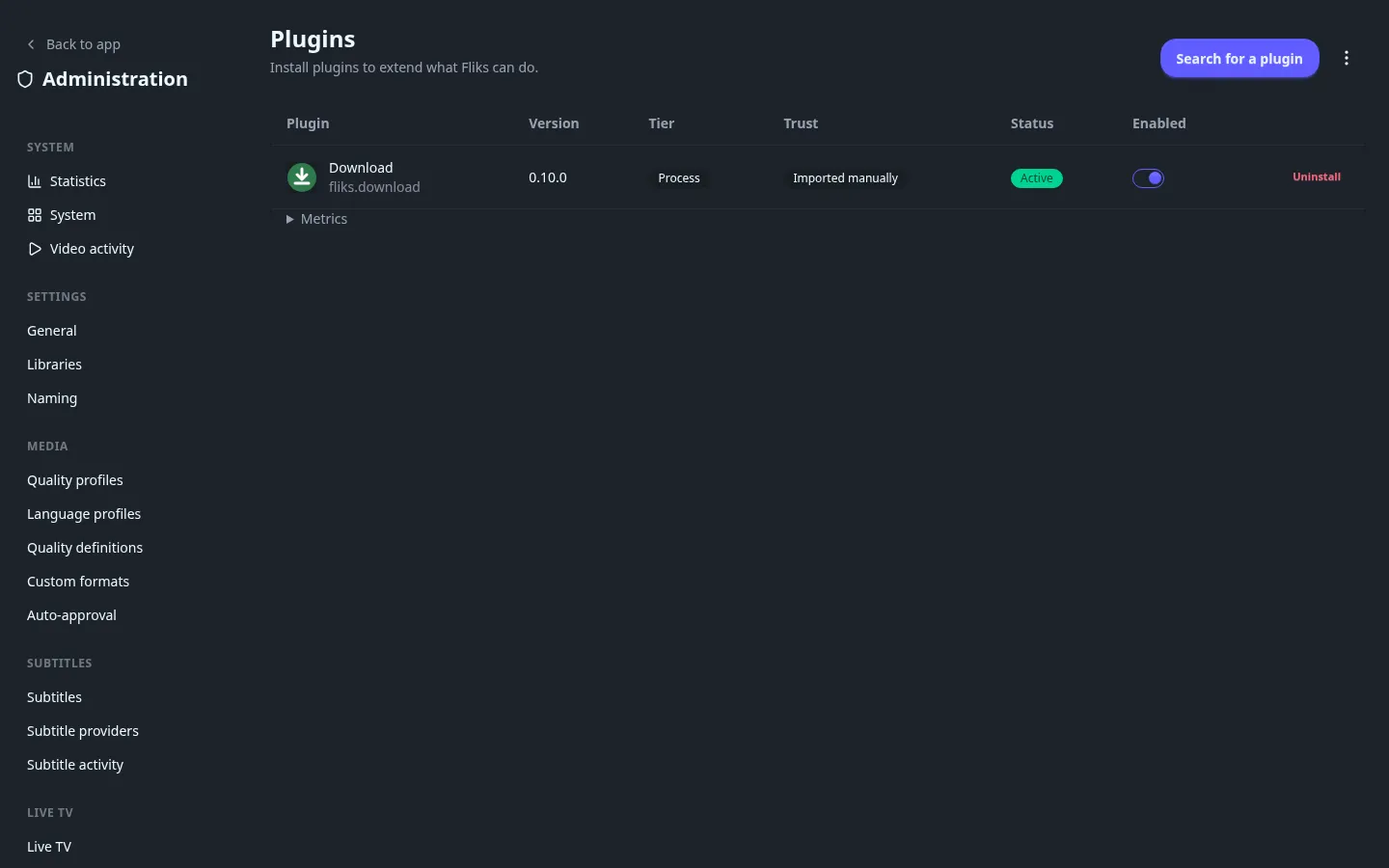
Every plugin is one of two tiers, shown as a badge in the plugin list:
- Data: ships no program code at all (a static catalog, for instance). It cannot run anything on your server.
- Process: runs in its own child process, under its own restricted file access. It can reach your network and add files to your library, but it cannot read your server's secrets, and it cannot reach another plugin's data or yours beyond what it's explicitly granted (see Users and permissions for how a plugin's own permissions show up in roles). A process plugin's Metrics panel shows its host calls, p95 latency, restarts, dropped events and memory use.
Trust#
Every plugin shows one of three trust badges, based on the archive's signature:
| Badge | Meaning |
|---|---|
| Official | Signed by a key Fliks trusts: the official release key, or the key pinned on the source it came from. |
| Unverified | Signed, but by a key Fliks doesn't recognize. |
| Imported manually | Not signed at all. Despite the name, this is about the missing signature, not where the file came from: a signed archive you import by hand still shows Official or Unverified. |
A signature confirms who published the archive; it says nothing about whether the code itself is safe. Installing anything other than an Official plugin requires ticking an explicit acknowledgement of that before the install goes through. An unsigned process plugin (one that runs code) is refused outright unless Allow unsigned plugins is on (see Plugin settings). The consent screen also lists exactly what a process plugin is asking to be able to do, so you know before you install rather than after.
Sources#
Manage sources (in the ⋮ menu) lists every plugin catalog Fliks checks: the official one is configured out of the box, and you can add others by URL, refresh one by hand, disable or remove it. Sources also refresh on their own through the scheduled task. When adding a source you can pin its signing key (a base64 public key, shown as "Pinned key" instead of "Official key"), so its archives are checked against that key rather than treated as unverified.
Plugin settings#
The ⋮ menu's Settings covers how installation and updates behave overall:
| Setting | Default | What it does |
|---|---|---|
| Update plugins automatically | On | Once a day, after sources refresh, installs the newest version each source offers for a plugin you already have, but only when that version is signed by the source's catalog key. Anything else still waits for you to acknowledge it by hand. |
| Ignore the required Fliks version | Off | Installs and loads a plugin version even when it doesn't declare support for your Fliks version. The plugin API compatibility check still applies regardless. |
| Allow installing older versions | Off | Adds a version picker next to the catalog's install/update buttons, instead of always taking the newest. |
| Allow unsigned plugins | Off | Lets you install a plugin with no signature at all, mainly for developing your own. Turning it back off doesn't remove one already installed this way. |
Enabling, disabling, uninstalling#
Each row in the plugin list has an Enabled switch (stops the plugin without removing it) and an Uninstall action. Uninstalling asks for confirmation and deletes any data associated with that plugin.
See also#
- Users and permissions for how a plugin's declared permissions integrate with roles.
- Settings for where the Plugins page sits among the rest of the admin area.