
Player
The music player
The mini player and the full-screen player for music, the queue, shuffle and repeat, Play next, lyrics, playing on another device, and the phone layout.
Press Play on an album and the mini player appears; click it for the full player with the queue, shuffle, repeat and lyrics. Add tracks with Play next in a track's menu.
Music has its own player. It is not the video player: it never takes over the whole screen, and it keeps playing while you browse. For video, see The player.
Play music#
On an album page, press Play (or a track: the album starts from it). The mini player appears at the bottom right: click it to open the full player. Browsing the library is in Music.
How the mini player works
The mini player stays at the bottom of the screen on every page, so you can keep browsing. It shows the cover, the title, the artist and a thin progress line, with a Pause / Play button. Its colour follows the cover.
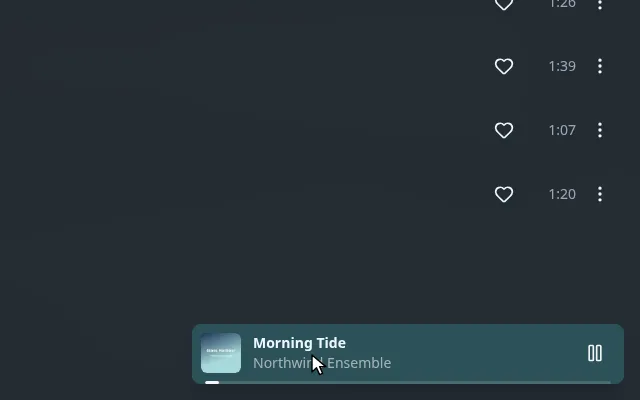
- Click it to open the full player.
- On a phone it spans the width of the screen. Swipe its title left or right to go to the next or the previous track.
- Close the player with Close the player in the full player's menu.
The full player#
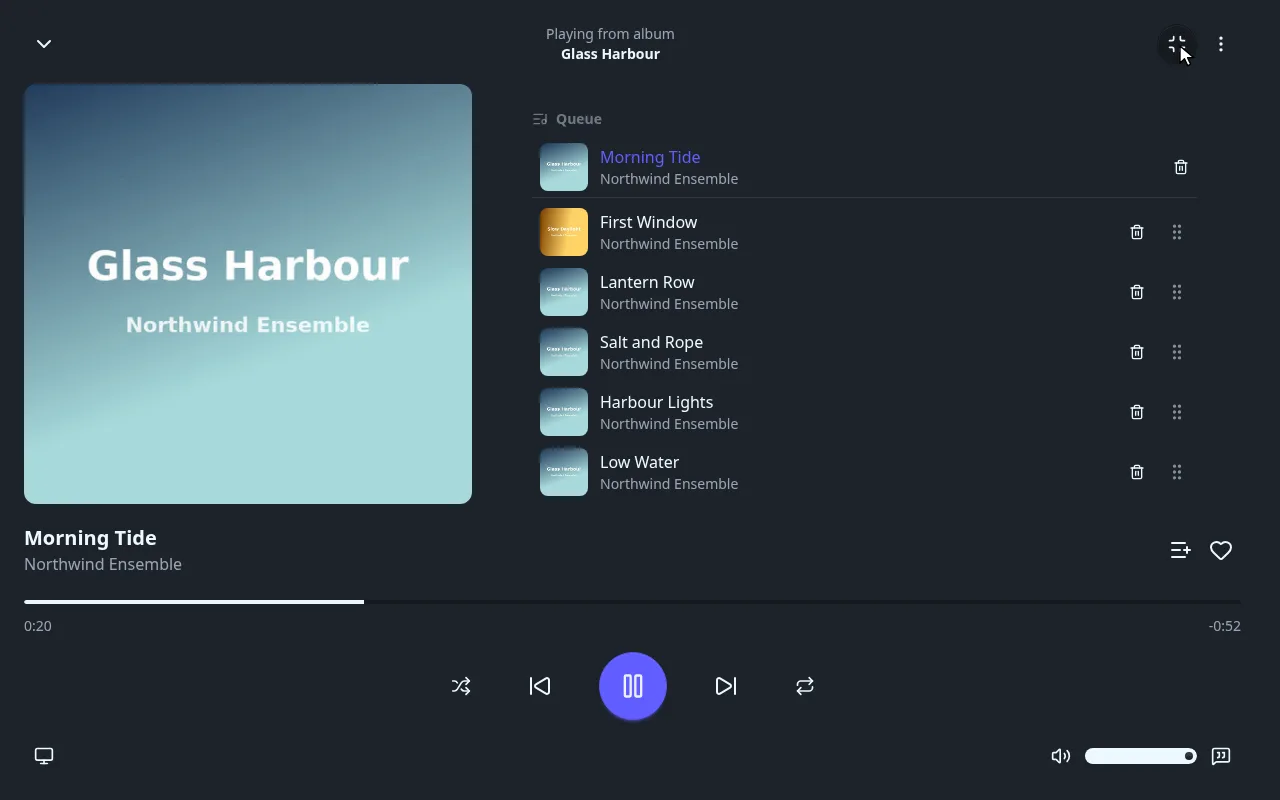
The full player is a window on a computer and a sheet that slides up on a phone. Its header has a down arrow to shrink it back to the mini player, the album being played (Playing from album), Fullscreen (computer only) and a menu.
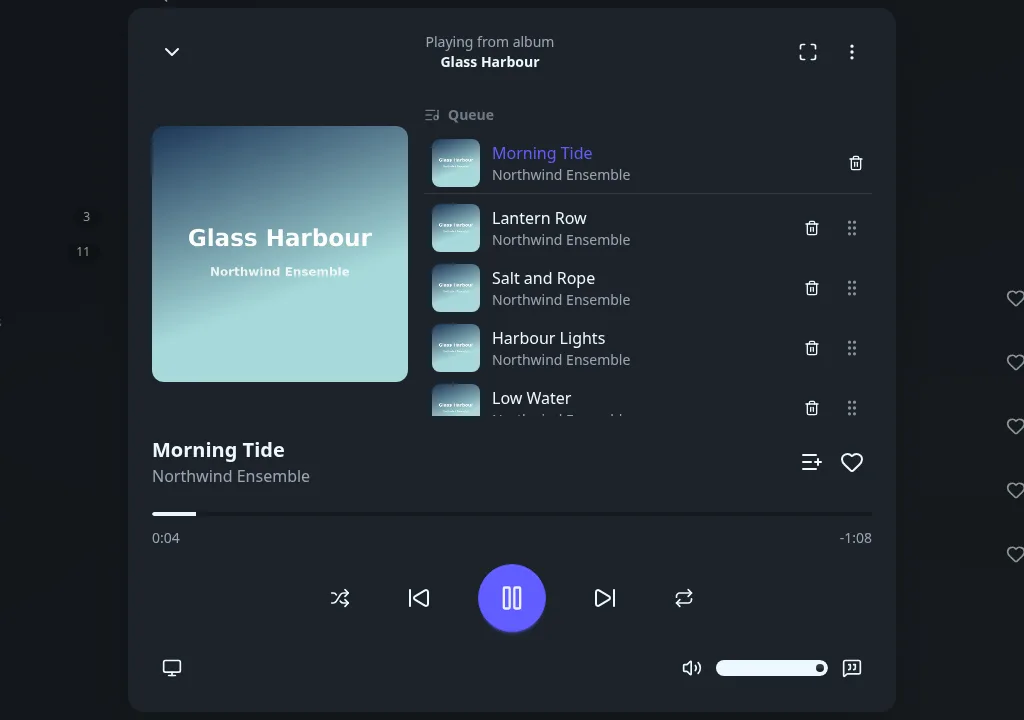
Every control of the full player
| Control | What it does |
|---|---|
| Seek bar | Click or drag to jump. The time played is on the left, the time left on the right. |
| Shuffle | Plays the queue in random order. Press again to restore the order. |
| Previous track / Next track | Go to the previous or the next track. |
| Play / Pause | Starts or pauses. |
| Repeat | Cycles through Repeat: off, Repeat: all and Repeat: one track. |
| Volume | Mutes with the speaker button, or drag the slider. Hidden on phones and tablets: use the device's own volume. |
| Add to a playlist | The list icon next to the heart. Adds the track to a playlist. |
| Favourite | The heart. Adds the track to your favourites. |
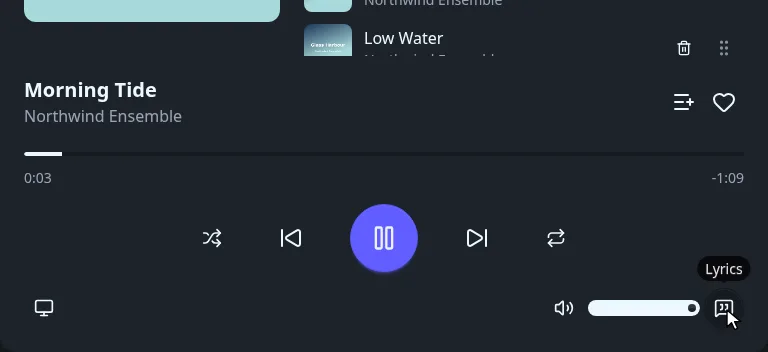
| Lyrics | Shows the lyrics. Only present when the track has lyrics. See Lyrics. |
| This device | Plays on another screen. See Play on another device. |
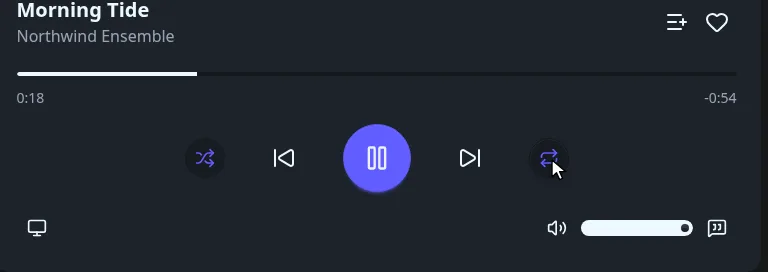
Shuffle and repeat are also in the queue sheet on a phone.
Fullscreen#
On a computer, Fullscreen fills the screen with the cover, the queue and the controls. It is the only layout that shows the queue and the lyrics at the same time.
What the player menu holds
The three dots at the top right open a short menu.
- Edit lyrics, when you are allowed to. See Lyrics.
- Volume levelling sets Off, Track or Album (ReplayGain), so that quiet and loud tracks sound alike. Level adjustment raises or lowers the result in dB.
- Listen together starts a watch party for music.
- Close the player stops playback and removes the mini player.
The queue#
The queue lists the track playing and the ones coming next. On a computer it sits next to the cover. When lyrics are shown it gives way to them, except in fullscreen.
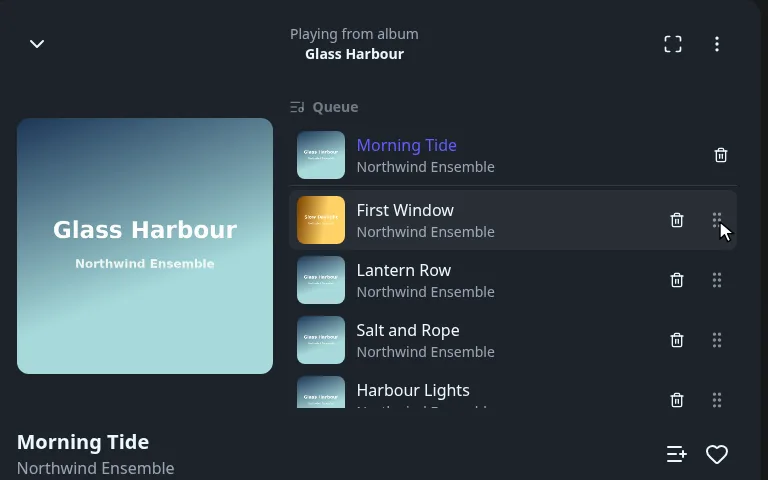
- Reorder: drag a row by its handle (the six dots) to move it.
- Remove from the queue: press the bin on a row.
- On a phone, open the queue with the queue button at the bottom right of the full player. It slides up as a sheet. Swipe a row sideways to remove it, or drag its handle to reorder.
- On a phone, Edit lets you tick several tracks, then Move to top or Remove. Done leaves the edit mode.
Close the player to drop the queue.
Play a track next or add it to the queue#
The menu of a track on an album page adds it to the queue without interrupting what plays.
Press the three dots at the end of a track, then choose Play next to play it right after the current track, or Add to queue to put it last.
The track can come from another album: the queue mixes them. During a watch party that takes turns, Play next is not offered: the server places each song by turn.
Lyrics#
Press Lyrics in the full player to show them next to the cover. The choice is remembered for the next tracks.
- Synced lyrics highlight the line being sung and scroll with the music. Lyrics timed word by word highlight each word.
- Plain lyrics have no timing: every line is shown and nothing moves.
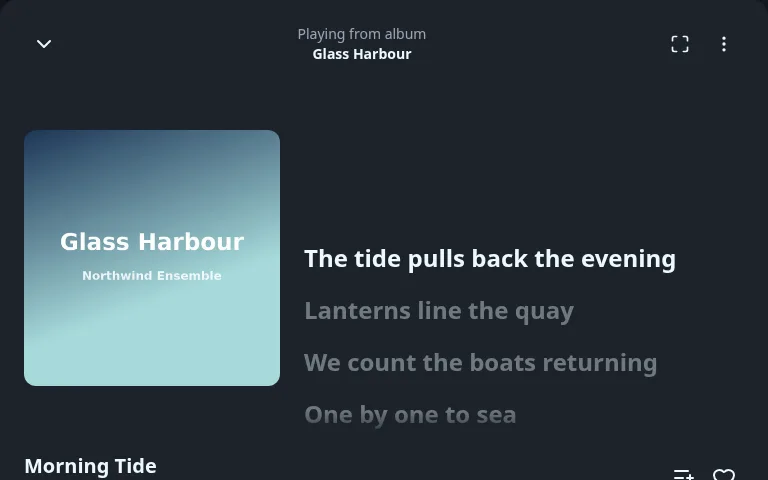
A track without lyrics has no Lyrics button.
Where lyrics come from
Fliks looks for lyrics when it imports a track:
- A file with the same name as the track, next to it:
.ttml,.elrc,.lrc,.srtor.txt(01 - Night Bus.lrcfor01 - Night Bus.mp3). Add a language to the name for another language (01 - Night Bus.fr.lrc). An administrator can change the list in Settings > Lyrics. - Lyrics embedded in the audio file.
- A lyrics provider (LRCLIB), when Automatic fetch is on.
A file added after the track was imported is not picked up by a new scan. Add the lyrics from the player instead, as below.
Add or fix lyrics#
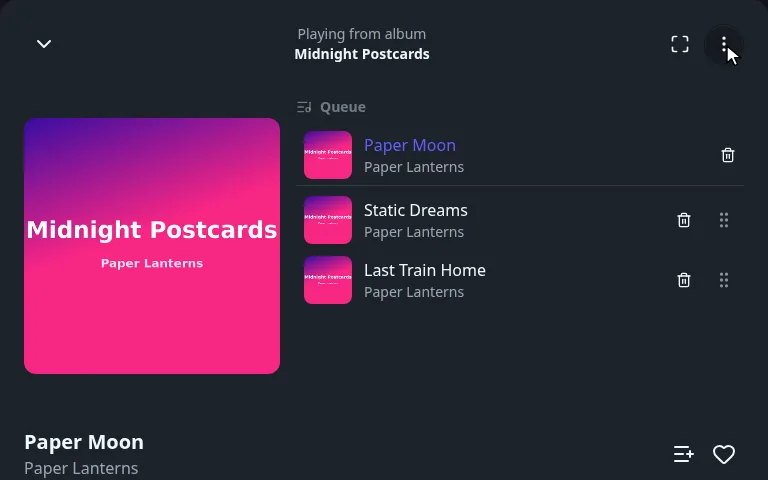
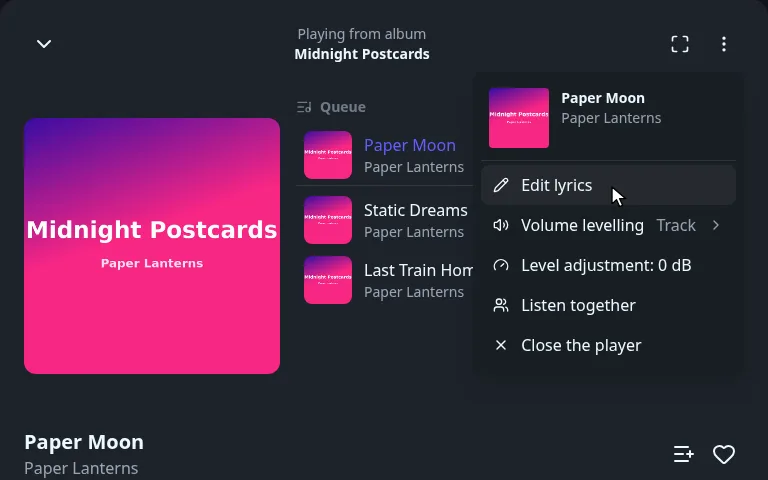
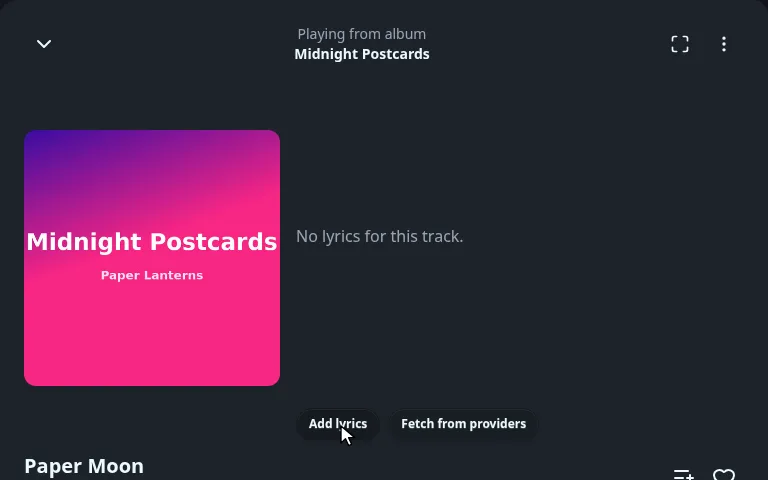
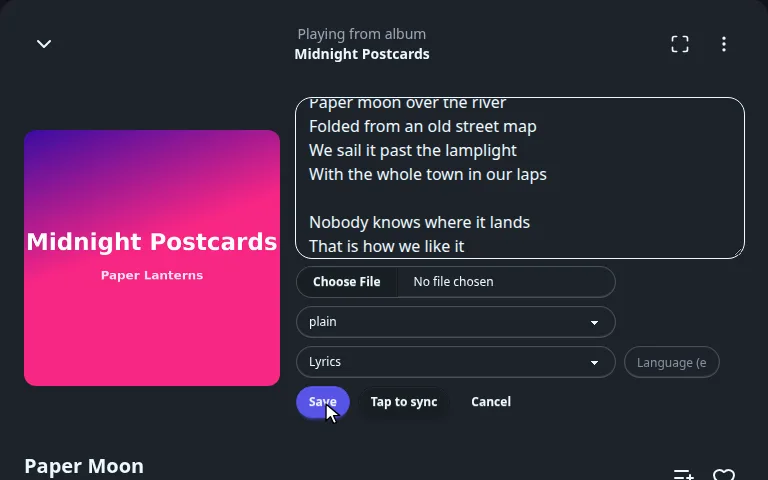
Once saved, the lyrics show right away.
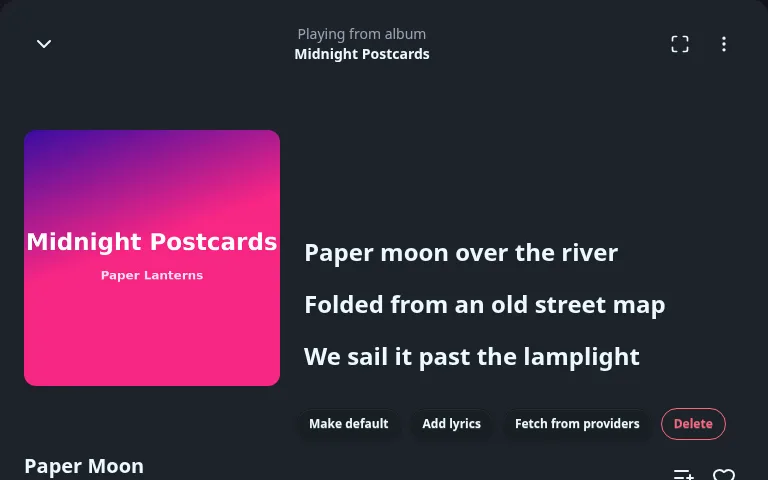
- Type is Lyrics, Translation or Pronunciation. Translations and pronunciations appear in the player's menu, where you switch between them.
- Make default chooses which version is shown first. Delete removes the shown version.
- Tap to sync times plain lyrics yourself: play the track and press Stamp line as each line starts. Back undoes the last stamp.
Karaoke
When an administrator has turned karaoke on and a track has been prepared, a Sing button appears in the player. It offers a score per singer, a Difficulty, a change of Key and a Sound mix (Original, Guide or Instrumental). Set it up in Settings > Karaoke.
Play on another device#
The screen button at the bottom left of the full player lists the screens that can play the music: This device, a Chromecast, and any other Fliks screen signed in to your account.
Press the screen button at the bottom left, named This device, then pick the screen to play on. The track and the queue move there.
More in Casting and other devices.
On a phone#
The phone layout has the same controls, laid out for a thumb.
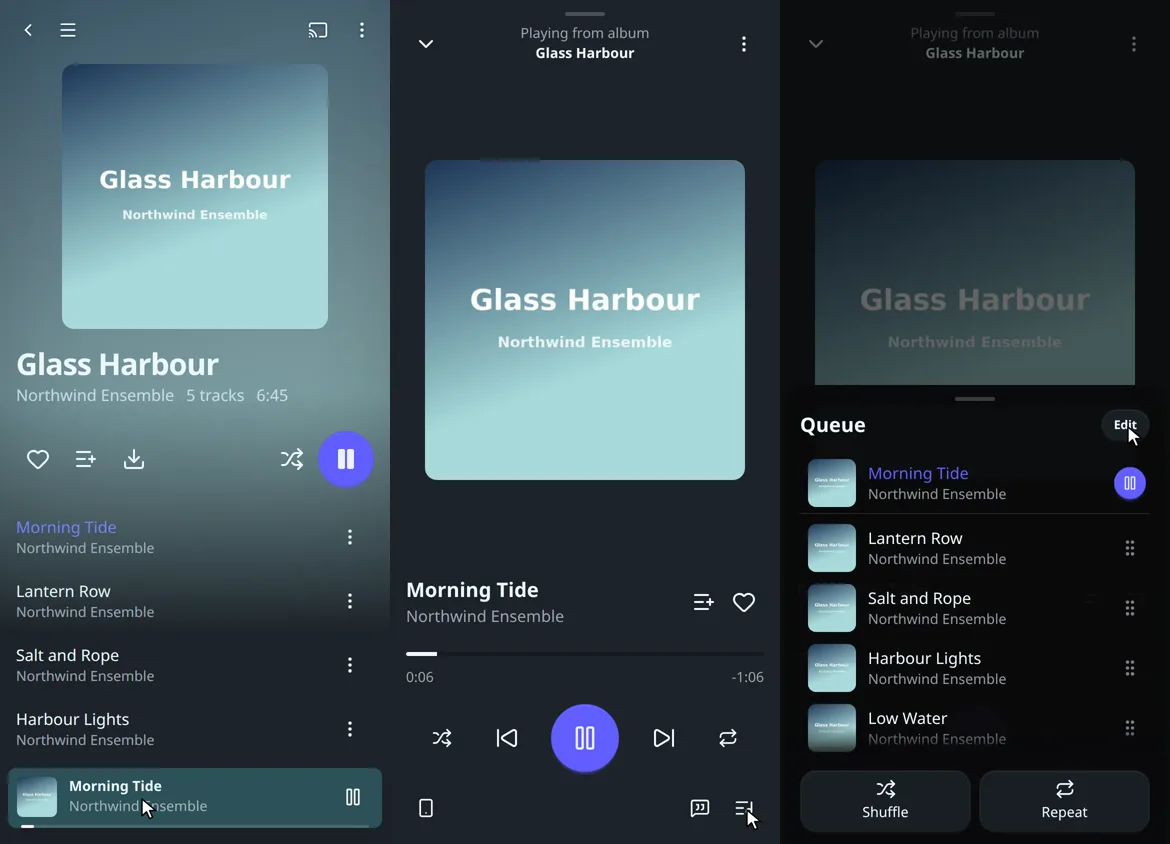
Tap the mini player to open the full player. The buttons at the bottom are the device button, Lyrics and the queue; pull the queue sheet down to close it.
Lock screen and background
In a browser, Fliks tells the system what is playing: title, artist, album and cover. The notification area, the lock screen and the keyboard's media keys then show them and control play, pause, previous, next and seeking. The mobile apps play music through the platform's own audio. See Mobile.
See also#
- Music for the library, albums, artists and downloads.
- Keyboard, touch and remote for the media keys.
- Casting and other devices.