
Player
Casting and other devices
Use the Play on another device button in the player to cast to a Chromecast or hand playback over to another Fliks screen.
In short
Press the cast icon at the top right of the player and pick a Chromecast or another Fliks screen signed in to your account. Choose This device to bring playback back.
Play on a TV, Chromecast or another screen#
The button with the cast icon, at the top right of the player, lists every screen that can play what you are watching.
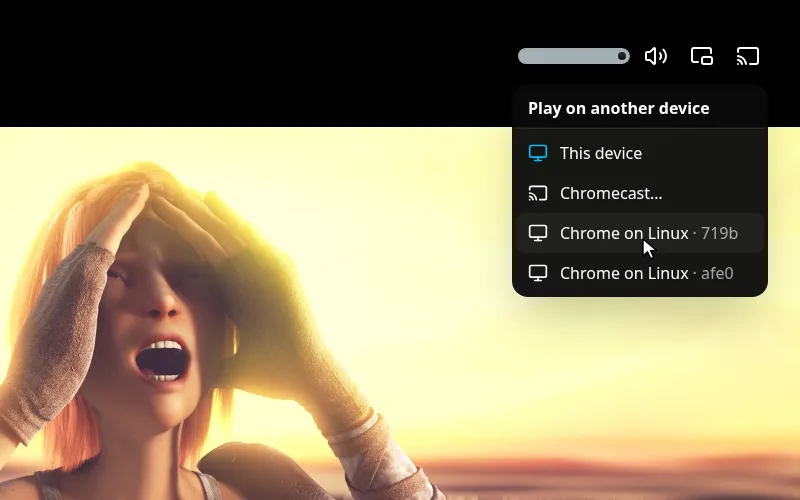
| Entry | What it does |
|---|---|
| This device | Plays here. The entry that is highlighted is where the video is playing now. |
| Chromecast... | Opens the browser's own picker of Chromecasts on your network. |
| A device name (for example a phone or a TV) | Another Fliks screen signed in to your account. Pick it and the playback moves there. |
The same icon is in the top bar of the title pages, so you can choose the screen before pressing play. On a phone, the list opens as a sheet from the bottom.
What happens when you pick a screen#
- Casting to a Chromecast. The server prepares a version the Chromecast can play, and the player turns into a remote control: the bar acts on the TV. Quality, audio and subtitles are chosen on your side. Settings for HDR, maximum quality and audio channels are in App settings > Chromecast. See Chromecast.
- Another Fliks screen. The title opens on that device, and your player controls it: play, pause, seek, volume, next episode, quality, audio and subtitle tracks. Controlling someone else's device needs a code: see Pairing and remote control.
To bring the playback back, open the list again and choose This device.
A TV app cannot cast: it can only be a target of the other screens.