
Administration
Single sign-on
Let people sign in with an OpenID Connect provider such as Keycloak or Authentik, and what to register at the provider.
Let people sign in with an OpenID Connect provider such as Keycloak or Authentik. Set the Public address, serve Fliks over https, add the provider in Settings > Single sign-on, register the addresses Fliks shows you, then tick Enabled. Administrators only.
Settings > Single sign-on (under Users) is for administrators only, not for a role that merely holds settings.access: these settings decide who can become an admin. Available from Fliks 6.0.0.
Before you start#
- Set the Public address in Settings > General to the address people use to reach Fliks
(for example
https://fliks.example.com). It's required: the addresses you register at the provider are built from it, and a provider can't be enabled without it. - Serve Fliks over https. Over plain http the sign-in buttons stay hidden.
- Your provider must enforce PKCE with the
S256method. Fliks reads the provider's discovery document and refuses to enable one that doesn't list it, since a provider that ignores PKCE would accept a stolen code.
Add a provider#
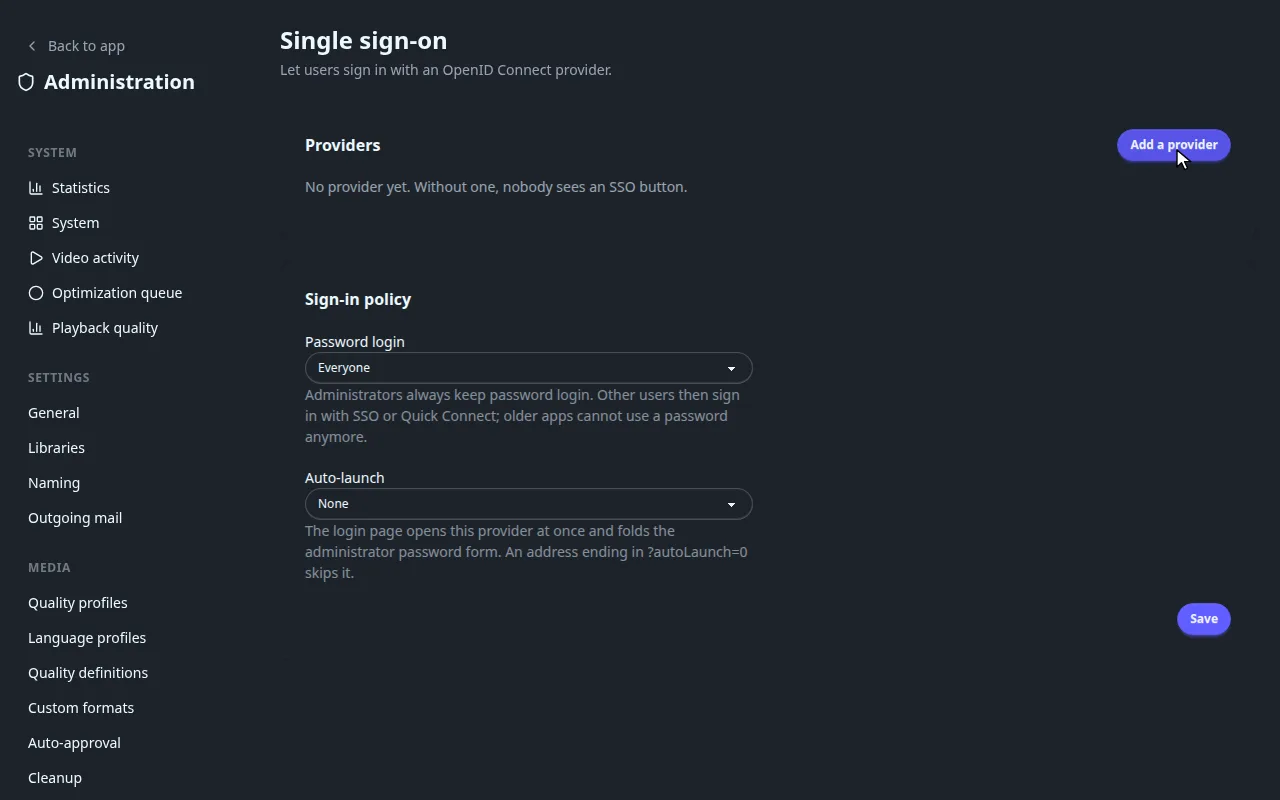
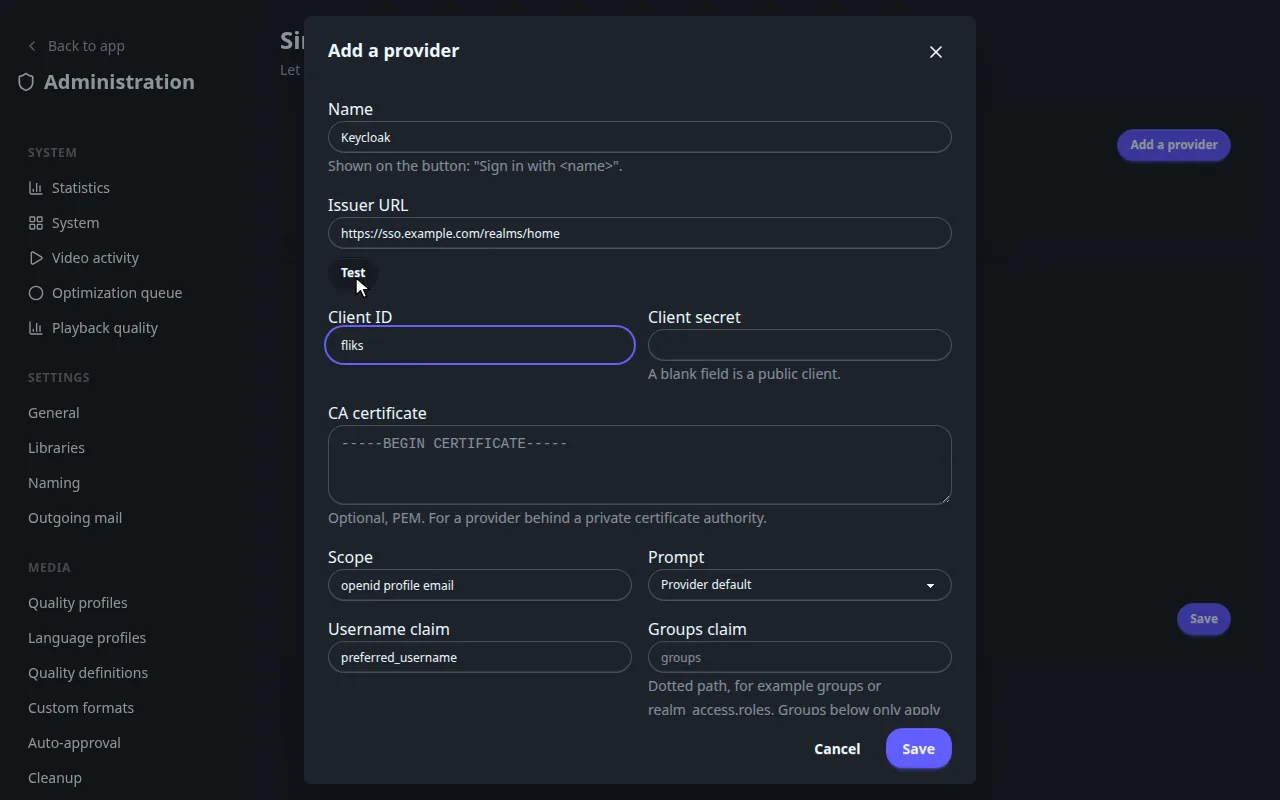
- Add a provider and fill in Name (the button reads "Sign in with
"), Issuer URL (compared exactly with the one the provider advertises, so mind a trailing slash), Client ID and Client secret. Leave the secret blank for a public client. Test checks that the provider is reachable and shows its signing algorithms, PKCE, logout at the provider and back-channel logout support. - Save the provider first. The Addresses to register at the provider only appear once it is saved, because the redirect address carries the provider's id.
- Register them at the provider, then tick Enabled.
| Address | Value |
|---|---|
| Redirect URI | <public address>/api/auth/oidc/<id>/callback |
| Back-channel logout URI (optional) | <public address>/api/auth/oidc/<id>/backchannel-logout |
| Post-logout redirect URI (optional) | <public address>/login?autoLaunch=0 |
Platforms, TVs and signing in from another address
The single redirect URI covers the web app, the desktop app and the iOS and Android apps: don't
register one per platform. TVs can't use single sign-on; they sign in with
Quick Connect
from a device that is signed in. The issuer of a saved provider can't be changed, because every
linked account is tied to it: add a new provider instead.
Open Fliks on its public address host when you sign in on the web. If you start from another address, the web app moves to the public address first, since the sign-in returns there.
Who gets in#
Every setting: scope, groups, roles, account creation
| Setting | What it does |
|---|---|
| Scope, Username claim, Prompt | openid profile email and preferred_username by default. |
| Groups claim | A dotted path such as groups or realm_access.roles. The three group settings below only work when it is set. |
| Allowed groups | One per line. Empty allows everyone; otherwise only members can sign in. |
| Administrator groups | Members become administrators, re-applied at every sign-in. |
| Group to role | The first matching row wins and its role is re-applied at every sign-in; without a match the default role applies. |
| Create accounts automatically | A first sign-in with no account creates one with the default role. |
| Match existing accounts by verified email | Adopts only an account an administrator created without a password that never signed in, when the provider marks the email as verified. Other accounts link from their own account page. |
| CA certificate | A PEM bundle, for a provider behind a private certificate authority. |
| Sign out at the provider too | Web only; off by default. |
Disabling a provider signs its users out at once, and deleting one also removes the links between it and their accounts. Each provider in the list shows how many accounts are linked to it.
Sign-in policy#
Sign-in policy: password login and auto-launch
Password login has two modes:
- Everyone (default): passwords keep working next to single sign-on.
- Administrators only: other users sign in with single sign-on or Quick Connect. Administrators always keep their password. It needs at least one enabled provider, and the last enabled provider can't be disabled or deleted while this is on. Apps older than 6.0.0 can't sign non-admins in with a password anymore.
Auto-launch makes the login page open one provider at once, and folds the administrator
password form away. An address ending in ?autoLaunch=0 skips it, which is how you reach the
password form if the provider is down.
Sessions#
How long a single sign-on session lasts
A session started through a provider lasts at most 30 days, however often it refreshes. After that the app runs the provider sign-in again, silently when the provider still has your session. Quick Connect logins and device tokens made from such a session are not bound by that limit.
See also#
- Users and permissions for roles and the login user list.
- Reverse proxy if the public address is behind one.