
Player
The player
How to start a title, what every button of the player does, seek previews, skip intro, picture-in-picture and fullscreen.
Open a title and press Play. Move the mouse or tap to show the controls; f goes fullscreen. Seek bar, skip intro, picture-in-picture and the phone layout are below.
Playing music? It has its own player: see The music player.
Start playing a title#
Open a title from your library, then press the Play button on its page. The same button reads Resume at 5:05 when you stopped part way through, and a From the beginning button appears next to it.
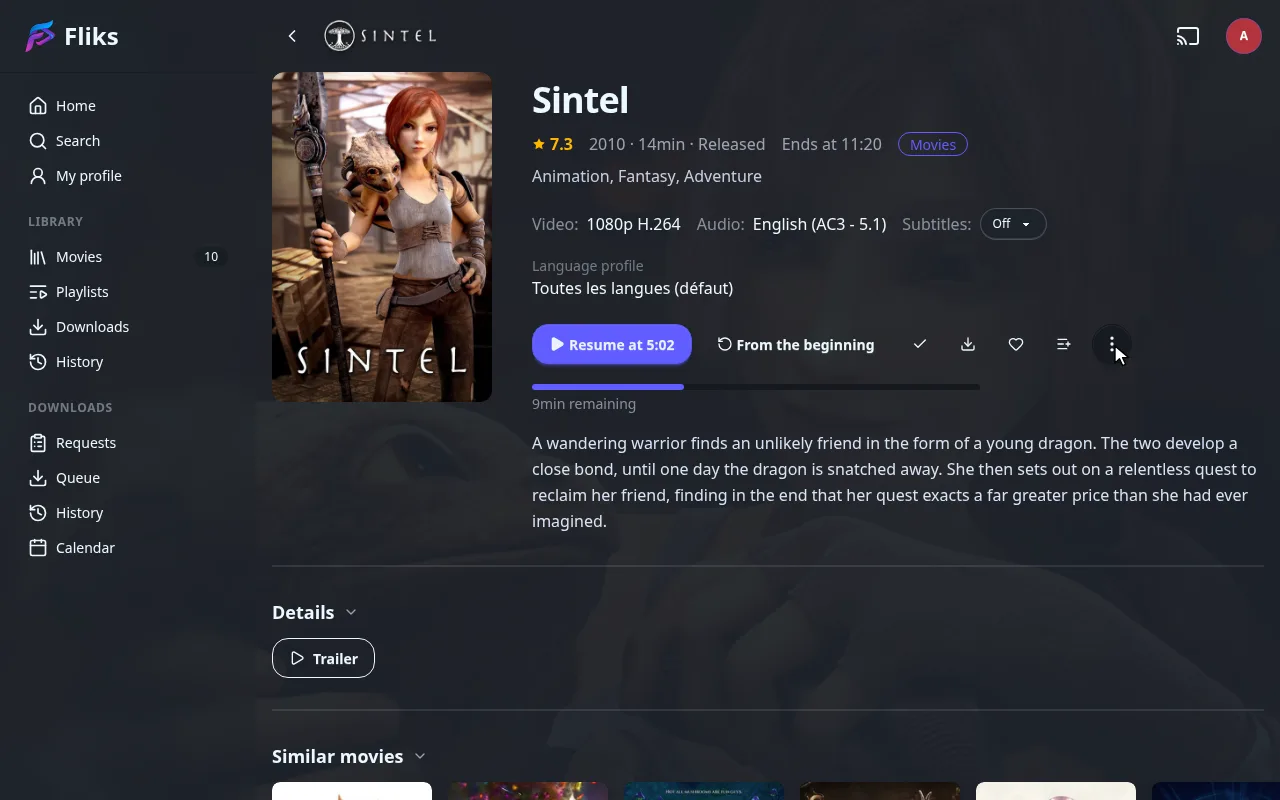
The line above the buttons shows what will play: Video, Audio and Subtitles. Each is a choice you can change before pressing play:
- Video becomes a list when the title has several files (two encodes of the same film, for example). Pick the file you want.
- Audio and Subtitles open a list of tracks. See Audio and subtitles.
For a series, the buttons act on the episode shown: open another one to play it.
The control bar#
Move the mouse, tap the screen, or press a key to show the controls. They hide on their own during playback.
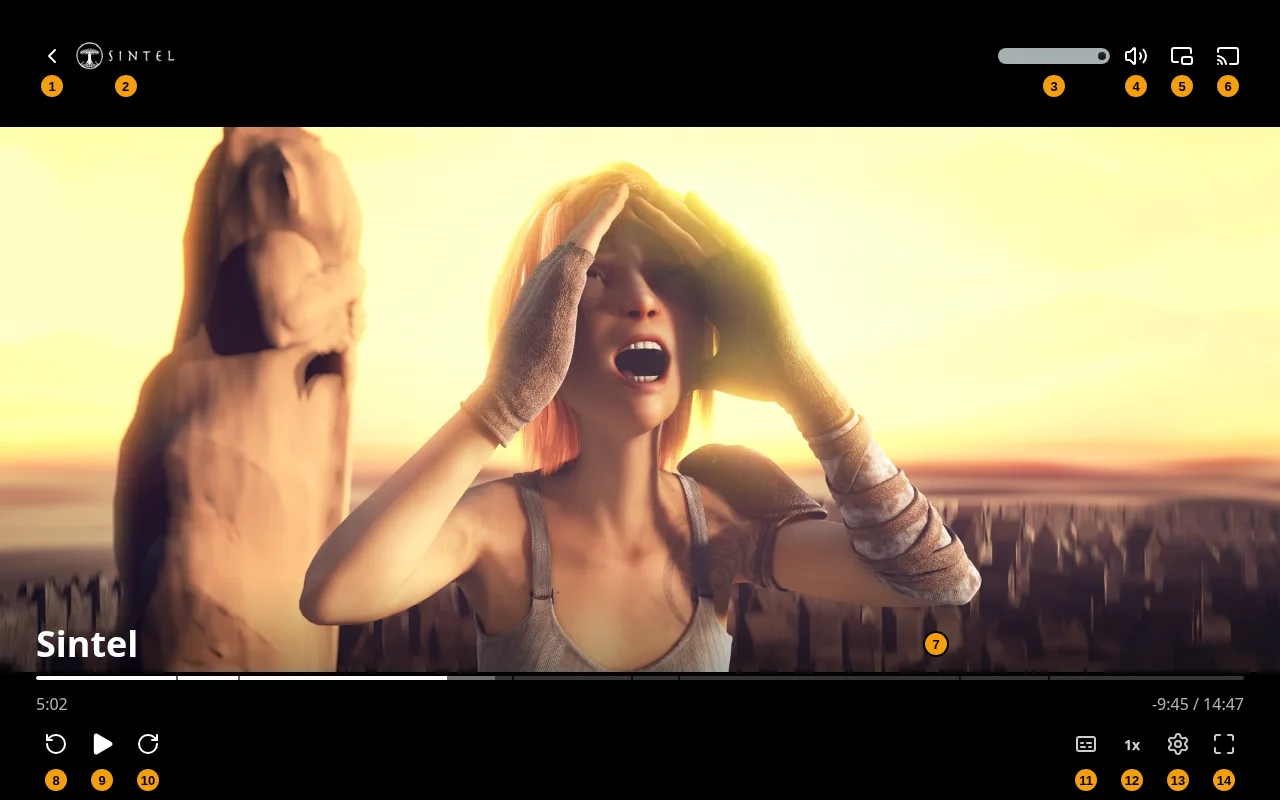
What each numbered control does
| # | Control | What it does |
|---|---|---|
| 1 | Back arrow | Leaves the player and returns to the page you came from. |
| 2 | Title logo | The logo of what is playing. The title and episode name are at the bottom left. |
| 3 | Volume slider | Sets the volume. |
| 4 | Volume button | Mutes and unmutes. |
| 5 | Picture-in-Picture | Moves the video to a small floating window. |
| 6 | Play on another device | Casts or hands the playback over to another screen. See Casting and other devices. |
| 7 | Seek bar | Shows your position. Click or drag to jump. The times below it show the time played, the time left and the total length. |
| 8 | Rewind 10 seconds | Jumps back 10 seconds. |
| 9 | Play / Pause | Starts or pauses. |
| 10 | Forward 10 seconds | Jumps forward 10 seconds. |
| 11 | Subtitles | Picks a subtitle track and opens the appearance and sync options. Only shown when the file has subtitles. |
| 12 | Speed (1x) |
Plays slower or faster, from 0.25x to 2x. |
| 13 | Settings | Quality, fill screen, stats, and a shortcut back to the title page. |
| 14 | Fullscreen | Fills the screen. Press it again to leave. |
Two more buttons appear only when they apply:
- Audio (a headphones icon, next to Subtitles) when the file has more than one audio track.
- Next episode (a skip-forward icon, left of Subtitles) when something is queued after the current item: the next episode, the next item of a playlist.
Clicking the picture itself pauses and resumes. Double-clicking toggles fullscreen.
The settings menu#
The gear opens a short menu.
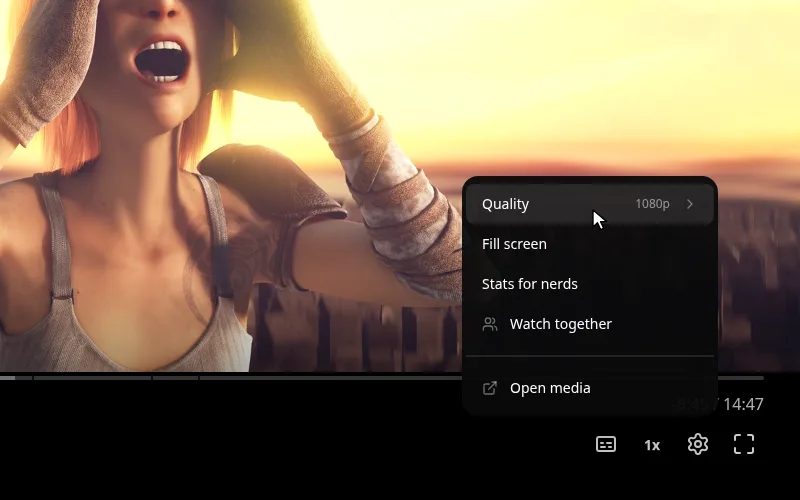
- Quality opens the quality list. See Quality and stats.
- Queue appears when several items are queued (a playlist, a series): jump to any of them.
- Fill screen crops the picture to fill the window instead of leaving black bars.
- Stats for nerds shows the technical overlay.
- Watch together starts a watch party.
- Open media goes to the title page.
The bar, the subtitle list, then the appearance options:

Seek bar previews#
Point at the seek bar to see a small preview frame, the time under the pointer and, when the file has chapters, the chapter name. Click to jump there, or press and drag to scrub.
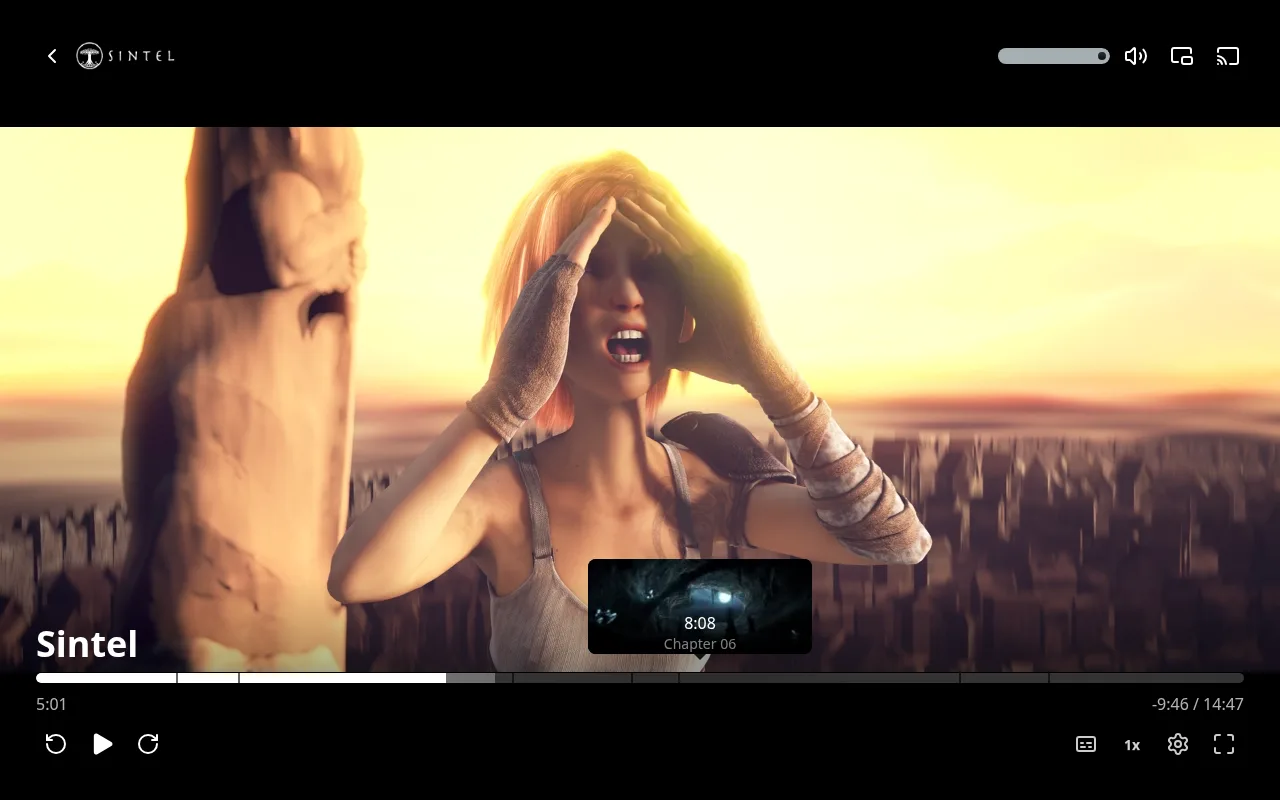
Thin marks on the bar are chapters, when the file has them. Previews missing? See Scrubbing previews.
Skip intro and next episode#
On a series, two buttons appear in the bottom right corner of the picture while they apply:
- Skip intro while the episode is in its opening titles.
- Next episode near the end, during the credits, when another episode is queued.
Each goes away after a short countdown if you ignore it. With a keyboard or remote, Enter or OK presses it.
Skip intro automatically and Automatically play next episode in App settings > Playback do it for you. How intros are detected: Playback.
Picture-in-picture and fullscreen#
Picture-in-Picture, top right, pops the video out into a floating window on top of other windows. Press it again to bring the video back.
Fullscreen, bottom right, fills the screen (f, or double-click the picture). On a phone, Lock orientation
keeps the screen from rotating.
On a phone#
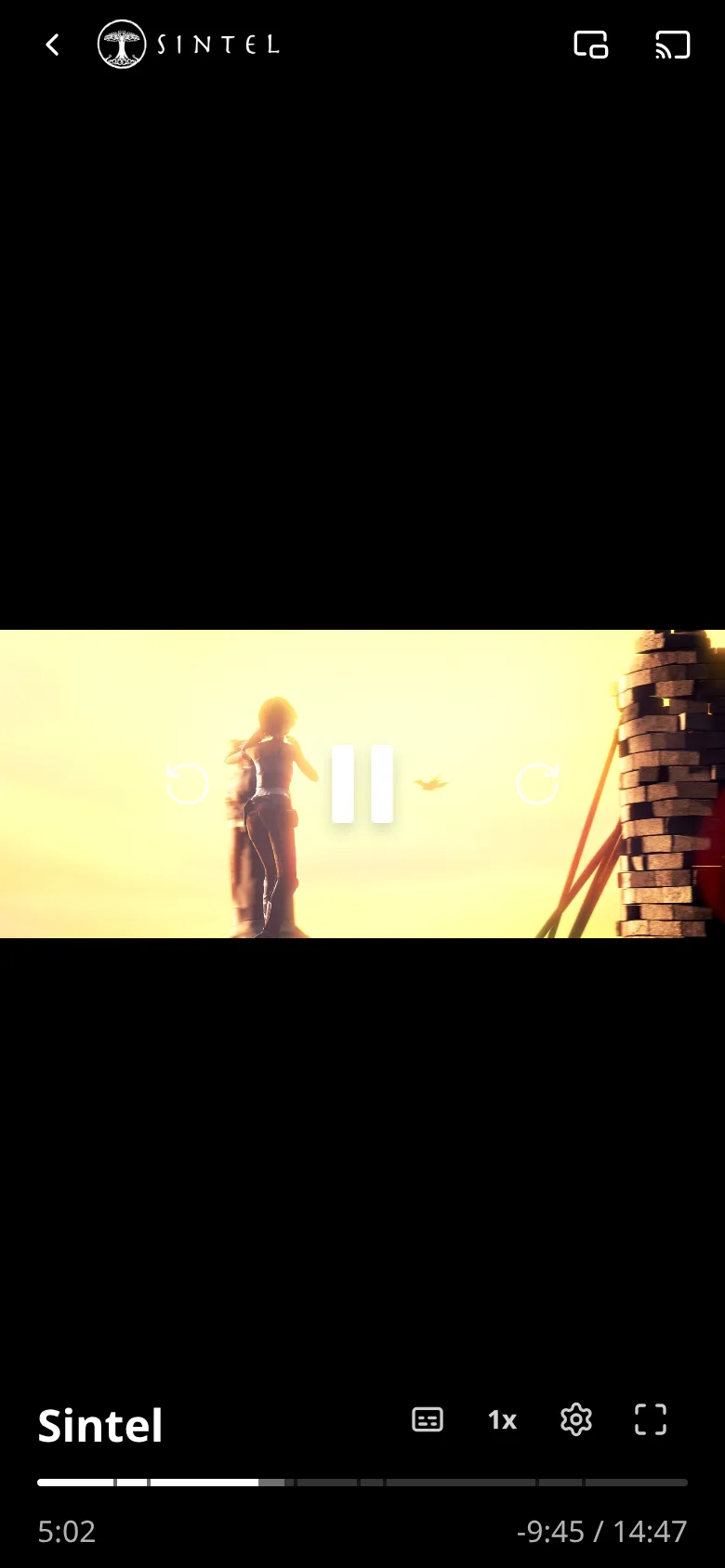
The same controls are laid out for touch. Tap the picture to show them. Big Rewind 10 seconds, Play/Pause and Forward 10 seconds buttons sit in the middle, and the row above the seek bar holds Subtitles, Audio, Speed, Settings and Fullscreen. Each menu opens as a sheet from the bottom of the screen.
See Keyboard and gestures for every shortcut.