
Downloads
Custom formats
Add or subtract points on releases that match a pattern, such as a codec, a release group or a word in the name, and test them on a release title.
A custom format is a named test with a score, such as "HEVC: +50", added to releases that match it, to tell apart releases of the same quality. Optional: quality profiles work without any. Create one in Settings > Custom formats, then check it with Test a release title.
What a custom format does#
Quality alone does not tell two releases apart: two 1080p WEB-DL files can be a good encode and a bad one. A custom format is a named test with a score. When a release matches it, the score is added to that release. Higher totals rank first among releases of the same quality, and a negative total can push a release out altogether.
Typical uses:
- Prefer a codec (HEVC) or a release group you trust: give it a positive score.
- Avoid a flaw (hardcoded subtitles, a bad group): give it a negative score.
- Refuse a flaw outright: give it a very negative score and keep the profile's minimum at 0.
Custom formats are global. They are not attached to a profile. Every format scores every release, and each quality profile only sets the minimum total it accepts.
Create a custom format#
Settings > Custom formats (Media section, Settings access permission).
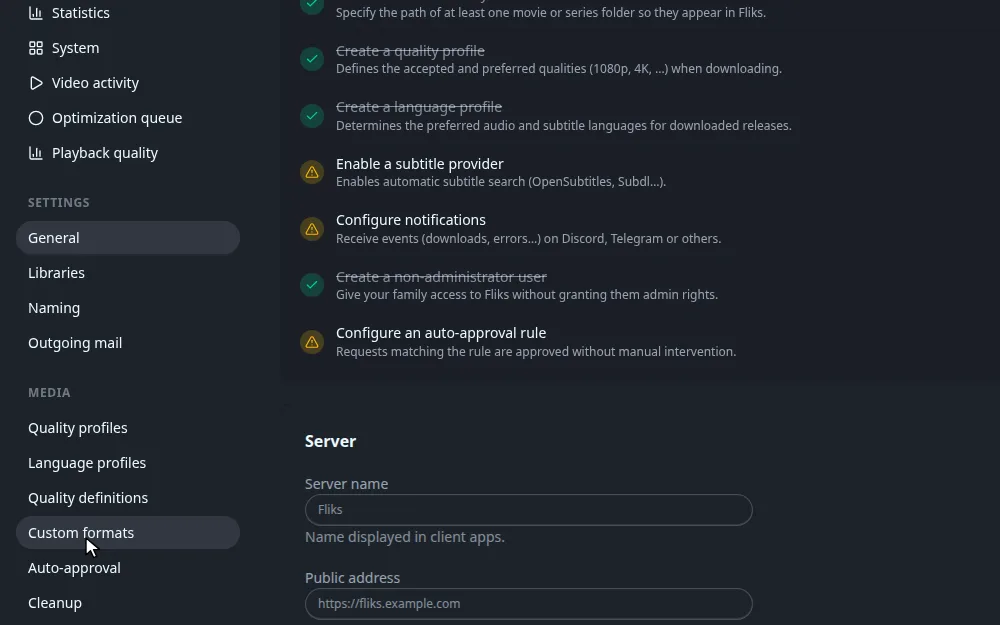
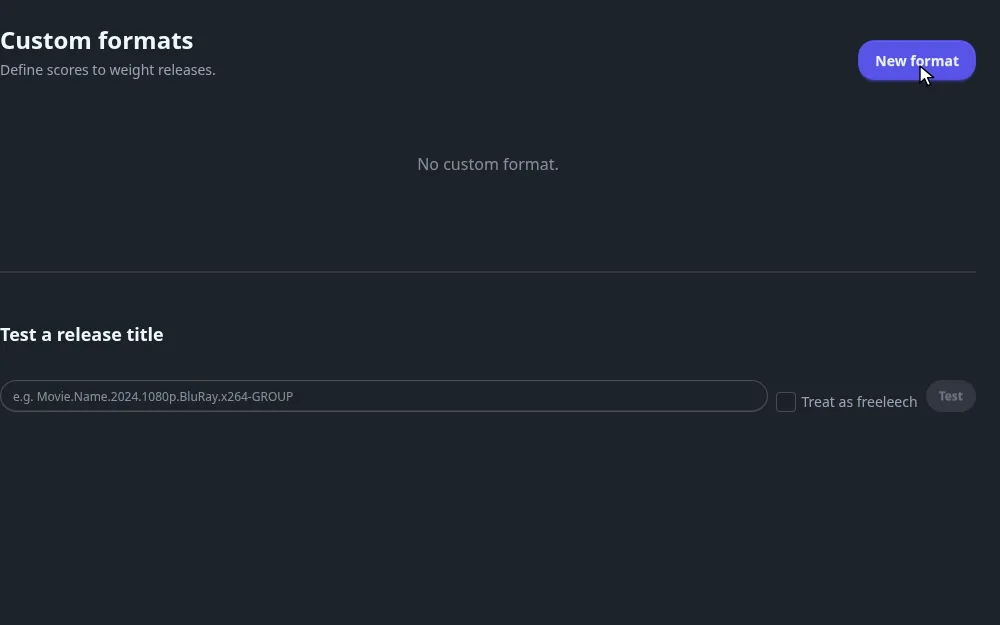
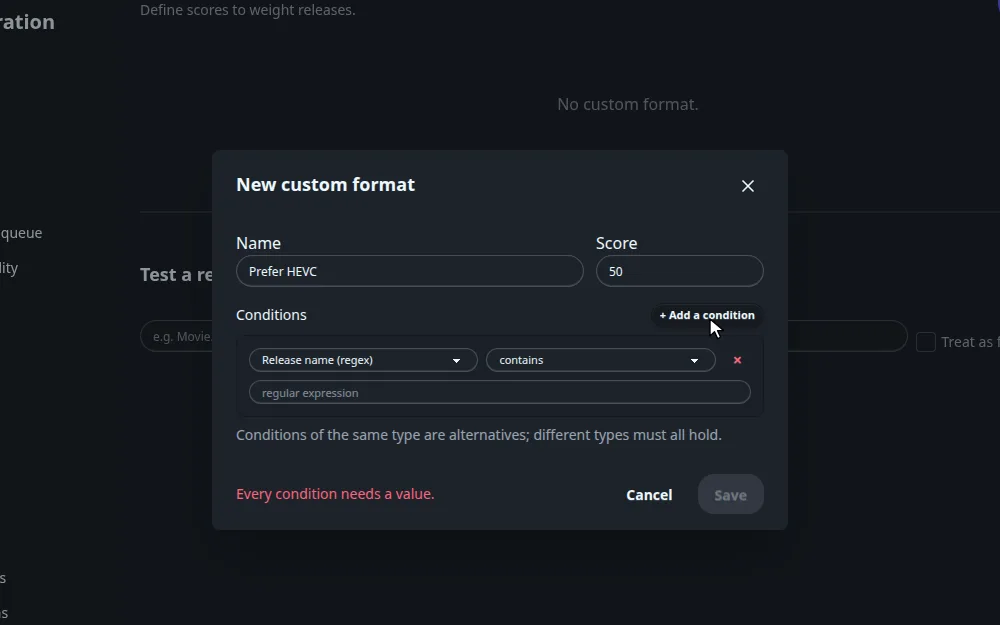
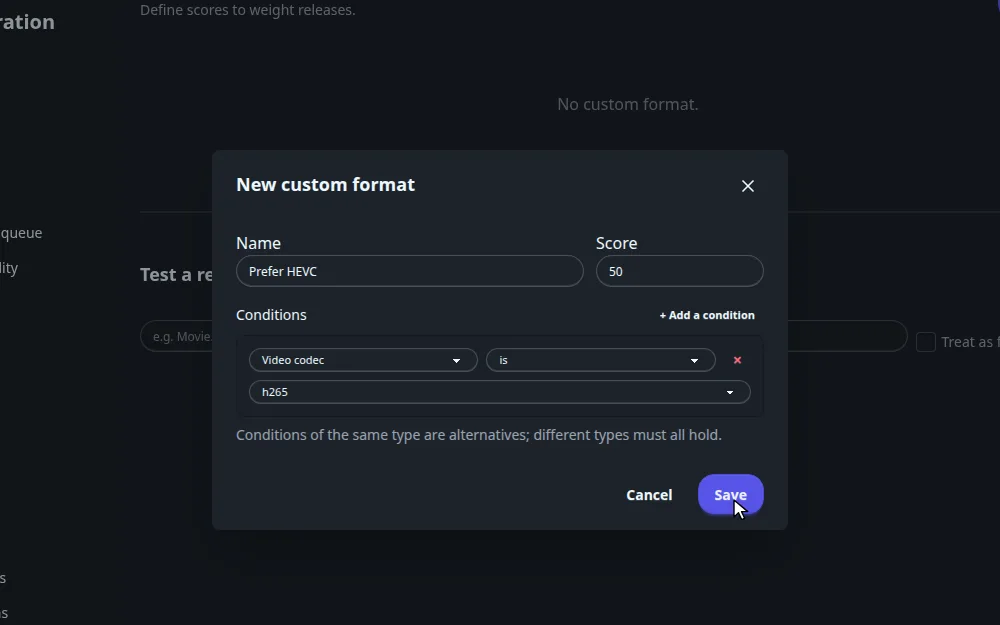
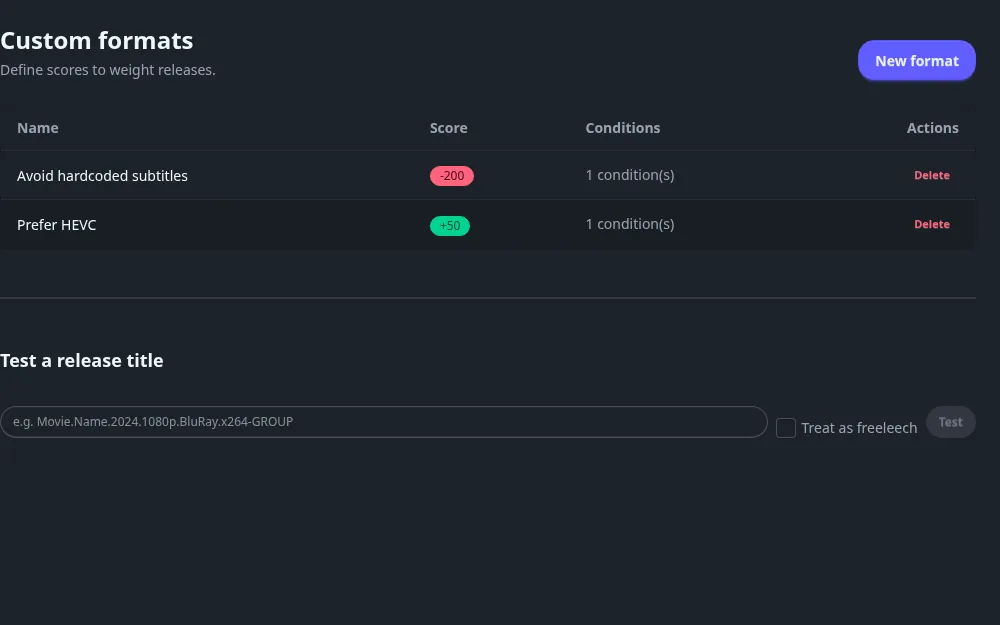
To change a format, click its name. To remove it, click Delete and confirm. Deleting a format removes its points from future searches at once.
Every field and every condition type
| Field | What it does |
|---|---|
| Name | A label, required. |
| Score | A whole number, positive or negative. Default 0. It is added to every release that matches the format. |
| Conditions | The tests. A format needs at least one. Add a condition adds a row; the cross on a row removes it. |
Each condition row has a type, an operator and a value.
| Type | Operator | Value | Matches |
|---|---|---|---|
| Release name (regex) | contains / does not contain | A regular expression | The release title, ignoring case. The pattern must compile, or the form refuses to save. |
| Source | is / is not | remux, bluray, web-dl, webrip, hdtv, dvd, sdtv, cam, ts, tc | The source read from the title. |
| Resolution | is / is not | 4320p, 2160p, 1080p, 720p, 576p, 480p, 360p | The resolution read from the title. |
| Language | is / is not | A language code from the list | A language read from the title. A title with no language tag counts as English. |
| Release flag | is / is not | freeleech, halfleech | A flag set by the indexer. |
| Release group | is / is not | Free text | The group at the end of the title, for example GROUP in Movie.2024.1080p.WEB-DL-GROUP. |
| Edition | is / is not | Director's Cut, Extended, Theatrical, Uncut, Remastered, Criterion, IMAX | The edition read from the title. |
| Video codec | is / is not | h265, h264, av1, vp9, xvid, mpeg2 | The codec read from the title. |
| Audio codec | is / is not | truehd, dts-hd, dts, eac3, ac3, flac, aac, opus, mp3 | The audio codec read from the title. |
Separators are ignored when comparing a value, so web-dl, WEB.DL and webdl are the same.
On a row, Always required appears once the format has two or more conditions of the same type.
How conditions combine
Read the hint at the bottom of the form: conditions of the same type are alternatives, different types must all hold.
- Two Video codec conditions (h265, av1): one match is enough.
- A Video codec and a Source condition: both groups must match.
- Always required on a condition: that one must hold on its own, even when the others of its type match.
- is not and does not contain invert the condition. A format whose only condition is negated matches every release that does not have the property.
- A pattern that does not compile matches nothing, so a negated one holds. The form prevents saving such a pattern.
How scores are used
- Every format that matches a release adds its score. The total is the release's custom format score, shown in the CF column of the manual release list.
- If the total is under the profile's Minimum custom format score, the release is refused. With the default of 0, only a negative total refuses.
- Among releases of the same quality, a higher total sorts first. The score never lifts a lower quality above a higher one: quality rank is compared first.
Test a release title#
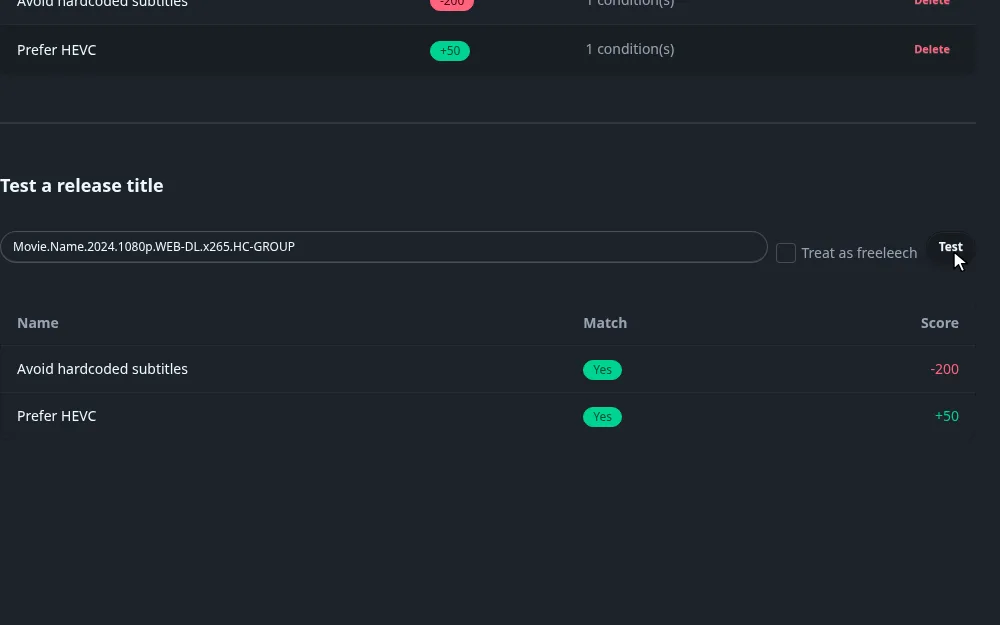
Under the list, Test a release title shows exactly how your formats read a title. Paste a release name, tick Treat as freeleech if you want to test a flag, and click Test. The table lists every format with Yes or No and the points it adds. Use it before relying on a new format: it runs the same matcher as a real search.
Worked example: prefer HEVC, avoid hardcoded subtitles
- Create Prefer HEVC with score
50and one condition: Video codec ish265. - Create Avoid hardcoded subtitles with score
-200and one condition: Release name (regex) contains\b(HC|hardsub|hardcoded)\b. - Test
Movie.Name.2024.1080p.WEB-DL.x265.HC-GROUP. Both match, for a total of -150.
With the minimum score left at 0, that release is refused. A plain Movie.Name.2024.1080p.WEB-DL.x265-GROUP totals
+50 and ranks above an equal release without HEVC.
How it connects#
- Quality profiles set the minimum total a release must reach.
- Quality definitions are checked separately, on size.
- Downloads runs the automatic searches that score releases.